Convert iPhone Video to MP4 Online for Free (100% Tested)
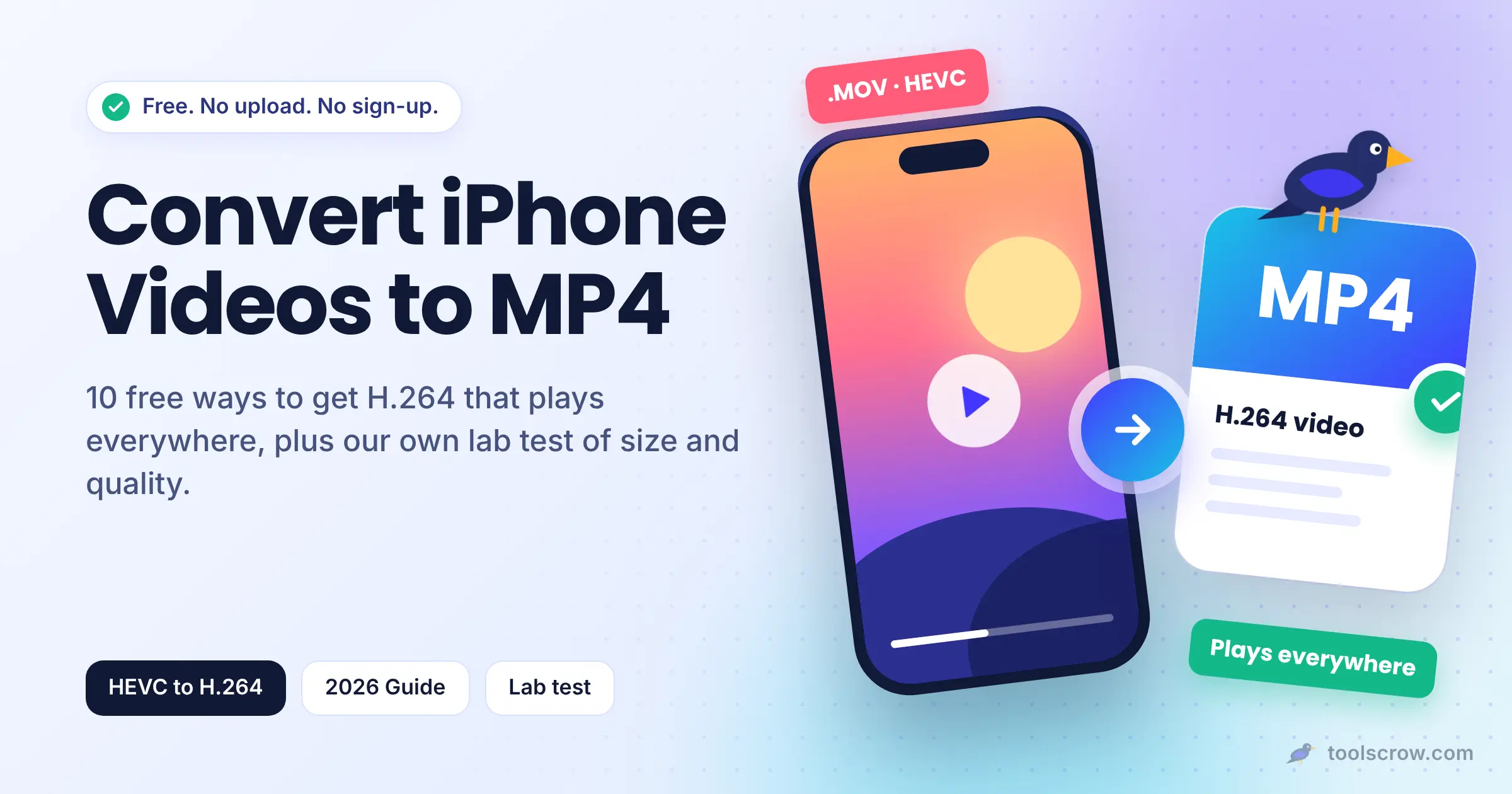
Convert iPhone HEVC videos to H.264 MP4 free in your browser. No upload, no signup. Includes our 2026 lab test on size v…
Read article →Make an iPhone video play everywhere. Converts MOV and HEVC recordings to standard H.264 MP4 without uploading anything.
iPhones record in a QuickTime MOV container, and since iOS 11 the default codec is HEVC (H.265), which Apple calls "High Efficiency". It makes smaller files, but Windows often needs a paid codec to play it, Android support varies, and many editors and websites reject it outright.
This tool re-encodes the video to H.264 inside an MP4, which is the combination that plays on effectively every device, website and editor made in the last fifteen years. Whether an iPhone video can be read at all depends on your device's HEVC support: Safari on a Mac or iPhone handles it, Chrome and Edge do on hardware that supports it, and Firefox generally does not.
No. Everything runs inside your browser tab using your own device's video hardware. Your file is never sent to ToolsCrow or anyone else, which also means there is no waiting for an upload and it keeps working if your connection drops after the page has loaded.
It is free with no sign-up, no watermark and no daily limits. The only limits are the ones your device sets: memory and processing power.
Because the video is processed on your device, the limit is your device's memory rather than a server quota. Phone clips of several hundred MB are fine on most devices, and desktop computers usually handle 1 to 2 GB. Files over about 4 GB are not supported.
Current Chrome, Edge and Safari (16.4 or newer, including iPhone and iPad) work best because they include the WebCodecs video engine. Recent Firefox versions work for many files. Older browsers fall back to a much slower real-time mode or may not work at all.
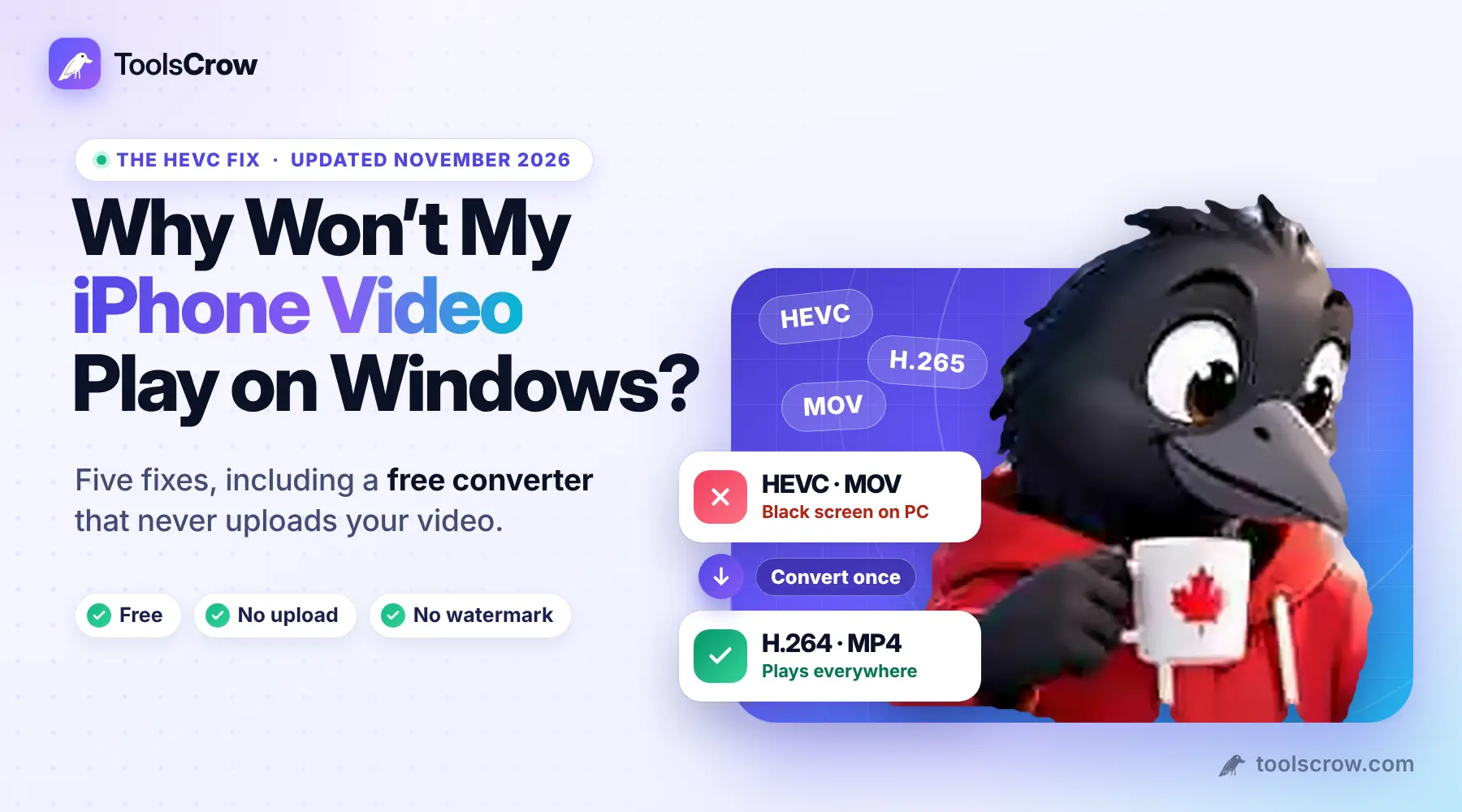
Because it is HEVC (H.265) in a MOV container. Windows needs a codec package for HEVC. Converting to H.264 MP4 removes the problem entirely.
On the iPhone, go to Settings > Camera > Formats and choose "Most Compatible". New recordings will be H.264.
Often yes, since H.264 needs more bits for the same quality. Run the result through the Video Compressor if size matters.
iPhones often record HEVC (H.265). Whether a browser can decode HEVC depends on your device: Safari usually can, Chrome and Edge only with supported hardware, Firefox generally cannot. If your video is rejected you will see a clear message rather than a broken file. In iPhone settings, Camera > Formats > Most Compatible records H.264 instead.
More in convert video (19 tools), or browse all video tools..
Convert iPhone HEVC videos to H.264 MP4 free in your browser. No upload, no signup. Includes our 2026 lab test on size v…
Read article →To play this video, you need a new codec" - here's why Windows can't play iPhone videos and four fixes, including a free…
Read article →This iPhone Video Converter solves a problem almost every iPhone user has hit at least once.. a video that plays flawlessly on your phone but refuses to open on a laptop, a smart TV, or a client's computer. It converts MOV and HEVC recordings into standard H.264 MP4, the one format that plays everywhere.