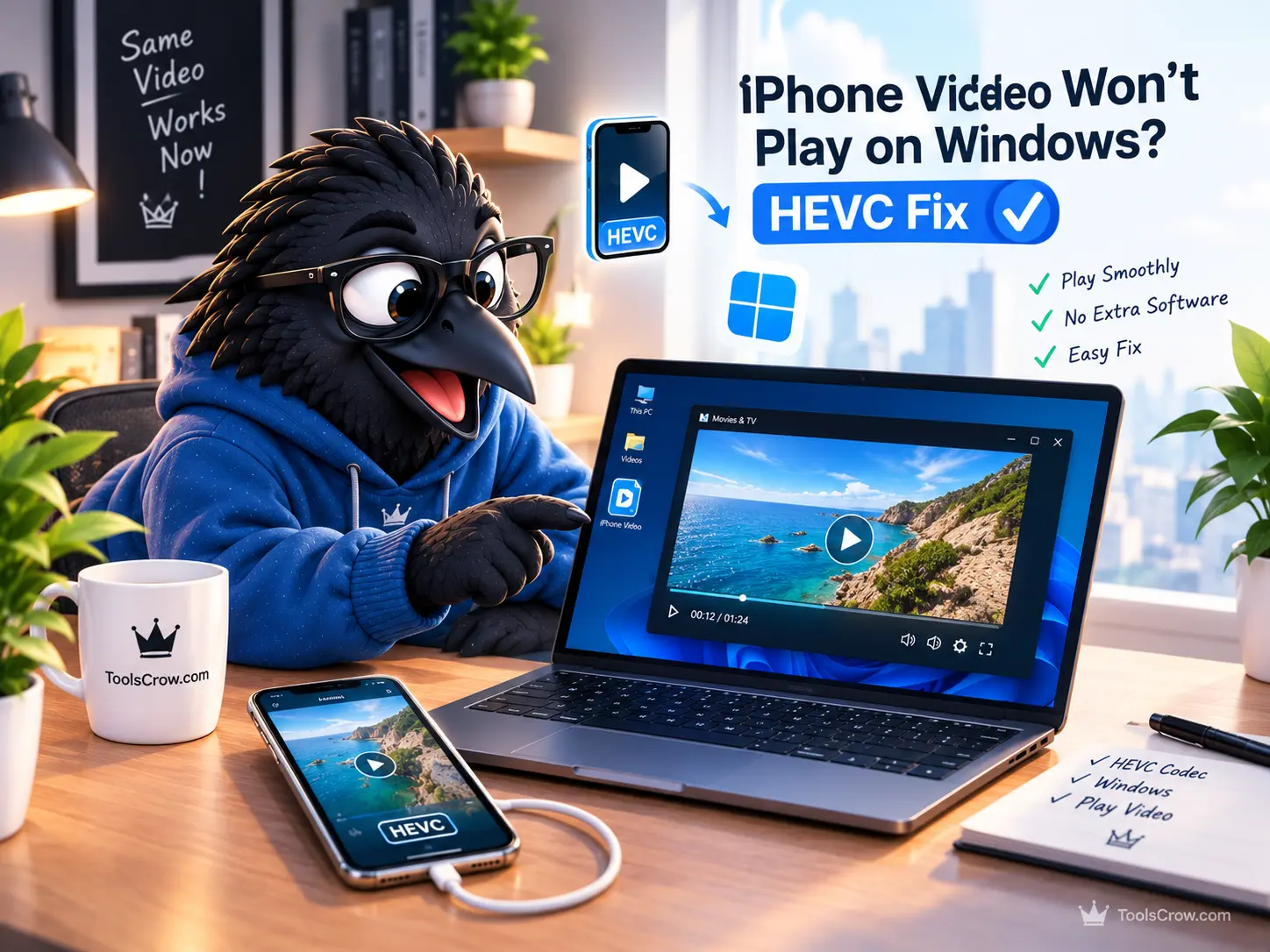
You copy a video from your iPhone to a Windows PC and double-click it. Sometimes you get a black screen with sound. Sometimes the player asks you to install something. Sometimes you get the message "To play this video, you need a new codec." The file is not broken, and your phone did nothing wrong. It saved the video in a format that Windows does not include by default.
This guide explains what is going on in plain language, then gives you four fixes. Each one suits a different situation, so you can pick the one that matches what you actually need to do with the video, whether that is watching it once, editing it, or sending it to someone else.
The Quick Answer
iPhones record video in a format called HEVC, also known as H.265. Windows 10 and Windows 11 do not include the HEVC decoder out of the box. You have four ways around that:
- Play it in VLC. Free, and good for simply watching.
- Install Microsoft's HEVC Video Extensions. About $0.99, and it makes Windows' built-in apps work.
- Convert the video to H.264 MP4. The fix that works everywhere, including editors, websites, and other people's devices.
- Change two iPhone settings. So future videos arrive in a format Windows can already play.

Why This Happens
Video files have two layers. The outer layer is the container, which is what the file extension tells you: MOV or MP4. The inner layer is the codec, the method used to compress the picture. Your iPhone records MOV files, and since iOS 11 the codec inside has defaulted to HEVC. Apple calls this setting "High Efficiency."
HEVC is genuinely good at its job. It stores roughly the same picture quality in about half the data that the older H.264 codec needs, which is why phones, drones, and action cameras use it. The catch is licensing. Patent costs kept HEVC out of many players and browsers, so Windows does not ship with it. Microsoft sells the decoder as a small add-on instead, and many video editors and websites simply reject HEVC files.
That is why the same file plays perfectly on your iPhone, which has the decoder built in, and fails on a Windows PC, which does not. If you want the full explanation of containers and codecs, our guide on converting between MP4, MOV, and WebM covers it in more depth.
Step 1: Confirm the Video Really Is HEVC
Before fixing anything, spend thirty seconds checking. Open the Video Codec Checker, drop in your file, and read the answer at the top. It reads the codec from the file and also tells you whether your own browser can decode it.
Two things make this tool handy. It only reads the file's index, not the whole video, so even a multi-gigabyte file answers almost instantly. And the file is read on your device, so nothing is uploaded. It works with MP4, MOV, M4V, WebM, MKV, 3GP, and FLV files.
If the result says HEVC, carry on to the fixes below. If it says H.264 and the video still will not play, HEVC is not your problem. In that case, try copying the file from the phone again in case the transfer was cut short, and try opening it in VLC to see whether the file itself is damaged.
Fix 1: Play It in VLC (Free, Watching Only)
VLC is a free media player that includes its own decoders. Microsoft's own support staff point people to it for exactly this problem, because it plays HEVC videos without any additional Windows components. Install it, open your video with VLC, and it plays.
Use this when you just want to watch a video on your PC and do not need to do anything else with it.
What it does not do: it does not change Windows itself. The Photos app and Movies & TV will still fail on the same file, video editors will still reject it, and anyone you send it to will hit the same wall.
Fix 2: Install Microsoft's HEVC Video Extensions (About $0.99)
Microsoft sells the HEVC decoder in the Microsoft Store as "HEVC Video Extensions," at around $0.99 according to several 2026 guides and Microsoft's own support answers. After you install it, restart the Photos app or your video player and HEVC files should play in Windows' built-in apps.
Use this when you regularly open iPhone videos on this one PC and want them to work in Photos and Movies & TV without installing other software.
Be aware of three things. First, some guides mention a free listing called "HEVC Video Extensions from Device Manufacturer." Reports on whether it is available are inconsistent, so do not plan around it. Second, the extension fixes Windows' built-in apps, but some people report that video editors still struggle with iPhone footage even after installing it. Third, it only helps on your computer. It does nothing for the person you are sending the video to.
Fix 3: Convert the Video to H.264 MP4
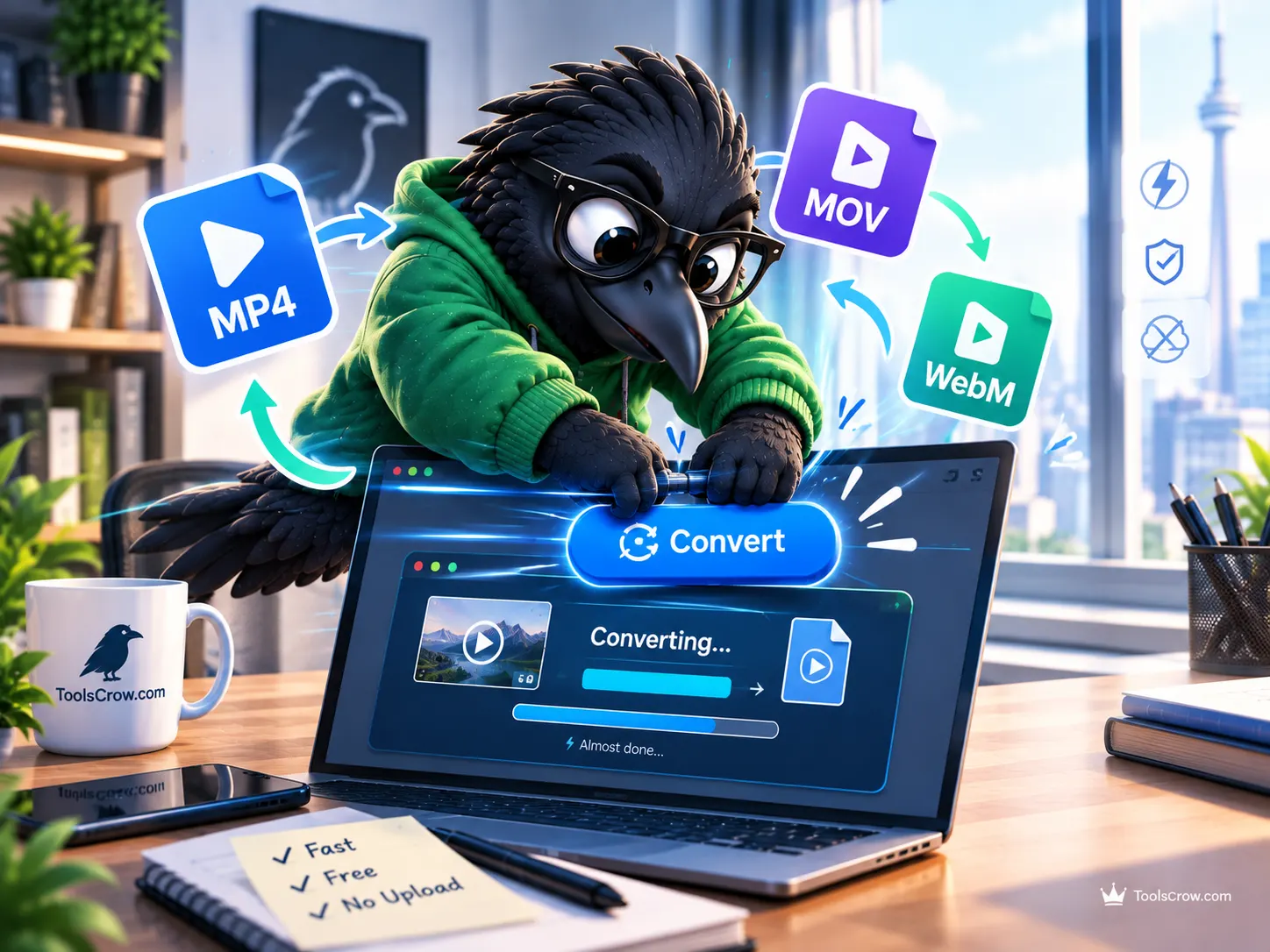
This is the fix that solves the problem for good, because it changes the video itself. H.264 inside an MP4 is the most widely supported combination there is. It plays on Windows, Android, older TVs, websites, and in editors, with nothing to install on anyone's device.
Use this when you need to edit the video, upload it to a site that rejects H.265, send it to someone else, or play it on an older TV.
How to Do It
- Open the HEVC to H.264 converter. If the video came from an iPhone and is a MOV file, the iPhone Video Converter does the same job.
- Choose your video.
- Leave the quality on High, which is tuned to look visually the same as the original.
- Press Convert, then download the H.264 MP4.
The whole process runs in your browser using your device's own video hardware. Your file is never uploaded, there is no watermark, and there is no sign-up.

What to Expect, Honestly
It takes real processing time. Going from HEVC to H.264 cannot be a quick repackaging job, because the two use different codecs. The video has to be decoded and then re-encoded, so a longer clip takes longer than a simple format swap would.
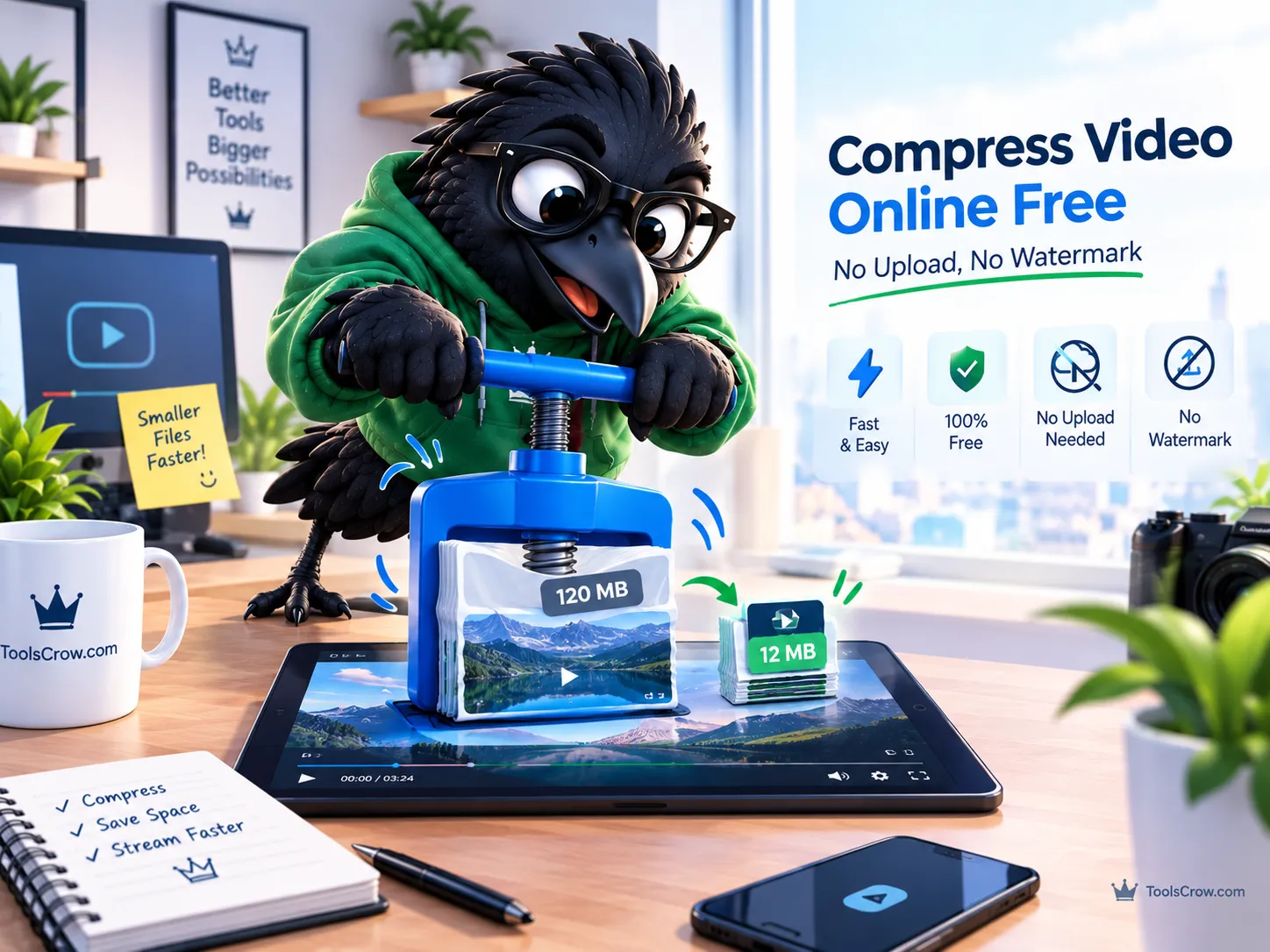
The file usually gets bigger. H.264 is less efficient than HEVC, so it needs more data to hold the same quality. That is the trade-off for compatibility, not a sign something went wrong. If size matters, run the result through the Video Compressor, which lets you type an exact target in MB. Check the destination's current limit first, because they change. For example, Discord's own help page says the free upload limit is 20 MB as of August 2026, after about two years at 10 MB.
Keep the original. Converting creates a new file and leaves your HEVC original untouched. Hold on to that original, since it is the smaller, higher-efficiency copy.
The Catch Nobody Mentions: Your Browser Has to Read HEVC First
To convert a video in the browser, the browser must be able to decode it first. On a Windows PC, that depends on your hardware. Chrome and Edge can decode HEVC on computers with supported hardware, and Firefox usually cannot. Safari on Apple devices is the reliable option.
If your browser cannot read the file, the tool tells you so in plain language instead of producing a broken video. The simplest workaround is to do the conversion where HEVC is already supported: open the same tool in Safari on your iPhone, which needs no app, or in Safari on a Mac. Then move the finished MP4 to your Windows PC.
Fix 4: Stop the Problem at the Source (iPhone Settings)
If you move iPhone videos to Windows often, two settings on the phone stop the problem from happening again. They do different jobs, so you may want both.
Setting 1: Record in H.264 from now on. Go to Settings, then Camera, then Formats, and choose "Most Compatible." New videos will be recorded in H.264. This does not change videos you have already shot, and files will take more storage on your phone.
Setting 2: Convert automatically when you transfer by cable. Go to Settings, then Photos, scroll to the bottom, and under "Transfer to Mac or PC" choose "Automatic" instead of "Keep Originals." Your iPhone then converts media to compatible formats as it copies them to the computer. Microsoft's own support staff recommend this setting for Windows users.

Which Fix Should You Use?
| Your situation | Best fix |
|---|---|
| Just want to watch it once on a Windows PC | VLC (Fix 1) |
| Want Photos and Movies & TV to play iPhone videos on this PC | HEVC Video Extensions, about $0.99 (Fix 2) |
| Need to edit the video in a Windows editor | Convert to H.264 MP4 (Fix 3) |
| Sending it to someone, or uploading it to a website | Convert to H.264 MP4 (Fix 3) |
| Chrome or Edge cannot read the file you want to convert | Convert in Safari on the iPhone (Fix 3) |
| Never want to deal with this again | Most Compatible plus Automatic transfer (Fix 4) |
Will Converting Make the Video Look Worse?
Any re-encode is technically a small step down, because the picture is compressed a second time. In practice, the High preset raises the bitrate so the result looks visually the same for normal viewing on a phone, laptop, or TV. That is also why the converted file ends up larger.
The sensible habit is to treat the original as your archive and the H.264 copy as your sharing version. Keep the HEVC file if you care about long-term quality and storage, and use the MP4 for editing, uploading, and sending.
Other Places You Will Hit the Same Wall
Windows is the most common place people meet this problem, but not the only one. Older TVs and media players often cannot read HEVC, and Android support varies by device. Many editors and websites reject H.265 files outright. In every one of those cases, the H.264 MP4 route in Fix 3 works for the same reason: H.264 plays on essentially every device, website, and editor made in the last fifteen years.
iPhone photos have a similar story. They are saved in a format called HEIC, which many Windows programs also struggle with. If that is your problem, the HEIC to JPG converter handles photos the way this guide handles video.
Frequently Asked Questions
Why does the video play on my iPhone but not on Windows?
Apple devices include an HEVC decoder. Windows does not include one by default, so the same file that plays on your phone fails on a PC until you add a decoder, use a player that has its own, or convert the file.
Is HEVC the same thing as H.265?
Yes. HEVC stands for High Efficiency Video Coding and H.265 is its standard name. The older codec it replaced is H.264, which is also known as AVC.
Do I have to pay to play iPhone videos on Windows?
No. VLC is free and plays HEVC with nothing extra installed, and converting to H.264 is free. The HEVC Video Extensions from Microsoft, at around $0.99, are the one paid route, and only worth it if you want Windows' built-in apps to work.
Is it safe to convert private videos online?
It depends on how the converter works. Many online converters upload your file to their servers. The HEVC to H.264 tool here runs entirely in your browser, so your video never leaves your device. That also means it keeps working if your connection drops after the page loads.
Can I convert the video on my iPhone without an app?
Yes. Open the converter in Safari on your iPhone, choose the video, and convert it there. This is also the most reliable way around the browser-support problem described above, since Safari on Apple devices handles HEVC well.
The tool says it cannot read my video. What now?
That means your browser cannot decode HEVC on your current device. Open the same page in Safari on an iPhone or Mac, or try Chrome or Edge on a computer with HEVC hardware support. For future videos, set Camera to Most Compatible on the iPhone so new recordings are H.264 from the start.
Will the converted file be smaller or larger?
Usually larger, because H.264 needs more data than HEVC for the same quality. If you need it smaller, the Video Compressor can shrink it to a target size in MB.
The Bottom Line
Your iPhone video is fine. It is simply stored in a format Windows does not include. If you only need to watch it, VLC solves it in a minute. If you want Windows' own apps to work, the $0.99 extension does that. If you need to edit, upload, or share the video, converting to H.264 MP4 is the dependable answer, and changing two iPhone settings stops the problem from coming back.
Fix your video now, free and with no upload:
HEVC to H.264 Converter
iPhone Video Converter
Video Codec Checker
Video Compressor
Related reading: Free Online Video Converter: Convert MP4, MOV and WebM and Free Online Video Compressor: Reduce Video File Size.
Comments (0)
No comments yet. Be the first to share your thoughts!
Leave a Comment
All comments are reviewed before publishing. Please keep it respectful and on-topic. Comments with links or promotional content will be rejected automatically.