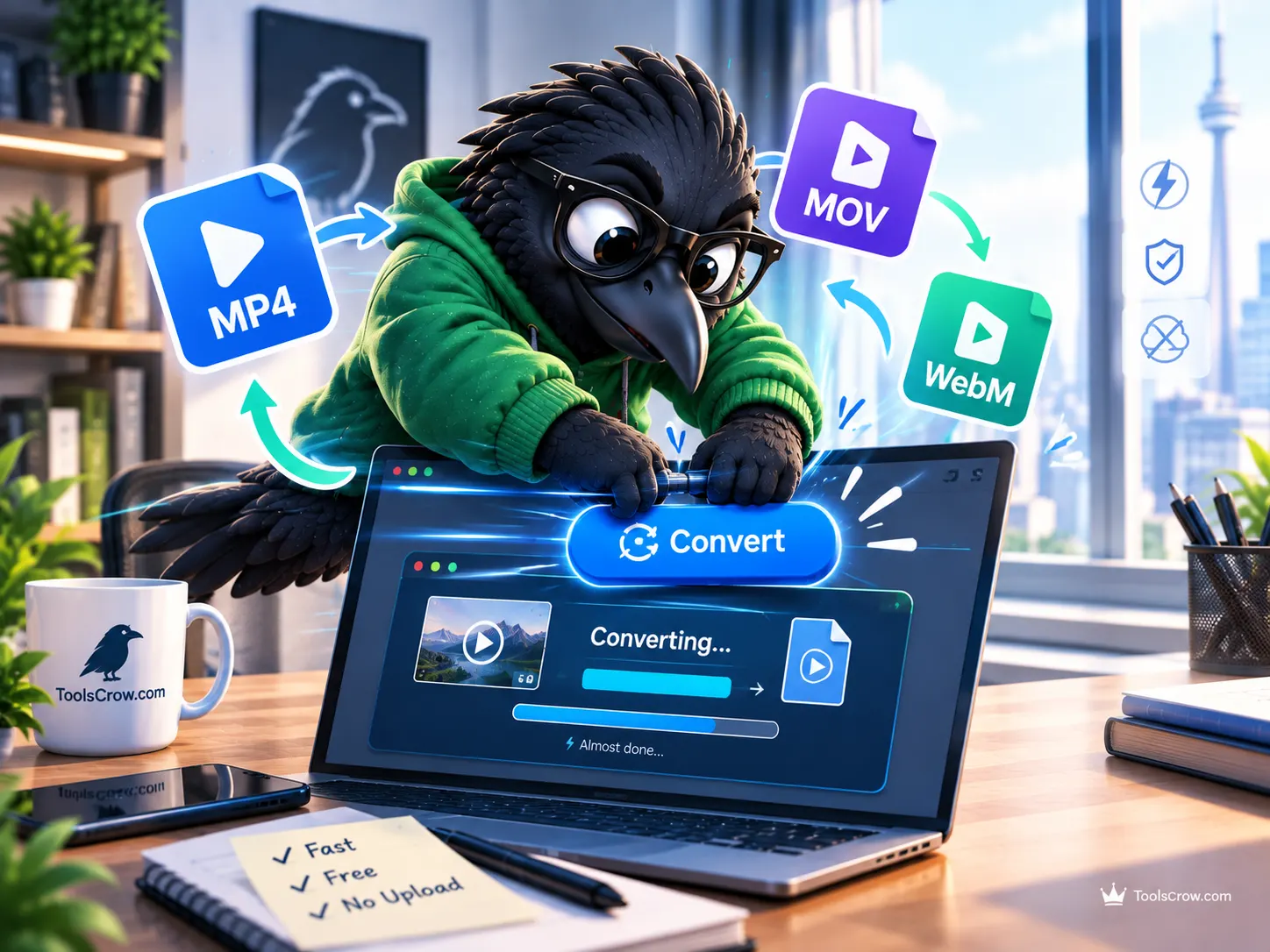
A video arrives as a .mov file from someone's iPhone, and the Windows laptop it needs to open on either plays it with broken colors or won't open it at all. A finished edit needs to go on a website, but the export is a 400MB .mp4 when the site really wants the far lighter .webm format browsers handle natively. A client sends over footage in a format an editing timeline simply refuses to import. None of these are actually video quality problems. They're container problems - the file format wrapping the video is wrong for where it's going, even though the footage inside it might be perfectly fine as-is.
Fixing that doesn't need to mean a slow re-export that visibly degrades the footage, and it doesn't need desktop software installed just to change a file extension. This guide covers what a "format" actually is on a technical level, why some conversions are genuinely instant while others take real processing time, and how to convert between MP4, MOV, and WebM without uploading the file anywhere or losing quality in the process.
Quick Summary: How to Convert a Video Right Now
- Same codecs, different container? Instant and lossless - nothing gets re-encoded.
- Different codecs? Real re-encoding time, but your device's hardware handles it - nothing gets uploaded.
- iPhone .MOV to Windows? Convert to MP4 - the codecs already match, so it's fast and lossless.
- Video for a website? WebM - smaller files, every modern browser plays it natively.
- Not sure what to pick? MP4 is the safest universal default.
- Nothing leaves your device - everything runs in the browser tab.

Video Formats Explained: Container vs Codec
Here's the detail that makes video conversion confusing for anyone who hasn't worked with it before: a "format" like MP4 or MOV isn't really one thing. It's two separate things bundled together under one file extension, and understanding the difference is what explains why some conversions take two seconds and others take two minutes.
The first part is the container - think of it as the box the video ships in. MP4, MOV, and WebM are all containers. A container holds the actual video data, the audio data, and some organizational information (like how they're supposed to stay in sync), but the container itself doesn't do any compression or quality work. It's just packaging.
The second part is the codec - the actual compression method used to encode the video and audio inside that container. H.264 is a video codec. So is VP9. AAC is an audio codec. So is Opus. The codec is what determines how small the file is and how it actually looks and sounds; the container is just what holds it.
Here's why this distinction matters so much in practice: a huge number of videos that people think need "converting" are actually already using a codec the target container fully supports - they're just sitting in the wrong box. An iPhone video recorded in H.264 and AAC, sitting inside a .mov container, contains exactly the codecs an .mp4 container is built to hold. Converting it isn't a re-encoding job at all. It's a repackaging job - pulling the same, unmodified video and audio streams out of one container and dropping them straight into another, with nothing recompressed and nothing lost.

Why Some Video Conversions Take 2 Seconds and Others Take 2 Minutes
This container-versus-codec distinction is exactly what the free Video Converter at toolscrow.com is built around, and it's worth understanding both paths before converting anything, because knowing which one applies to a specific file changes what to expect.
When the codecs already match the destination container - the most common real-world example being a MOV file using H.264 and AAC being converted to MP4, since that's exactly the codec combination MP4 is built to hold - the tool offers a "Fast mode." This copies the existing video and audio streams directly into the new container without touching the actual compressed data at all. No decoding, no re-encoding, no quality loss of any kind, because nothing about the actual video or audio content is being changed - only the wrapper around it. This is why a conversion like this finishes in a fraction of a second even on a large file: there's no heavy processing work happening, just a fast repackaging operation.
When the codecs don't match - the clearest example being a WebM file using VP9 video needing to become an MP4, since MP4 doesn't support VP9 - genuine conversion work is required. The video has to be fully decoded back into raw, uncompressed frames and then re-encoded using a codec the new container actually supports, which for MP4 output means H.264. This step uses the device's own hardware video encoder (the same chip that handles video encoding for the device's camera app), and a quality level gets chosen - the tool caps the resulting bitrate so the new file doesn't end up larger than the original despite the format change.
Knowing which of these two situations applies to a specific conversion explains, in advance, whether to expect something close to instant or something that takes genuine processing time - and neither outcome means anything is broken.
MP4 vs WebM vs MOV: Which Format Should You Use?
With three possible output formats, the right choice comes down entirely to where the video is going next, not personal preference.
MP4 is the right default for maximum compatibility. It plays on effectively every phone, TV, social platform, and email client without exception, which makes it the safe choice whenever the destination isn't specifically known, or when the video needs to work reliably across many different devices and apps.
WebM is the right choice specifically for web use - embedding a video directly on a website or in a web app. Its VP9 codec typically produces a noticeably smaller file than H.264 at a comparable visual quality, and every modern browser plays WebM natively, which is exactly the audience a website serves. For a portfolio site, a product demo embedded on a landing page, or any video that needs to load fast inside a browser tab, WebM is usually the better technical fit, not just an alternative.
MOV is the narrowest-use format of the three, and the right call specifically when a professional Apple-centric editing workflow calls for it - importing into Final Cut Pro, working within an all-Apple production pipeline, or matching a format a collaborator's editing software specifically expects. Outside of that specific scenario, MOV offers no real advantage over MP4 for general sharing or playback, and its narrower device compatibility makes it the wrong default choice for anything headed to a general audience.

How to Convert Video for Specific Devices and Platforms
For the most common conversion destinations, dedicated one-step converters skip the format-picking step entirely - each one already knows the correct output for its purpose. MOV to MP4 handles the classic iPhone-on-Windows case, where the codecs typically already match and the conversion is instant. MP4 to WebM is the right path for embedding video on a website. WebM to MP4 reverses that for social media platforms that prefer MP4. And MKV to MP4 covers the common editing-software-compatibility case, where an MKV file needs to be importable into a timeline that only accepts MP4.
Each of these dedicated converters uses the same browser-based, no-upload architecture as the main Video Converter tool - nothing gets transmitted to a server, and the whole process runs in the tab.
Why Your iPhone Video Won't Open on Windows
This is worth its own section specifically because it's one of the most common video conversion frustrations that exists, and most explanations of it online are vague or wrong. An iPhone video that won't open on a Windows computer, or that a particular browser-based tool rejects outright, is very often not a MOV-versus-MP4 container problem at all - it's a codec problem hiding behind a container problem.
Modern iPhones, by default, record video using HEVC - also known as H.265 - a newer, more efficient video codec than H.264. The issue is that HEVC support is genuinely inconsistent across browsers and devices: Safari can usually decode it without any trouble, Chrome and Edge can only decode it with specific hardware support built into the device, and Firefox generally can't decode it at all. A video recorded in HEVC, regardless of whether it's sitting inside a .mov container, may simply fail to open in a browser-based tool that doesn't have HEVC decoding support on that particular device - and the fix for that isn't a different container, it's a different codec.
There are two practical ways to handle this. The first: if a browser-based conversion tool rejects an HEVC file outright, trying the exact same file in Safari specifically (which has the broadest HEVC support of the major browsers) often succeeds where Chrome or Firefox failed. The second, more permanent fix: changing the iPhone's own recording setting. Under Settings, then Camera, then Formats, selecting "Most Compatible" instead of the default "High Efficiency" tells the phone to record new videos in H.264 going forward instead of HEVC - meaning every future recording avoids this issue entirely, at the cost of slightly larger file sizes for the same recording.
A genuinely well-built conversion tool should explain this plainly when it happens - showing a clear message that a specific codec isn't supported on the current device or browser, rather than just failing silently or producing a broken, unplayable file with no explanation at all.
Why Your Converted Video Has No Sound (AAC vs Opus)
Here's a second, narrower technical detail worth knowing in advance, because it produces a result that looks like a bug but genuinely isn't one: on Chrome running specifically on Linux, the browser's built-in hardware encoder is unable to produce AAC audio - the audio codec most devices and platforms expect by default. When a conversion that requires re-encoding happens under those specific conditions, the resulting file gets Opus audio instead of AAC.
This isn't a failure or a sign of a broken conversion. Opus is a legitimate, high-quality audio codec, and it plays correctly in Chrome, Firefox, Edge, VLC, and recent versions of Safari. The only situation where this actually matters is if the destination specifically requires AAC audio for compatibility reasons - some older devices or specific software can be picky about this. If that's the case, running the same conversion in Chrome or Edge on Windows or macOS, or in Safari on any platform, avoids the Linux-specific limitation entirely and produces AAC audio as expected.
Can You Convert AVI, WMV, and MPEG-2 in a Browser?
Browser-based conversion tools are, by their nature, limited to the codecs a web browser itself knows how to decode and encode - and that list, while broad, isn't universal. Formats like AVI, WMV, and older MPEG-2 files frequently contain codecs - Xvid, DivX, WMV's own proprietary codec, or MPEG-2 itself - that browsers were never built to read natively, regardless of how modern or capable the browser otherwise is. A file like this may get rejected outright by a browser-based converter, not because the tool is poorly built, but because the underlying browser technology genuinely has no built-in way to decode that specific codec.
This is a real, structural limitation of browser-based conversion as a category, not a specific shortcoming of any one tool - and a tool that's upfront about this limitation, rather than attempting the conversion and producing a corrupted or broken result, is doing the more honest and more useful thing. For files in these older or more obscure formats, a desktop converter with its own bundled codec libraries remains the more reliable option.
How to Convert iPhone MOV to MP4 for Windows (Real Example)
Beyond the technical explanation, here's what this specific tool has actually done for people, based on real usage. A MOV file from an iPhone, needed on a Windows laptop, converted to MP4 in seconds with a clean, simple upload-pick-download flow - no forced signup, no ads breaking up the process. And in a case that tests the harder, genuine re-encoding path rather than the fast lossless one: a 200MB MP4 converted to WebM for a portfolio website, finishing in under a minute with audio and video staying perfectly in sync - notably, after the same user had already tried three other free converters that either broke the audio sync entirely or took far longer to finish the same job.
That second example is worth paying attention to specifically because audio sync drift is one of the most common things that goes wrong with lower-quality video conversion tools - the video and audio streams get processed slightly out of step with each other during re-encoding, and the result is a video where speech and lip movement, or a sound effect and its corresponding action, are audibly and visibly off by a fraction of a second. A tool that handles the harder re-encoding path (mismatched codecs) without introducing that drift is doing the genuinely difficult part of this job correctly, not just the easy lossless-copy part.

Frequently Asked Questions About Online Video Conversion
Does converting between formats ever reduce video quality?
It depends entirely on which of the two paths described above applies. When the existing codecs already match the target container - the Fast mode scenario - there is no re-encoding at all, so there's no quality loss whatsoever; the compressed video and audio data is copied exactly as it was. When the codecs don't match and genuine re-encoding is required, some quality change is inherent to any re-encoding process, though choosing a higher quality setting keeps that change minimal and generally unnoticeable for ordinary viewing.
Is my video actually safe, or does it get uploaded somewhere during conversion?
With a genuinely browser-based tool, the entire conversion - whether it's a fast container swap or a full re-encode - happens using the device's own processing power inside the browser tab itself. The video file is never transmitted to any server. This also means the process keeps working even if an internet connection drops partway through, since nothing was ever depending on a continuous upload or download in the first place.
Why would I choose WebM over MP4 if MP4 works almost everywhere?
MP4's universal compatibility is exactly why it remains the safer general-purpose default. WebM earns its place specifically for video that lives on a website, because its VP9 codec typically achieves a meaningfully smaller file size at comparable visual quality compared to MP4's H.264, and every modern browser - which is the entire audience a website video actually needs to reach - supports WebM natively without any plugin or special handling required.
My converted file plays the video but has no sound, or sounds wrong. What happened?
If there's no sound at all, the most common cause is the source video's audio codec not being one the browser can decode in the first place, which is more likely in older or unusual format files. If the audio plays but sounds unexpected, the Opus-instead-of-AAC substitution described earlier in this guide is the most likely explanation on certain browser and operating system combinations - Opus is a legitimate, fully functional audio codec, not a broken or lesser one, and the fix (if AAC specifically is required) is simply running the same conversion in a different browser.
Can I convert a video on my phone, or do I need a desktop computer?
Yes, conversion works directly on a phone, since the entire process runs inside the phone's own browser using its own hardware. This is specifically why no app installation is required for ordinary phone-based video conversion - whatever browser is already on the phone handles the whole job, provided it's a reasonably current version.
Convert Your Video Now - Free, No Upload, No Watermark
Most conversion situations come down to one simple check: do the existing codecs already match where the video is headed, or do they need genuine re-encoding? A MOV file with standard H.264 and AAC heading to MP4 is almost always the fast, lossless case. A WebM file with VP9 heading anywhere that needs H.264 is the genuine re-encoding case - still fully handled, just with real processing time and a quality choice involved.
The free Video Converter at toolscrow.com handles both cases directly in the browser, with nothing uploaded, no watermark, and no signup required. For a specific, named conversion - MOV to MP4, MP4 to WebM, WebM to MP4, or MKV to MP4 - the dedicated converters skip the format-picking step entirely.
Convert your video now, free:
Video Converter - MP4, WebM, or MOV, instant and lossless when possible, no upload, no watermark
Also useful: Video Compressor if the file also needs to be smaller, Video to MP3 to extract just the audio, and Remove Video Metadata to strip hidden location and device details before sharing.

Comments (0)
No comments yet. Be the first to share your thoughts!
Leave a Comment
All comments are reviewed before publishing. Please keep it respectful and on-topic. Comments with links or promotional content will be rejected automatically.