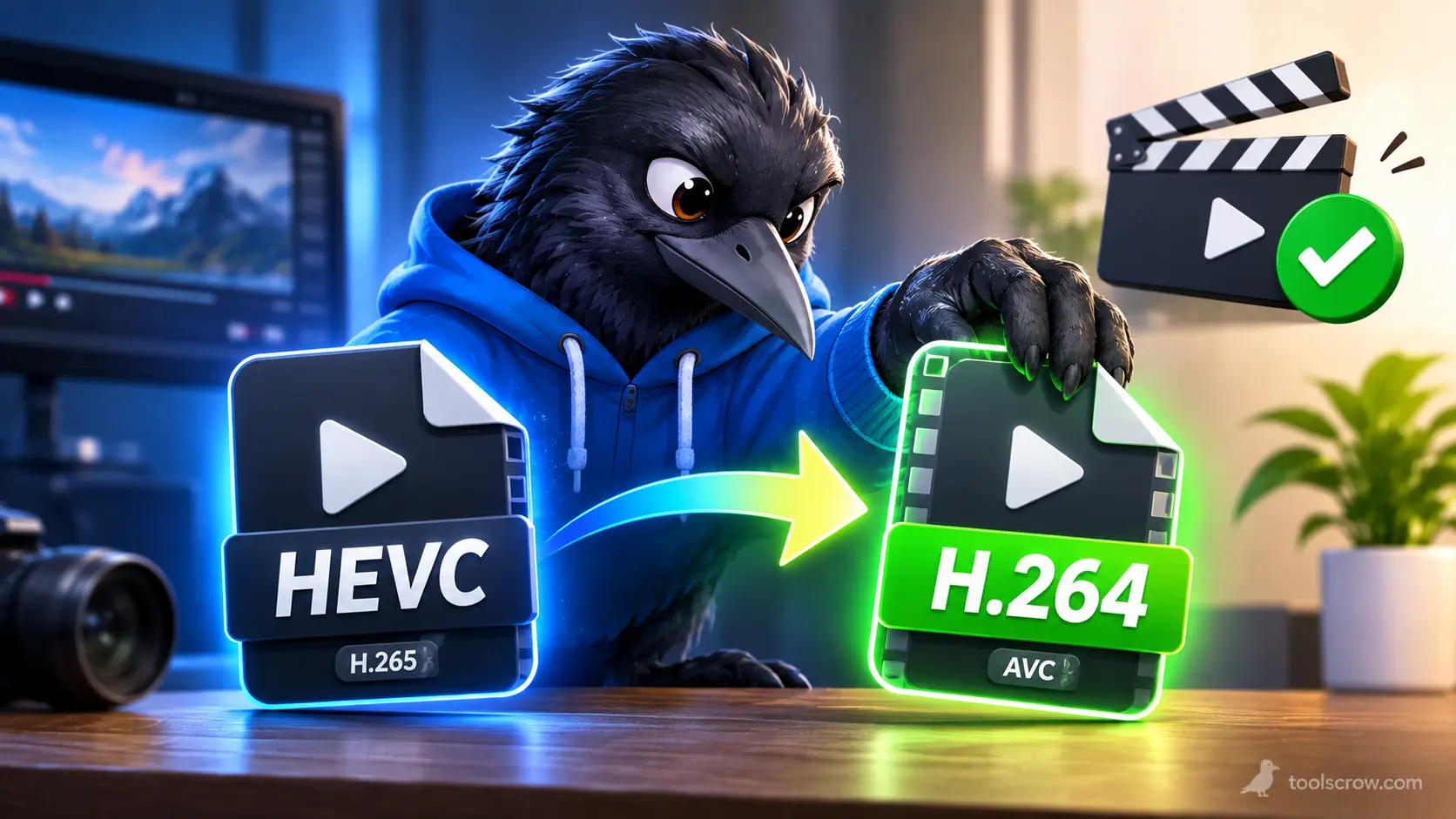
How to Convert HEVC to H.264 Without Losing Quality (Free Tool)
You have a video in HEVC (also called H.265), and something will not play it. Maybe it is an older TV, a Windows PC, a video editor, or a website that rejects the upload. The standard fix is to convert it to H.264, the format that plays almost everywhere. The question everyone asks next is the right one: will it look worse?
Here is the honest answer, because most guides skip it. Strictly speaking, no conversion between two lossy formats is perfectly lossless. HEVC and H.264 both throw away some detail to keep files small, and converting from one to the other means compressing the picture again. What you can achieve, and what matters in practice, is a result that looks the same to your eyes. This guide explains exactly what controls that, how to check your result instead of guessing, and how to do the conversion for free in your browser without uploading the video anywhere.
Disclosure: we build the ToolsCrow HEVC to H.264 converter, so it is the tool we walk through here. We also explain its limits, and everything in the quality sections applies no matter which converter you use.
The Short Version: Five Rules for a Clean Conversion
- Convert from the original. Never convert a copy that has already been compressed by a chat app or social site.
- Convert once. Every extra conversion is another round of compression.
- Let the file get bigger. H.264 needs more data than HEVC for the same picture. A larger file is how quality is protected.
- Use the highest quality setting. In the ToolsCrow tool, that is High.
- Check the result, and keep the original. Compare a few tricky scenes, and do not delete the HEVC file until you are happy.
Can You Convert HEVC to H.264 With Zero Quality Loss?
Both codecs are "lossy." That means the original footage from your camera is compressed by discarding information that people are unlikely to notice. When you convert HEVC to H.264, the video is decoded back into pictures and then compressed a second time with a different method. Each lossy compression leaves a small mark, and engineers call the cumulative effect generation loss. A copy of a copy is never quite identical to the original.
The size of that mark depends mostly on how much data you allow the second compression to use. Research on re-encoding broadcast video found that one extra generation cost very little quality, provided enough bitrate was spent, and that the price was a noticeably higher bitrate. That is the same logic behind converting to a bigger H.264 file on purpose.
What About "True" Lossless H.264?
H.264 does have a genuinely lossless mode, but it is rarely what anyone wants. The FFmpeg project's own documentation warns that lossless output files are likely to be huge and that most players other than FFmpeg-based ones cannot decode them. It is also only available in certain H.264 profiles. A lossless file defeats the whole purpose of converting for compatibility, since the file may not play on the very devices you are trying to reach.
The Practical Goal: "Visually Lossless"
The target professionals aim for is visually lossless: a conversion where you cannot tell the difference from the source on normal viewing. The FFmpeg documentation describes a quality level of about 18 on its common H.264 scale as visually lossless or nearly so, meaning it should look the same or nearly the same as the input without being technically lossless. That is exactly the aim of the High preset in the ToolsCrow converter, which its page says is tuned to be visually the same.
Why the Converted File Gets Bigger
This surprises people, and it is the key to understanding quality. HEVC is a newer and more efficient codec. Subjective tests reported by Microsoft Research found that HEVC reached equivalent quality to H.264 with about 50 percent less bitrate on average, and other sources put the typical saving at 30 to 50 percent, with the largest gains on high-resolution video and smaller gains on low-resolution clips.
Turn that around, and it tells you what H.264 needs. To match HEVC's picture, H.264 has to spend roughly 1.4 to 2 times as many bits. That is why the ToolsCrow page says its converter "raises the bitrate to keep the picture looking the same," and why it warns the file is usually larger than the original.
| Your HEVC file | Expected H.264 size at matching quality (estimate) |
|---|---|
| 50 MB | About 70 to 100 MB |
| 100 MB | About 140 to 200 MB |
| 500 MB | About 700 MB to 1 GB |
| 1 GB | About 1.4 to 2 GB |
These numbers are an estimate built from the 30 to 50 percent efficiency range above, not a promise. Real results depend on your footage. Busy scenes with lots of motion, grain or fine detail change more than simple, static ones. If a converter gives you a file the same size as the HEVC original, it did not match the quality. It cut it.
What Actually Decides Quality After Conversion
Bitrate (the biggest factor)
Bitrate is how much data is used for each second of video. At the same bitrate, HEVC looks better than H.264, so matching HEVC's quality means giving H.264 more. This single factor outweighs everything else. A converter that spends too little bitrate will leave blocky areas, smeared detail and a soft picture, especially in motion.
Resolution and frame rate
A faithful conversion keeps the same dimensions and the same frame rate as the source. A 4K video should stay 4K, and a 60 frames-per-second clip should stay at 60. Scaling down or changing the frame rate is a separate change that reduces quality on purpose, so confirm afterward that neither one changed unexpectedly. There is a simple way to do that later in this guide.
The quality of your source
No converter can add detail that is not there. A video that was already compressed hard, for example one saved from a messaging app, will look the same or slightly worse after conversion. Always go back to the original file from the phone or camera if you still have it.
Bit depth and HDR
Some HEVC videos are 10-bit, and many iPhone clips from the iPhone 12 onward can be HDR. Standard H.264 video is normally 8-bit and non-HDR for maximum compatibility. Converting a 10-bit or HDR clip down to ordinary 8-bit can produce visible banding in smooth gradients like skies, and HDR clips can look flat or washed out if they are not properly tone mapped. This is the one area where "looks the same" can fail, and it is covered in its own section below.
Audio
Quality complaints are usually about the picture, but check that the sound survives too. Play the converted file and listen for the beginning, the end and any quiet sections to confirm it is intact and in sync.
How to Convert HEVC to H.264 Free With ToolsCrow
The ToolsCrow HEVC to H.264 converter decodes your video and re-encodes it as an H.264 MP4 inside your browser, using your own device's video hardware. According to the tool page, it is free, needs no sign-up, adds no watermark, has no daily limit and never uploads your file.
- Open the HEVC to H.264 tool in a current browser.
- Choose your HEVC video.
- Leave the quality on High for the closest match to the original.
- Press Convert.
- Download the H.264 MP4.
The page describes the High preset and does not list manual bitrate or resolution controls, so the tool chooses the bitrate for you. For most people that is a benefit, since it removes the risk of picking a bad number. If you are a power user who wants exact control, see the FFmpeg section further down.
What to Know About Browsers and File Size
- Your browser has to be able to read the HEVC file. According to the tool page, Safari on Apple hardware is reliable, Chrome and Edge manage it on supported hardware, and Firefox usually cannot. If your browser cannot decode the file, the tool tells you clearly rather than giving you a broken video.
- Current browsers work best. Chrome, Edge and Safari 16.4 or newer include the video engine the tool relies on. Older browsers fall back to a much slower mode or may not work.
- Size limits depend on your device. Phone clips of several hundred MB are fine on most devices, desktop computers usually handle 1 to 2 GB, and files over about 4 GB are not supported.
- If your Windows browser rejects the file, open the tool in Safari on an iPhone, iPad or Mac, convert there, and send the MP4 to your PC. Safari reads HEVC natively.
How to Check the Result Instead of Guessing
Quality is easy to claim and easy to verify. Spend two minutes on these checks before you delete anything.
Check 1: Confirm the codec changed
Drop the converted file into the Video Codec Checker. It reads the codec string from the file, decodes the profile and level for H.264, and tells you whether your own browser can decode it, all on your device without uploading. You should see H.264 (AVC) for the video. The page notes that it shows what the container declares, and that specialist tools such as MediaInfo or ffprobe report more, including colour space and HDR metadata.
Check 2: Confirm resolution, frame rate and length did not change
Run both the original and the converted file through these quick checkers and compare the answers:
- Check Video Resolution to confirm the dimensions match.
- Video Frame Rate Checker to confirm the frames per second match.
- Video Duration Checker to confirm the length matches.
If all three match, then the only thing that changed is the compression, which is exactly what you want.
Check 3: Compare the picture side by side
Open the original and the converted file in two windows and play them at full size. Then scrub to the scenes most likely to expose a problem:
- Fast motion, such as a pan or a moving crowd, where blockiness shows first.
- Dark scenes, where compression often crushes detail or adds blocks.
- Smooth gradients, like a sunset sky or a plain wall, where banding appears.
- Fine detail, such as text, foliage or hair, which is the first thing a weak encode smears.
- Colors, particularly skin tones and bright highlights, if the clip was HDR.
Check 4: Glance at the file size
Compare sizes using the table earlier in this guide. A converted file that is roughly 1.4 to 2 times bigger is what you would expect. A converted file that is dramatically smaller than the original is a warning sign that quality was cut to save space.
The HDR and 10-Bit Catch
If your HEVC video is an iPhone HDR clip, the safest assumption is that it needs extra care. HDR looks excellent on an HDR display, but on a normal monitor it can appear washed out or blown out, and converting it to ordinary H.264 does not automatically fix that, because the fix is a separate step called tone mapping.
The ToolsCrow tool page describes converting the codec and does not mention HDR color handling, so test with a short HDR clip before converting a whole batch. If the colors look flat afterward, you have two options. For future videos, turn off HDR Video on the iPhone under Settings, Camera, Record Video, so clips are recorded in standard dynamic range. For clips you already have, use a tool that performs HDR to SDR tone mapping. If the problem is banding in gradients rather than flat color, that points to the 10-bit to 8-bit step, and the same advice applies: test first.
For Power Users: The FFmpeg Way
If you are comfortable with the command line and want exact control, FFmpeg is the standard free tool. This command converts to H.264 at a visually lossless level and keeps the audio untouched:
ffmpeg -i input.mov -c:v libx264 -preset slow -crf 18 -pix_fmt yuv420p -c:a copy output.mp4
Here is what each part does. libx264 is the H.264 encoder. crf 18 sets the quality, where lower numbers mean higher quality and bigger files, and 18 is the level the FFmpeg documentation calls visually lossless or nearly so. A change of about 6 in this number roughly halves or doubles the bitrate. preset slow spends more time compressing in exchange for a better picture at the same size. pix_fmt yuv420p is the common 8-bit format chosen for broad compatibility, and it is also the step that reduces 10-bit footage to 8-bit. c:a copy leaves the audio exactly as it was, which works when the existing audio can go straight into an MP4, as the AAC audio from most phones can.
For most people, the free browser tool does the same job with one button and no typing. Reach for FFmpeg when you need to batch many files, script the process or choose the exact quality number.
When You Should Not Convert at All
Converting is a trade, not a free upgrade. Skip it when:
- Everything you use already plays HEVC. If your phone, laptop, TV and editor all handle H.265 without trouble, you gain nothing and lose some quality and storage.
- You are archiving. Keep the original HEVC file as your master. Make H.264 copies for sharing, and never the other way around.
- Storage is tight. H.264 files are noticeably bigger, so converting a whole library can eat a lot of space.
- A simpler fix exists. For personal viewing on Windows, a player like VLC plays HEVC without converting anything.
The right habit is to treat the HEVC file as the original and the H.264 MP4 as a disposable, shareable copy.
Mistakes That Quietly Cost You Quality
Converting a file that has already been compressed
Videos sent through messaging apps or downloaded from social platforms are already heavily compressed. Converting them again stacks another generation on top. Always start from the original recording.
Converting more than once
Going HEVC to H.264, then compressing it, then converting it again multiplies the loss. Plan the whole job, then do one conversion from the original. If you also need a smaller file, check whether the Video Compressor can take your original directly, so you make one pass instead of two.
Trying to make the file smaller and calling it "no quality loss"
Quality and size pull against each other. A converted file that is smaller than the HEVC source cannot also match its quality. Decide which one matters for this job.
Judging quality on a tiny preview
A phone-sized thumbnail hides compression damage. Judge on the screen the video will actually be watched on, at full size.
Deleting the original too soon
If you discover a problem a month later, the HEVC original is the only way back. Keep it until you are sure.
Troubleshooting
The tool says it cannot decode my video
Your browser cannot read HEVC on your device. Try Safari on an Apple device, or Chrome or Edge on a computer with HEVC hardware support. Firefox is the least likely to work.
The converted video is much bigger than the original
That is expected. H.264 needs more data than HEVC to look the same. If size matters, use the Video Compressor afterward, remembering that each extra step costs a little quality.
The colors look washed out after converting
The original was probably HDR. See the HDR section above, and turn off HDR Video on the iPhone for future clips.
Conversion is slow or the tab seems stuck
Large files take longer, and older browsers use a much slower mode. Use a current browser, close other heavy tabs, and test with a short clip first.
The file is too large to convert
Files over about 4 GB are not supported, and very large files depend on your device's memory. Try a computer rather than a phone.
Related Tools
- iPhone Video Converter makes an iPhone video play everywhere.
- MOV to MP4 converts MOV files to MP4 in your browser.
- Video Converter converts to MP4, WebM or MOV without uploading.
- Video Compressor shrinks a video, or lets you type the exact size you need in MB.
- Video Codec Checker shows a file's codec, profile and level.
Browse the full convert video category or all ToolsCrow video tools.
Frequently Asked Questions
Is H.264 worse quality than HEVC?
At the same bitrate, yes, because HEVC is more efficient. But H.264 can look just as good if it is given more data, which is why a quality-matched conversion produces a larger file.
Is converting HEVC to H.264 lossless?
No. Both formats are lossy, so converting is a second round of compression. With a high quality setting the result can look identical to the eye, but it is not mathematically identical. A truly lossless H.264 file is possible, but it is huge and many players cannot open it.
Why is my converted file bigger?
H.264 needs roughly 1.4 to 2 times the data of HEVC to match its picture, based on the commonly reported 30 to 50 percent efficiency gain. A bigger file is how quality is preserved.
What quality setting should I choose?
In the ToolsCrow converter, leave it on High, which the tool page describes as tuned to be visually the same as the original. In FFmpeg, a CRF value around 18 is the usual visually lossless starting point.
Will converting change my resolution or frame rate?
A faithful conversion should not. Rather than assume, compare the original and the converted file with the resolution, frame rate and duration checkers.
Can I convert HEVC to H.264 without uploading my video?
Yes. The ToolsCrow tool processes the file in your browser on your own device, and its page states that the video is never sent to ToolsCrow or anyone else.
Does the tool work on my phone?
It runs in the browser, so yes, in a current browser. Safari on an iPhone is especially reliable for HEVC. Very large files may be slower on a phone.
Which browsers can read HEVC?
Safari on Apple devices can. Chrome and Edge can on hardware that supports HEVC. Firefox generally cannot.
Should I delete the HEVC original after converting?
No, not until you have checked the result. Better still, keep it permanently as your master copy and treat the H.264 file as a copy for sharing.
The Bottom Line
You cannot convert HEVC to H.264 with literally zero loss, because both are lossy and the second compression always leaves a trace. What you can do is make the trace invisible, by converting from the original, doing it once, using the highest quality setting and accepting a larger file. That is exactly how the ToolsCrow converter's High preset is designed to work.
Open the free ToolsCrow HEVC to H.264 converter, choose your video, leave the quality on High and convert. Then confirm the result with the Video Codec Checker and a quick side-by-side look at a few tricky scenes. Keep the original, share the H.264 copy, and you get a video that plays everywhere and looks the same.

You Might Also Like
All posts →
Comments (0)
No comments yet. Be the first to share your thoughts!
Leave a Comment
All comments are reviewed before publishing. Please keep it respectful and on-topic. Comments with links or promotional content will be rejected automatically.