
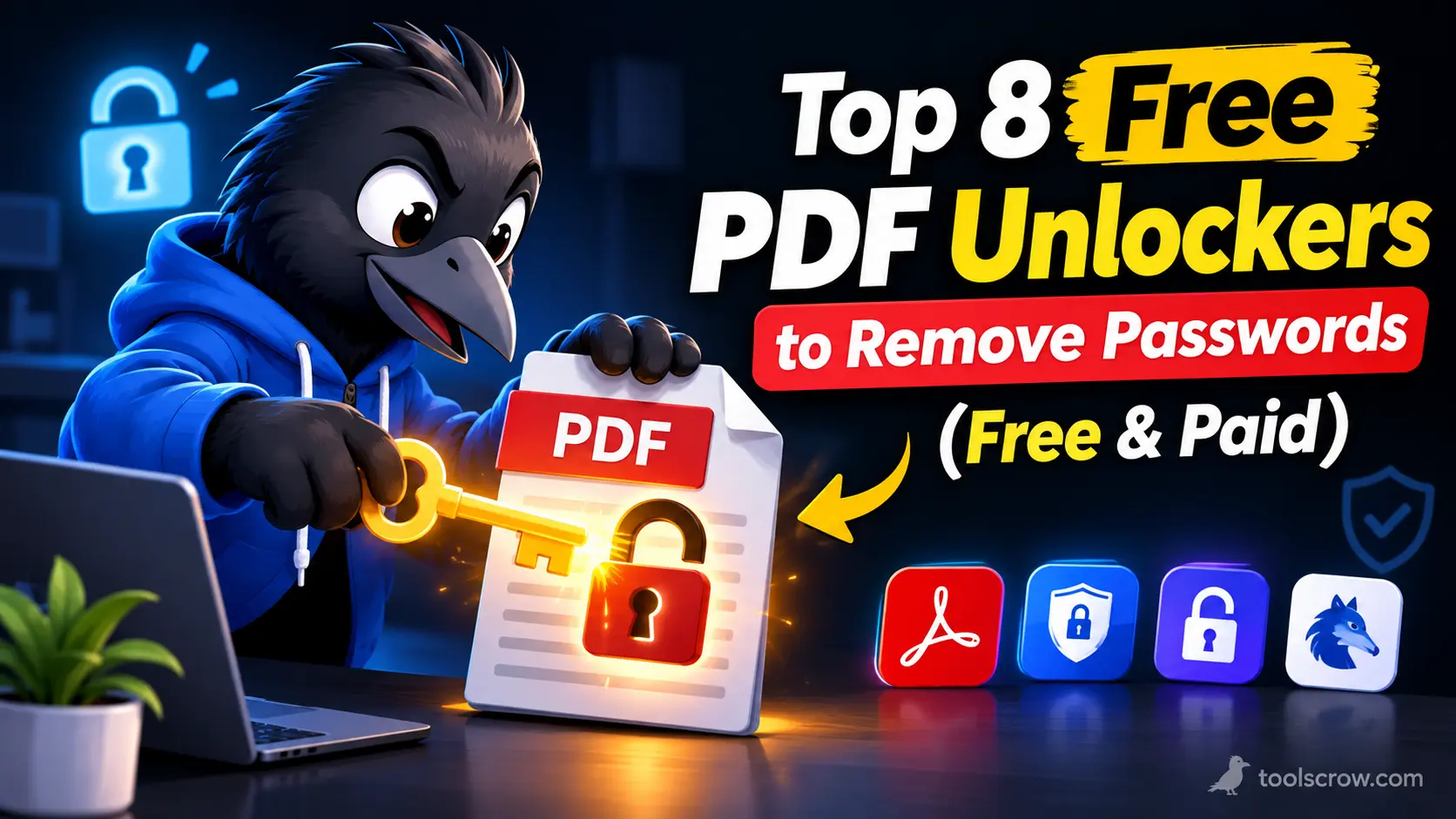
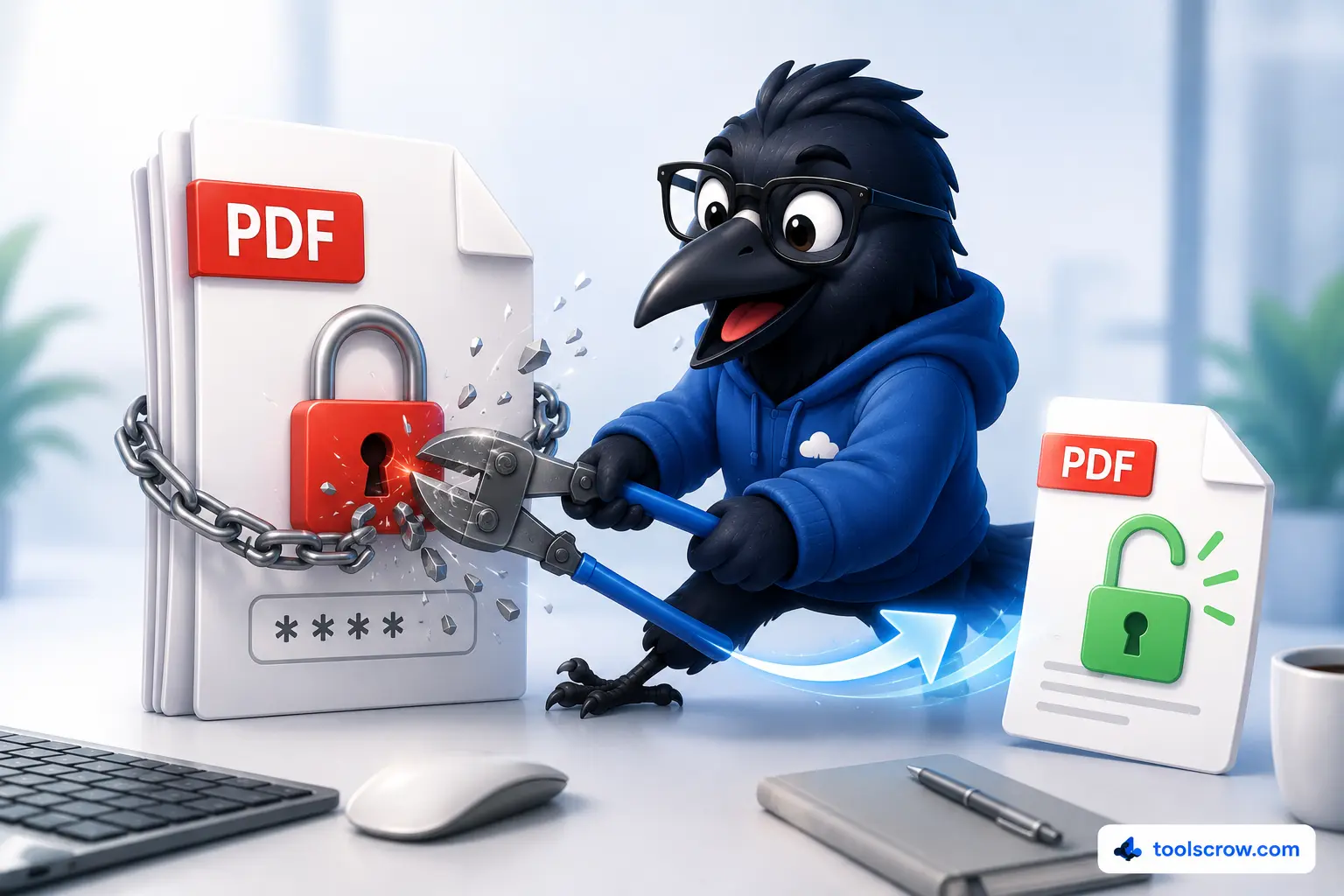
You open a PDF and it asks for a password. Maybe it is a bank statement you protected years ago. Maybe it is a report a colleague sent, and typing the password every single time is getting old. Maybe you want to merge it with other files and your PDF tool refuses. In all of these cases the goal is the same: remove the password so the file opens normally.
The good news is that this is easy and free when you already know the password. The honest part, which many lists skip, is that no legitimate tool can remove an open password you do not know. What the tools below do is remove protection you are allowed to remove, quickly and without paying. This guide compares eight of them, explains the difference between the kinds of PDF protection, shows which tools upload your file and which do not, and tells you what to try if you have forgotten the password.
Quick Picks: The Best PDF Unlocker for Each Situation
| If you want | Use this |
|---|---|
| Free, private, no upload, no sign-up | ToolsCrow Unlock PDF |
| The most faithful result for important documents | Adobe Acrobat (paid) |
| A big free toolkit for non-sensitive files | iLovePDF |
| A polished interface for the occasional file | Smallpdf |
| An online tool with a desktop version | Sejda |
| Free web tool plus a local Windows app | PDF24 |
| Nothing to install, one known password | Chrome or Edge, Print to PDF |
| Batches and automation on your own computer | qpdf (free, command line) |
Disclosure: we build the ToolsCrow Unlock PDF tool, and it is number one on this list because it runs in your browser and needs no upload. We say plainly where it falls short, and we judge the other seven on the same points. Free limits and prices change often, so confirm them on each site before you rely on them. Only unlock files you own or have permission to unlock.
First: Which Kind of PDF Password Do You Have?
"PDF password" actually means different things, and the right fix depends on which one you are dealing with.
An open password (also called a user password)
The file asks for a password the moment you try to open it. The contents are encrypted, so you must type the correct password to see anything. Removing this kind of protection always starts with entering the password. After that, a good tool can save a copy that opens without asking.
A permissions password (also called an owner password)
The file opens normally, but printing, copying text, editing or filling in forms is blocked. This protection is a set of rules inside the file. Some tools can lift these restrictions, and that is reasonable when the document is yours, or when the owner has given you the right to edit it. It is not a way around someone else's restrictions on their own work.
Policy, certificate or DRM protection
Some PDFs are controlled by an organization's security system or a rights-management service, not by a simple password. Adobe states that Acrobat's tools cannot unlock policy-protected or DRM-protected files, and the same is true of the free tools here. If you are in that situation, ask the person or organization that issued the file.
What to Check Before You Pick a Tool
- Do you know the password? If yes, every tool here works. If no, read the section on forgotten passwords further down before you waste time.
- Does the tool upload your file? Many online unlockers send your PDF to a server. That is fine for a menu, but think twice for contracts, tax returns, medical records or ID scans.
- What are the free limits? Some sites allow only a couple of tasks per day or per hour, or cap file size and page count.
- How faithful is the result? Some tools remove the security and keep the original structure. Others rebuild the pages, which can change file size or whether text stays selectable.
- What does it cost? Free is great, but know what you give up in privacy, limits or features.
1. ToolsCrow Unlock PDF (Best Free Private Option)
Works on: any modern browser on Windows, Mac, Linux, Android and iOS. Cost: free, no sign-up, no watermark.
The ToolsCrow Unlock PDF tool removes a PDF password entirely inside your browser. According to the tool's own page, it uses Mozilla's PDF.js to read the file and PDF-Lib to build the new one, so your document is loaded into your browser's memory, unlocked on your device and saved from there. Nothing is uploaded to a server. The tool accepts files up to 500 MB, and there is no account to make.
You drop in your PDF, type the password in the Document Information box, and press Unlock & Preview. Before you download anything you can flip through every page with thumbnails, zoom and keyboard shortcuts, which is a real help for confirming that you unlocked the right file. There is also a Save Page as PNG button if you only need one page as an image.
Here are the limits, stated plainly. The tool needs the correct password, and it is not a password cracker. It works on one file at a time. Because it rebuilds each page by rendering it at high resolution, check your result on a sample file: confirm that the text stays selectable if you need it, and compare the file size with the original. The page itself notes that results are sharp for text-based PDFs, and one user review mentions that some strongly encrypted files do not unlock. Very large files also depend on your device's memory, particularly on a phone.
Best for: private documents, quick one-off unlocks, and anyone who does not want to upload a sensitive PDF to a stranger's server. For a shorter walkthrough, see our companion guide, Unlock PDF: 3 Ways to Remove Passwords (Ethical Only).
2. Adobe Acrobat (Best for Fidelity on Important Files)
Works on: Windows and Mac. Cost: paid subscription with a free trial.
Acrobat is the original, and for contracts and legal documents it is the most dependable choice because it removes the security setting from the existing file instead of rebuilding it. Open the PDF, enter the password, then choose All tools, Protect a PDF, Remove security. On older versions the same command is under Tools, Protect, Encrypt, Remove Security. If the file has a permissions password, Acrobat asks for it before it lets you clear the restrictions. Then save the file.
The catch is that the free Acrobat Reader can open a protected PDF when you type the password, but it does not offer the option to remove security. For that you need the paid version, so for a single quick file it can feel like overkill. It also cannot unlock policy-protected or DRM-protected PDFs.
Best for: people who already pay for Acrobat, and important documents where you want the original structure, bookmarks and form fields left untouched.
3. iLovePDF (Best Large Free Toolkit for Non-Sensitive Files)
Works on: any browser, plus apps. Cost: free tier, paid plans for heavier use.
iLovePDF has an Unlock PDF tool inside a very large set of PDF utilities, which is its main appeal: unlock a file, then merge it, compress it or split it in the same session. It is widely described as having a generous free tier, and basic use does not require an account. Reports about exact free file-size limits and batch limits are inconsistent across reviews, so treat any number you read as a starting point and check the site yourself.
Like most online unlockers, it processes your file on its servers. That is normal for this kind of service, and the company says it deletes files after processing, but you are still sending your document across the internet. For a school handout, that is fine. For a financial or medical file, a local tool is the safer habit.
Best for: everyday, non-sensitive PDFs where you also need other PDF tools.
4. Smallpdf (Best Polished Interface for Occasional Use)
Works on: any browser, plus desktop and mobile apps. Cost: limited free use, paid plans for more.
Smallpdf is known for a clean, easy design. Its Unlock PDF tool takes the file, asks for the password where one is needed, and gives you back an unprotected copy. Several reviews report that the free plan allows about two tasks per day, which is enough for an occasional unlock but frustrating if you have a stack of files. Pricing and limits change, so check the current terms.
As with iLovePDF, the file is processed on the company's servers. If you only unlock a PDF once in a while and it is not sensitive, Smallpdf is pleasant to use. If you have many files or confidential ones, look elsewhere on this list.
Best for: casual users who value a simple interface and need to unlock a file once or twice.
5. Sejda PDF (Best Online Tool That Also Has a Desktop Version)
Works on: any browser, plus desktop apps. Cost: free with limits, paid plans for more.
Sejda offers an online PDF unlocker and also a desktop application, so you can choose to process a file locally when it matters. Reviews commonly report free web limits of around three tasks per hour and 200 pages per file, which is a workable allowance for normal documents but a wall for long reports or batches. Sejda publishes its own documentation about how long uploaded files are kept, so read it if privacy is a concern.
Best for: people who want an online option now and the possibility of a desktop version later.
6. PDF24 Tools (Best Free Web Tool With a Local Windows App)
Works on: any browser, plus a Windows desktop app. Cost: free.
PDF24's Unlock PDF tool asks for the current PDF password, removes the protection and lets you download the result. The web version is free and is commonly described as having no practical file-size limit, though that is the kind of detail that can change, so test it with your own file. The web version processes your file on its servers. The company also makes a free desktop program for Windows, PDF24 Creator, which handles files on your own computer.
Best for: Windows users who like a free, no-account service and want a local option for sensitive files.
7. Chrome, Edge or Safari "Print to PDF" (Best Built-In Trick)
Works on: Windows, Mac, Linux, iPhone, iPad and Android. Cost: free, already installed.
If you know the password and just want a copy without it, your browser can do the job. Open the PDF in Chrome or Edge, type the password, press Ctrl + P (or Command + P on a Mac), choose Save as PDF as the destination and save. On a Mac, the PDF menu in the Print dialog also offers Save as PDF. On an iPhone, open the file, choose Print, then use the share or save option to create a new PDF.
This works because printing creates a brand-new, unencrypted document. That is also its limit. A re-created file can lose interactive parts such as bookmarks and form fields, and a PDF that forbids printing may block the method entirely. For a plain reading copy of a statement or an article, it is quick, safe and keeps everything on your device.
Best for: a fast, private copy of a simple PDF when you already know the password.
8. qpdf (Best Free Command-Line Tool for Batches)
Works on: Windows, Mac and Linux. Cost: free and open source.
qpdf is a small, respected command-line program for working with PDF structure. With the correct password, one command removes the encryption and writes an unlocked copy:
qpdf --password=YOUR_PASSWORD --decrypt locked.pdf unlocked.pdf
It works on your own computer, so nothing is uploaded, and it leaves the content of the file intact instead of rebuilding the pages. Because it is scriptable, it is the best answer if you have dozens of files that share one password. The obvious trade-off is that it is a command-line tool, which is not for everyone.
Best for: developers, IT staff and power users who want repeatable, local, batch unlocking.
Side-by-Side Comparison
| Tool | Cost | Where your file is processed | Free limits (as reported) | Best for |
|---|---|---|---|---|
| ToolsCrow Unlock PDF | Free | In your browser, no upload | Up to 500 MB, no sign-up, no watermark | Private one-off unlocks |
| Adobe Acrobat | Paid, free trial | On your computer | Not applicable | Faithful results |
| iLovePDF | Free and paid | On their servers | Varies by report, check site | Non-sensitive files, big toolkit |
| Smallpdf | Free and paid | On their servers | Around 2 tasks per day, per reviews | Occasional use |
| Sejda | Free and paid | Servers (or desktop app) | About 3 tasks per hour, 200 pages, per reviews | Online plus desktop |
| PDF24 | Free | Servers (or local Windows app) | No practical size limit, per reviews | Free, no account |
| Browser Print to PDF | Free | On your device | None | Simple files, known password |
| qpdf | Free | On your computer | None | Batches and scripts |
Online vs Offline: Why Where Your PDF Goes Matters
Locked PDFs are usually locked for a reason. They are the ones holding salary details, passport scans, tax filings, legal drafts and account statements. When you use a server-based unlocker, you upload that document to someone else's computer, enter its password into a web form and download the result. Reputable services say they delete files soon after processing, and many do, but you are trusting that claim.
The safest habit is simple. For anything sensitive, choose a tool that works on your own device: ToolsCrow in your browser, Acrobat, the browser print method or qpdf. For harmless files, a server-based tool is fine. Whichever you choose, avoid sites you do not recognize, never use anything that asks you to install an unknown program to "recover" a password, and delete the unlocked copy when you are done if it holds sensitive information.
How to Remove a PDF Password With ToolsCrow, Step by Step
- Open the ToolsCrow Unlock PDF tool in any modern browser.
- Drag your password-protected PDF onto the upload area, or click to browse for it. Files up to 500 MB are supported.
- Type the document's open password in the PDF Password box. You can use the Show option to check you typed it correctly.
- Click Unlock & Preview. A progress bar runs while the file is processed on your device.
- Check the preview. Use the thumbnails, page navigation and zoom to confirm the right pages are there.
- Click Download Unlocked PDF. If you only need one page as a picture, use Save page as PNG instead.
- Open the saved file. It should now open without asking for a password. Keep your original, and delete any copy you no longer need.
What to Check in the Unlocked File
A quick two-minute check prevents unpleasant surprises later:
- Open it in a different viewer to confirm it no longer asks for a password.
- Try selecting and searching text if you need that. Tools that rebuild pages as images can produce a file where text is not selectable, and if so, an Acrobat or qpdf result is the better fit. If you need the words from a PDF afterward, our PDF to Text tool can help with text-based files.
- Compare file size with the original. A big jump usually means the pages were rebuilt.
- Test forms, links and bookmarks if the document had them. They are the first things lost when a file is re-created.
What If You Forgot the Password?
This is the question behind most searches for "unlock PDF without password", so here is the straight answer. A strong open password cannot be removed by any honest tool, because the file's contents are encrypted with it. Sites that promise to crack any password are, at best, running guesses against weak passwords and, at worst, scams or malware. Do not download "cracker" software from unknown sites.
Instead, try the things that actually work:
- Check your password manager and your browser's saved passwords for an entry related to the file or the sender.
- Look at the document's source. Many banks, utilities and employers use a predictable rule, like a date of birth or part of an account number. The email that delivered the file usually says what it is.
- Ask the sender or issuer to resend the file or give you the password. For statements, you can usually download a fresh copy from your online account.
- Ask your IT team if the file came from work, since they may hold the original or a recovery process.
- Recreate it from the original source file, such as the Word document or spreadsheet that the PDF was made from.
If the file only has a permissions password and you own the document, a tool that lifts restrictions can help. If it belongs to someone else, ask them for an unrestricted copy.
Is It Legal to Remove a PDF Password?
Removing a password from your own document, or from one you have been given permission to modify, is ordinary housekeeping. Problems start when someone tries to open or alter a file they have no right to, or to strip protection from copyrighted material. Laws differ by country, and this article is not legal advice, so when in doubt, ask the owner or a professional. That is also why ToolsCrow's tool requires the correct password and does not try to guess one.
Troubleshooting: Common PDF Unlock Problems
It says the password is wrong
Check for a mistyped capital letter, a leftover space, or a similar-looking character. Use the Show option where available, type the password in a text editor and paste it in, and make sure you are using the open password and not a permissions password for a different file.
The file is still restricted after unlocking
You may have removed the open password but not the permissions restrictions, or the file may use policy or DRM protection. Acrobat can clear permissions when you have the permissions password. Policy-protected files have to be released by whoever issued them.
The tool freezes or never finishes
Large files take longer and need more memory, especially on a phone. Close other tabs, try a computer, or use a local tool such as Acrobat or qpdf for very large files.
The unlocked file is much bigger or the text is not selectable
That points to a tool that rebuilt the pages as images. Try the browser Print to PDF method, Acrobat or qpdf to keep the original structure instead.
The PDF will not open at all after unlocking
The original may be damaged, or the file may not be a regular PDF. Try opening it in another viewer, and if you have the original, repeat the process with a fresh copy.
After You Unlock: What to Do Next
Once the password is gone, the file works with every other PDF tool, which is usually the whole point. Common next steps:
- Merge PDF to combine the unlocked file with other documents.
- Split PDF to pull out just the pages you need.
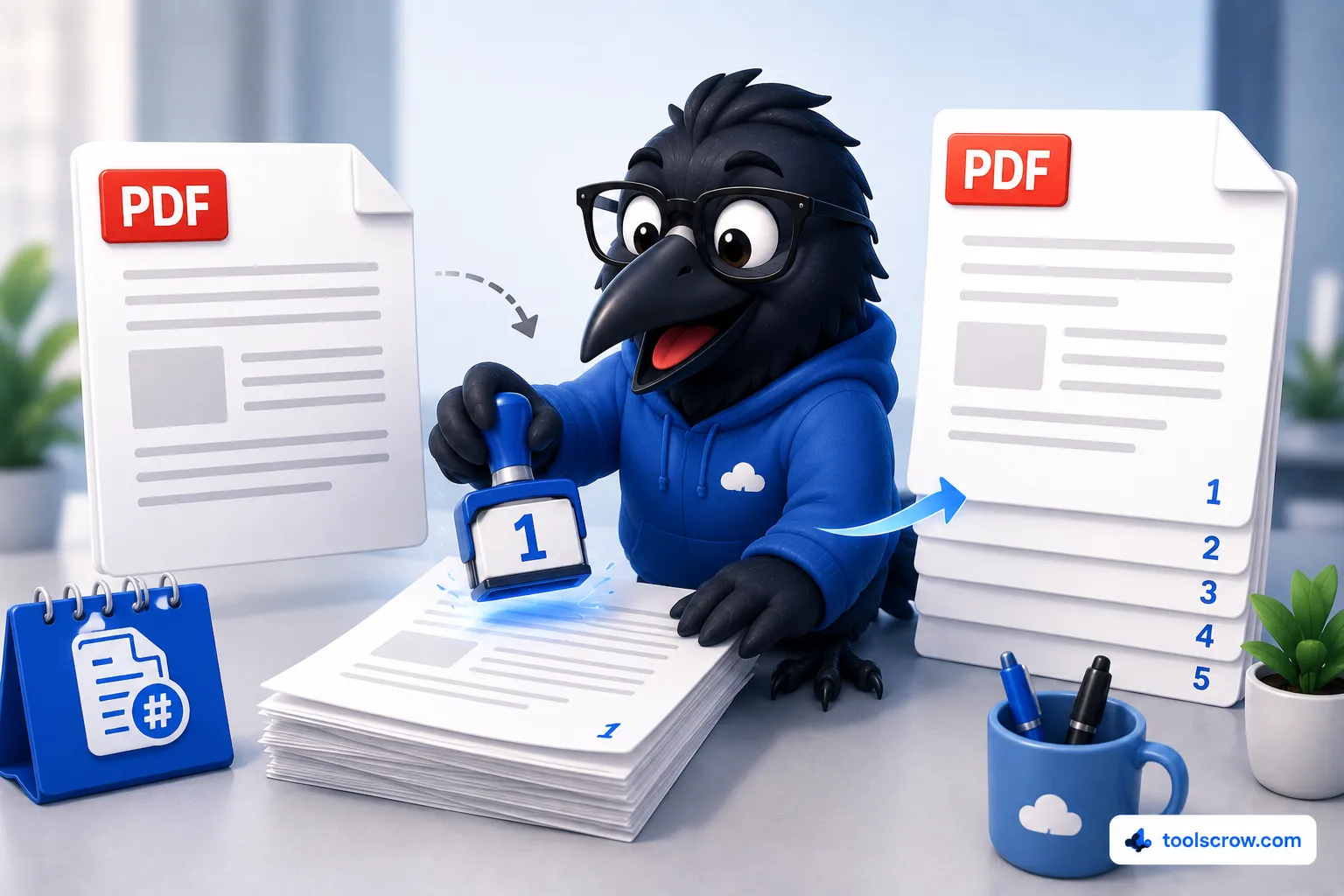
- Add Page Numbers for reports and legal bundles.
- Sign PDF to add a signature without printing.
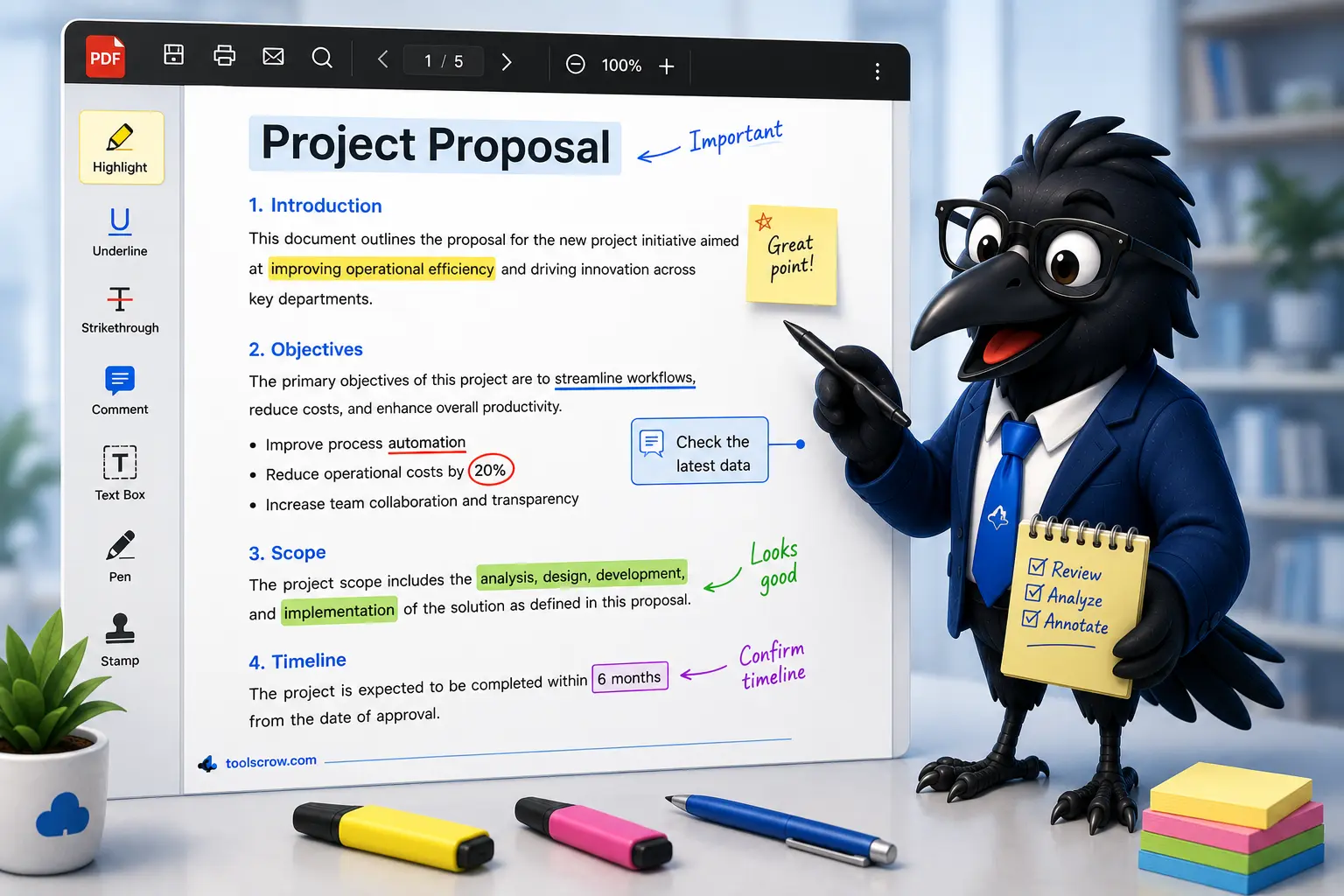
- Annotate PDF to highlight, comment and mark up.
If the document is sensitive, remember that an unlocked copy has no protection at all. Store it somewhere safe, share it only through a secure channel and delete it when you are finished. And if you ever protect a file again, choose a strong password and save it in a password manager so you are not searching for it in a year.
Frequently Asked Questions
Can I remove a PDF password without knowing it?
Not an open password. The contents are encrypted with it, so you must provide it. Permissions-only restrictions can sometimes be lifted by certain tools, but only use that on files you own or have permission to change.
What is the best free PDF unlocker?
For privacy, a tool that works on your device is best: ToolsCrow Unlock PDF in your browser, the browser Print to PDF method, or qpdf. For convenience with non-sensitive files, iLovePDF and PDF24 are popular free web options. For the most faithful result, Acrobat is the standard.
Is it safe to use an online PDF unlocker?
It depends on how the tool works. A browser-based tool that processes the file locally, like ToolsCrow, never sends your PDF anywhere. Server-based tools upload your file, so use them only for documents you are comfortable sharing, and stick to well-known services.
What is the difference between an open password and an owner password?
An open (user) password is needed to view the file at all. An owner (permissions) password lets the file open but restricts actions such as printing, copying and editing.
Why is my unlocked PDF bigger than the original?
Some unlockers rebuild each page, which can enlarge the file or turn text into images. If that matters, use Acrobat, qpdf or the browser print method, and compare results on a copy first.
Can I unlock a PDF on my iPhone or Android phone?
Yes. Browser-based tools work on phones, and iPhone users can also open the file, enter the password and save a new copy through the Print option. Very large files may be slow on a phone, so a computer is better for those.
Can I unlock several PDFs at once?
The ToolsCrow tool is built around one file at a time. Some online tools offer batches on paid plans, and qpdf can handle many files with a short script on your own computer.
Does removing the password change the content of my PDF?
It should not change what you see on the pages. It does change the file's security settings, and, depending on the tool, it may also change the internal structure, size or whether text stays selectable, so check the result before you delete the original.
The Bottom Line
If you know the password, removing it takes under a minute and costs nothing. Pick the tool by what the file is. For private documents, use something that stays on your device. For important files where the structure matters, use Acrobat or qpdf. For harmless files, any of the reputable online tools will do. And if you have genuinely forgotten the password, the answer is almost never a cracking tool. It is your password manager, the sender, or the original source.
Ready to try the private, no-upload route? Open the free ToolsCrow Unlock PDF tool, add your file and password, preview the result and download it. When it is done, explore our other free PDF tools to merge, split, sign or number the pages of your newly unlocked file.
Comments (0)
No comments yet. Be the first to share your thoughts!
Leave a Comment
All comments are reviewed before publishing. Please keep it respectful and on-topic. Comments with links or promotional content will be rejected automatically.