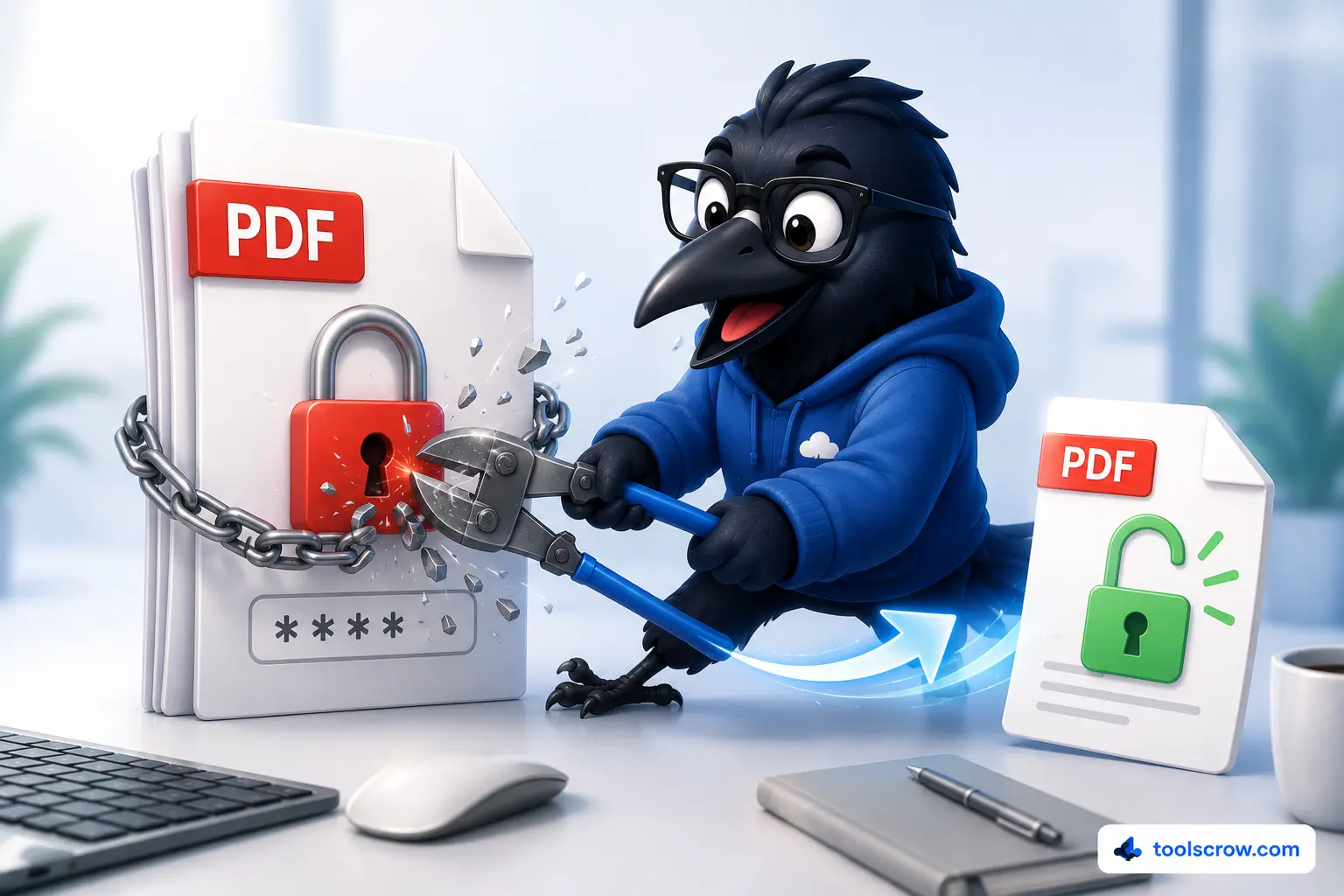
Guide tested with current Private PDF tools (PDF.js + PDF-LIB) and verified against current Adobe Acrobat and qpdf releases.
Locked Out of Your Own PDF? Here's How to Get Back In
It happens more often than you'd think. You password-protected a PDF years ago — a tax return, a contract, a scanned ID — and now you've forgotten the password, or you're using a new device and the saved password didn't transfer. Or you've inherited a folder of business documents from a colleague who left the company, and half of them are locked with passwords nobody remembers. Or a PDF a client sent you opens fine but refuses to let you copy a single line of text or print a page, and you genuinely need to.
All of these are legitimate, everyday situations — and all of them have legitimate solutions. This guide is specifically about removing PDF passwords and restrictions from files you own or have explicit permission to modify. It is not about bypassing security on documents that belong to someone else, accessing confidential files without authorization, or circumventing protections placed on copyrighted material you don't have rights to.
With that framing established, here's what this guide covers:
- The two fundamentally different types of PDF "passwords" — and why the distinction matters enormously for what you're allowed to do and how
- The ethical and legal boundaries around PDF password removal — what's clearly fine, what's a clear no, and the gray areas in between
- Method 1: A free, browser-based unlock tool that works entirely on your device — step-by-step walkthrough
- How this type of tool actually works "under the hood" — and an important trade-off you should know about before you use it
- Method 2: Desktop software options (Adobe Acrobat and alternatives) for more complex cases
- Method 3: Command-line tools for technical users who need batch processing or scripting
- A comparison table to help you choose the right method for your specific situation
- Common mistakes and how to avoid them
- Frequently asked questions about PDF passwords, encryption, and legality
Let's start with the distinction that determines everything else: what kind of "locked" are you actually dealing with?
Two Types of PDF "Passwords" — And Why the Difference Matters
The word "password" gets used loosely when talking about PDFs, but the PDF format actually defines two genuinely different protection mechanisms. Knowing which one you're dealing with changes everything about how you approach removing it — and what tools can even do the job.
Type 1: The Open Password (User Password)
This is what most people think of when they hear "password-protected PDF." An open password (technically called the "user password") encrypts the entire contents of the document. Without entering the correct password, the PDF cannot be opened, viewed, or rendered in any way — not even the first page. This is genuine encryption: the file's content is mathematically scrambled and the password is the key to unscramble it.
Common scenarios: A bank statement emailed to you with a password (often your account number or date of birth). A scanned ID document you password-protected before storing it. A PDF you sent to a client with a shared password for confidentiality.
To remove this type of protection, you must know the password. There is no legitimate tool — browser-based, desktop, or otherwise — that can "remove" an open password without knowing it, because doing so would mean breaking actual encryption. Tools that claim to do this either don't work, or they're running a brute-force/dictionary attack against the encryption, which is a fundamentally different (and, depending on the document and your relationship to it, potentially illegal) activity.
Type 2: The Permissions Password (Owner Password)
This is the less commonly understood but extremely common protection type. A permissions password (technically the "owner password") does not encrypt the document's visible content. The PDF opens immediately, with no prompt — anyone can view it. What the permissions password controls is a set of restriction flags embedded in the file: whether the document can be printed, whether text can be copied, whether it can be edited, whether pages can be extracted, whether it can be annotated, and so on.
Common scenarios: A PDF you can open and read perfectly, but when you try to select and copy a paragraph, nothing happens. A document where the Print option is grayed out or produces an error. A form where you can fill in fields but the "Save" button is disabled.
This is the type of restriction that browser-based tools — including the one this guide focuses on — can typically remove without needing any password at all, because the document was never actually encrypted in a way that prevents access to the content. The content was always fully readable; only certain actions on that content were restricted by flags in the file's metadata.
Quick Self-Test: Which Type Do You Have?
If your PDF prompts for a password before you can see anything — even the first page — that's an open password, and you need to know it.
If your PDF opens and displays fine, but copying, printing, or editing is blocked or disabled — that's a permissions password, and it can usually be removed without knowing any password.
A single PDF can also have both types of protection simultaneously — requiring a password to open, and additionally restricting what you can do once it's open. In that case, you'd need the open password first; once the document is decrypted and viewable, the permission restrictions can typically be stripped during the same process.
What If You've Forgotten the Password to Your Own PDF?
This is the most common and genuinely frustrating scenario. You created the PDF yourself, or you received it from a trusted source, you know you set a password, and now — months or years later — you can't remember what it was. You're the rightful owner, but you're locked out.
The answer to this situation is different depending on which of the two protection types you're dealing with.
Scenario 1: You've Forgotten the Open Password (User Password)
This is the scenario where the PDF won't even open without a password. Because this is real encryption, there is no legitimate free tool that can simply "remove" the password. The encryption is mathematically designed to be impossible to reverse without the key (the password). However, depending on how you created the PDF, you may have other options:
- The Password Was Generated by a Specific Tool: If you used a tool (like an invoicing app, a scanner software, or a PDF creator) that applied a default password pattern, the password might be a predictable format. For example, some tools use the current date, the document's creation date, a user's account number, or a simple default like
passwordor123456. Check the software's documentation or settings for any default security configurations. - Password Recovery Services (Paid): Some specialized companies offer password recovery services for PDFs. They use powerful computers to try millions of password combinations per second (brute-force attacks) or use dictionaries of common passwords. This can work if your password was relatively simple (e.g., less than 8 characters, all lowercase, a common word) but it is not guaranteed, can be expensive (often $50–$200+), and can take days or weeks. For a truly strong, random password (e.g.,
9x#F2!kLp8), brute-force recovery is effectively impossible within a human lifetime using current technology. - You Have a Backup: If you saved a copy of the PDF without a password, or if it was backed up to a cloud service (Google Drive, OneDrive, Dropbox) before you password-protected the master copy, check your previous versions. Many cloud services keep file history.
- You're Out of Luck: In many cases, especially with a strong, unique password, there is simply no way to recover the document. This is the intended purpose of encryption — it protects the document from everyone, including you if you lose the key. While frustrating, it's a reminder that for critical documents, you should keep a recovery phrase or maintain a separate, secure location for passwords.
⚠️ Important Reality Check
If you've truly lost the open password to a PDF encrypted with a strong, random password — and you have no backup — the document is effectively gone forever. No free tool, browser-based or otherwise, can help you. This is not a limitation of the tool; it's the core purpose of encryption. Always store important passwords in a password manager and keep an unlocked backup of mission-critical documents.
Scenario 2: You've Forgotten the Permissions Password (Owner Password)
This is the much more common and much more solvable scenario. The PDF opens and you can read it, but you can't copy, print, or edit. The tool covered in this guide — and all browser-based unlock tools — do not require the permissions password to remove these restrictions. The restrictions are just flags in the file's metadata, not encryption. As long as the document opens, the restrictions can be stripped without knowing any password. So, if you're locked out of printing or copying your own document because you've forgotten the permissions password, you're in luck — the browser-based tool in Method 1 will handle this immediately.
How to Avoid This Problem in the Future
If you've ever been locked out of your own files, you know how stressful it can be. Here are three simple habits that prevent this from happening again:
- Use a Password Manager. Tools like Bitwarden, 1Password, or LastPass store all your passwords securely and remember them for you. When you set a password on a PDF, save it in your manager with a note like "Tax Return 2025" so you never lose it.
- Keep an Unlocked Master Copy. For critical documents (contracts, deeds, wills), consider keeping two versions: a password-protected one for sharing and an unlocked master copy stored in a secure, encrypted folder on your personal device or a trusted backup drive.
- Use a Memorable but Strong Passphrase. Instead of a random string, use a memorable passphrase like
BlueMountain*Sunset45!. It's easier for you to remember, harder for a computer to guess, and much more manageable thanLk3#8sF@2!.
The Ethics and Legality of Removing PDF Protection
This section exists because the title of this guide includes the word "ethical," and that word deserves more than a passing mention. PDF password removal sits in a space where the same technical action can be completely unremarkable in one context and a serious problem in another — the difference is entirely about whose document it is and what authority you have over it.
Clearly Fine: Your Own Files
- You password-protected a PDF yourself and forgot the password — removing it (once you've recovered or reset the password through legitimate means) is your own file.
- A PDF was generated by software you control (an invoicing tool, a scanner app) with a default permissions restriction you want to remove for your own use of your own document.
- You're the document's author and want to remove restrictions from your own creative or business work.
Clearly Fine: Files You Have Explicit Permission to Modify
- A client sends you a password-protected contract along with the password, asking you to edit and return it.
- Your employer provides you with internal documents and the credentials needed to access and modify them as part of your job.
- A family member shares a password-protected document (a will, a property deed, a medical record) with you and the password, asking for your help.
A Genuine Gray Area: Permission-Restricted Public Documents
Many publicly available PDFs — government forms, academic papers, product manuals — have permission restrictions (no copying, no printing) applied somewhat arbitrarily by whatever software generated them, often without much thought from the publisher. Removing copy/print restrictions from a publicly available government tax form so you can fill it out and print it for your own use is generally considered reasonable and is extremely common.
However, removing copy protections specifically to redistribute copyrighted content — an e-book, a paid course PDF, licensed training material — in violation of the copyright holder's terms is a different matter entirely. The technical action (removing a permission flag) is identical; the context (what you do with the result) is what determines whether it's a problem. Removing a restriction and then violating someone's copyright by redistributing their work is the copyright violation — not the restriction removal itself — but the restriction removal was clearly a step toward an activity you shouldn't be doing.
Clearly Not Fine: Files That Aren't Yours, Without Permission
-
adays
- Attempting to open a colleague's confidential, password-protected file without their knowledge or authorization.
- Using password-cracking tools (brute-force or dictionary attacks) against an open password on a document you don't have rights to access.
- Removing protections on documents specifically to bypass licensing terms you agreed to (e.g., a paid digital product you're not supposed to redistribute).
The tool and methods covered in this guide are designed for the "clearly fine" categories — and specifically, the browser-based method covered in Method 1 is technically incapable of bypassing genuine open-password encryption without the password being provided. If you've forgotten a password on a document you own and have no record of it anywhere, your realistic options are limited to password recovery services (often costly and not guaranteed) or, in many cases, accepting that the content is genuinely inaccessible — which, frustrating as it is, is exactly what encryption is designed to ensure.
Method 1: Browser-Based Unlock Tool — Free, Private, No Software
Best for: PDFs with permission restrictions (no password needed) or PDFs with a known open password that you want to decrypt and re-save without protection — all without installing anything or uploading your file anywhere.
Why This Method Wins for Privacy
The tool referenced in this guide — available at toolscrow.com/pdf-tools/unlock-pdf/ — runs entirely in your browser using two JavaScript libraries: PDF.js (the same rendering engine that powers PDF viewing in Firefox) to open and render the document, and PDF-LIB to construct the new, unrestricted output file. Both run client-side. Your PDF — including its password, if it has one — is processed entirely on your own device. Nothing is transmitted to a server.
For documents that matter — financial records, ID scans, contracts, medical paperwork — this is a meaningful advantage over services that require uploading your file to a third party's infrastructure, even briefly.
Step-by-Step: Using the Unlock PDF Tool
Step 1: Upload Your PDF
Open the tool and either click the upload area or drag your PDF file directly onto it. The tool will read the file into your browser's memory and display its name and size next to the upload area.

Step 2: Enter the Password (If You Have One)
If your PDF requires a password to open — the genuine encryption scenario described as Type 1 above — enter it in the "PDF Password" field. If your PDF opens without a password and you're only dealing with permission restrictions (Type 2), leave this field empty, exactly as the helper text below the field suggests.
Use the "Show" button next to the password field to toggle visibility while typing — useful for longer or more complex passwords where typos are easy to miss with the field masked.
Step 3: Click "Unlock & Preview PDF"
This is where the tool does its work. Behind the scenes, it passes your file (and password, if provided) to PDF.js's document loader. If the document requires a password and you didn't provide one — or provided an incorrect one — the tool will prompt you again, distinguishing between "password needed" and "incorrect password, try again" so you know which situation you're in.
Once the document opens successfully, the tool renders every page to a canvas at a high-quality scale (1.5x, which produces sharp results suitable for both screen viewing and printing) and generates a thumbnail for each page. A progress bar shows you the rendering progress page by page — useful feedback for documents with many pages, where this step takes a few moments.

Step 4: Review the Document
Once rendering completes, the full preview interface appears. You can:
- Navigate pages using the Previous/Next buttons, or jump directly to a specific page using the page number input and "Go" button.
- Use keyboard shortcuts — left and right arrow keys move between pages, and plus/minus (with Ctrl or Cmd) adjust zoom.
- Adjust zoom using the zoom slider, ranging from 50% to 200%, with the current level displayed next to the slider.
- Browse thumbnails in the scrollable thumbnail grid — click any thumbnail to jump directly to that page in the main preview.
Take a moment here to confirm the document looks correct — that all pages rendered properly, that the content matches what you expected, and that nothing appears corrupted or missing. This is your chance to verify before exporting.

Step 5: Export the Unlocked PDF
Click "Export Unlocked PDF." The tool now builds an entirely new PDF document from scratch using PDF-LIB — taking each rendered page (which exists in your browser as a canvas image) and embedding it as a page in the new document, at the same dimensions as the original. A progress indicator shows "Adding page X/Y" as this happens.
Once complete, the new PDF — named unlocked.pdf — downloads automatically to your device. This file has no password, no encryption, and no permission restrictions of any kind, because it's a brand-new PDF document that was never assigned any of those properties in the first place.
Adding page 4 of 9...
Building your unlocked PDF — please wait
unlocked.pdf downloads automatically — no watermarks, no ads, and no restrictions.
Bonus: Download a Single Page as an Image
If you only need one specific page — not the whole document — the "Download as Image" button exports the currently displayed page as a PNG file. This is useful when you need to drop a single page (a signature page, a chart, a diagram) into a presentation, email, or another document without dealing with the full PDF.

How This Tool Actually Works — And One Important Trade-Off
Understanding what's happening behind the scenes isn't just technical curiosity — it directly explains both why this method is so effective at removing restrictions, and one limitation you should know about before relying on it for certain document types.
The Render-and-Rebuild Approach
Most PDF "unlock" tools attempt to directly manipulate the encryption dictionary inside the existing PDF file — finding the security settings embedded in the document's structure and modifying or removing them while leaving everything else intact. This approach requires deep, format-specific manipulation of the PDF's internal object structure.
This tool takes a fundamentally different and conceptually simpler approach: it renders every page of the original document as a high-resolution image (using PDF.js, which displays the page exactly as a PDF viewer would — decrypting it first if a password was provided), and then builds an entirely new PDF document from those page images (using PDF-LIB). The new document never had any password, encryption, or restriction applied to it — there's nothing to remove, because the new file's security settings were never set in the first place.
This is why the tool works reliably on both types of protection covered earlier: an open-password PDF (once you provide the correct password so PDF.js can decrypt and render it) and a permissions-restricted PDF (which PDF.js can render without any password, since the content was never encrypted — only restricted).
The Trade-Off: Your Output PDF Becomes Image-Based
Here's the important caveat. Because each page of the output PDF is fundamentally an embedded image (a screenshot of the original page, essentially) rather than the original text, vector graphics, and fonts — the unlocked PDF will not have selectable or searchable text. If you open the output file and try to highlight a sentence to copy it, you won't be able to — not because of a restriction, but because there's no text there to select. It's a picture of text.
For many of the most common reasons people unlock PDFs, this doesn't matter at all:
- Printing — works perfectly; the image renders identically to the original on paper.
- Viewing and sharing — works perfectly; anyone can open the file with no password and view it normally.
- Filling out a form by hand after printing — works fine.
- Filing or archiving — works fine, since the visual content is preserved exactly.
For these use cases, the lack of selectable text is a non-issue. However, if your goal specifically includes:
- Copying text out of the document to paste elsewhere (a quote, a clause, a paragraph for editing)
- Searching within the document using Ctrl+F / Cmd+F
- Running the document through accessibility tools that rely on text content (screen readers)
- Further editing the document's text content in a PDF editor
...then a render-and-rebuild approach won't deliver what you need, because the text layer simply doesn't exist in the output. In these specific cases, Method 2 or Method 3 below — which manipulate the PDF's internal structure directly and preserve the original text layer — are the better fit.
Quick Decision Point
Need to print, view, share, or archive the unlocked PDF? → Method 1 (browser tool) is perfect — fast, private, and free.
Need to copy text, search the content, or edit the text afterward? → Skip to Method 2 or Method 3, which preserve the original text layer.
Method 2: Desktop Software — When You Need to Preserve Text and Structure
Best for: PDFs where you need the output to remain fully text-searchable and editable — legal documents, academic papers, anything you'll need to copy text from or further edit.
Adobe Acrobat Pro
If you or your organization already has an Adobe Acrobat Pro subscription, removing PDF security is built directly into the application. Open the PDF (entering the password if it's an open-password document), then navigate to the document properties or security settings, where you'll find an option to remove security or change permissions. Acrobat directly modifies the PDF's internal security dictionary — the original text, fonts, and structure remain completely intact, and the output is fully searchable and selectable.
The trade-off, as covered extensively in other guides on this site, is cost: an Acrobat Pro subscription runs $15–$30 per month, which is a significant ongoing expense if password removal is an occasional need rather than a regular task.
Free Desktop Alternatives
Several free, open-source desktop applications can remove PDF restrictions while preserving the text layer:
- PDFsam Basic includes security-related modules in some configurations for handling encrypted PDFs (with the password provided), though its core focus is splitting and merging.
- LibreOffice Draw can open many PDFs (including some permission-restricted ones, depending on the restriction type) and re-export them — though, like the browser-based method, re-exporting through LibreOffice may also rasterize content depending on the PDF's complexity.
- Dedicated PDF security tools built specifically around the PDF specification's encryption dictionary (often command-line based — covered in Method 3) offer the most reliable text-preserving results for free.
When to Choose Desktop Software Over the Browser Tool
- You need the output PDF's text to remain searchable and copyable
- You're processing documents that will be further edited in a word processor or PDF editor
- You're working with very large, multi-hundred-page documents where image-based rebuilding would produce an excessively large file
- You need to preserve embedded form fields, bookmarks, hyperlinks, or other interactive PDF features (which a render-and-rebuild approach does not preserve)
Method 3: Command-Line Tools — For Technical Users and Batch Processing
Best for: Developers, IT administrators, or anyone needing to remove passwords from many files at once, or integrate password removal into an automated workflow or script.
qpdf — The Standard Open-Source Tool
qpdf is a free, open-source command-line program specifically designed for PDF transformation, including removing both open passwords (when provided) and permission restrictions. It's available for Windows, macOS, and Linux, and is widely used in scripting and automation contexts because it operates directly on the PDF's internal structure — preserving the text layer, fonts, bookmarks, and other features completely.
A typical command to decrypt a PDF and remove its password looks like this:
qpdf --decrypt --password=YOURPASSWORD input.pdf output.pdfFor permission-restricted PDFs with no open password, the same command works without the --password flag in many cases, since qpdf can read and rewrite the security settings of a document that doesn't require a password to open.
Ghostscript
Ghostscript, a free PostScript and PDF interpreter, can also be used to process PDFs in ways that strip certain restrictions, often as part of a broader PDF processing pipeline (format conversion, compression, etc.). It's more commonly used for PDF-to-PostScript-to-PDF round trips that incidentally remove restrictions as a side effect of the conversion process, though qpdf is generally the more direct and purpose-built tool for this specific task.
When to Choose Command-Line Tools
- You need to process dozens or hundreds of files in a batch — a single script using qpdf can iterate through an entire folder
- You're integrating PDF processing into a larger automated workflow (document management systems, archival pipelines)
- You're comfortable with a terminal/command prompt and want the most precise, structure-preserving control over the output
- You need to script the process for repeatability across an organization
The trade-off is the learning curve — command-line tools require installation, basic familiarity with terminal commands, and aren't approachable for users who just need to handle a single file occasionally.
Which Method Should You Use? Quick Comparison
| Your Situation | Best Method | Why |
|---|---|---|
| Need to print or view a restricted PDF | Method 1 (Browser tool) | Fast, free, private — output prints and displays perfectly |
| Need to copy text or search content afterward | Method 2 or 3 | Preserves the original text layer; Method 1 rasterizes pages |
| One-off file, no software installed | Method 1 (Browser tool) | No install, no account, works immediately in any browser |
| Sensitive document (financial, medical, legal) | Method 1 (Browser tool) | Processes entirely on your device — never uploaded anywhere |
| Already have Adobe Acrobat Pro | Method 2 (Acrobat) | Built-in, preserves structure, handles complex documents well |
| Need to process 50+ files at once | Method 3 (qpdf / command line) | Scriptable for batch processing across many files |
| Document has forms, bookmarks, or hyperlinks to preserve | Method 2 or 3 | Render-and-rebuild (Method 1) does not preserve interactive elements |
| Document is very large (300+ pages) | Method 3 (qpdf) | Direct structure editing avoids large file sizes from image-based rebuilding |
7 Common Mistakes When Unlocking PDFs (And How to Avoid Them)
Mistake 1: Confusing Open Passwords With Permission Restrictions
If your PDF requires a password just to see the first page, no free tool — browser-based or otherwise — can remove that without the password, because doing so would require breaking real encryption. If a tool claims it can "unlock" an open-password PDF without you providing the password, be skeptical of what it's actually doing and whether that activity is appropriate for the document in question.
Mistake 2: Not Checking Whether You Actually Need Selectable Text
Many people reach for a "remove restrictions" tool assuming they'll need to edit or copy text afterward, when their actual goal is just to print the document or view it without the annoying restriction popup. If printing and viewing is all you need, the browser-based render-and-rebuild method (Method 1) is faster, free, and entirely private — there's no need to install desktop software or learn command-line tools for a need that a simple browser tool fully satisfies.
Mistake 3: Forgetting the Output Is a New File
The unlocked PDF produced by any of these methods is a separate file from your original. Your original — password and all — remains unchanged on your device. This is actually a safety feature: if something goes wrong with the unlock process, you haven't lost or damaged your source document. But it does mean you'll end up with two files (e.g., original.pdf and unlocked.pdf) — keep track of which is which, especially if the original needs to remain protected for other purposes (e.g., you still need to send the protected version to someone else who has the password).
Mistake 4: Using an Online Tool That Uploads Your File for a Sensitive Document
Many online "remove PDF password" tools work by uploading your file to a server, processing it there, and sending back the result. For a sensitive document — anything containing financial details, medical information, identification numbers, or confidential business content — this means a copy of your document, even temporarily, exists on infrastructure you don't control. A genuinely browser-based tool (verifiable by checking your browser's Network tab during processing) eliminates this concern entirely.
Mistake 5: Not Verifying the Output Before Relying on It
After exporting, open the unlocked PDF and check it. Scroll through every page (or at least a representative sample for long documents) to confirm everything rendered correctly — no missing pages, no garbled content, no pages that came out blank. This takes a minute and prevents the situation where you discover a problem only after sending the file to someone else or relying on it for something important.
Mistake 6: Assuming Password Removal Makes a Document "Yours" to Redistribute
Removing a copy/print restriction from a document changes what you can technically do with the file on your device. It does not change the underlying copyright or ownership of the content. If a document was licensed to you for personal use only, removing its copy protection and then sharing it with others isn't made acceptable by the fact that the technical restriction is gone — the restriction removal and the redistribution are separate actions with separate consequences.
Mistake 7: Not Considering File Size for Image-Based Output
Because Method 1 produces a PDF made of embedded page images, the output file size depends heavily on the original document's complexity and the rendering resolution. A simple text document might produce a similarly-sized or even smaller output. A document with many high-resolution images or complex graphics, rendered at 1.5x scale and re-encoded as JPEG, could produce a noticeably larger file than the original. If file size matters for your use case (emailing the result, for instance), check the output file size before sending — and if it's significantly larger than expected, a structure-preserving method (Method 2 or 3) may produce a more efficient result.
Frequently Asked Questions About Unlocking PDFs
Can this tool crack or guess a PDF password I don't know?
No, and this is by design. The tool requires you to provide the correct password for any PDF that has open-password encryption. It does not perform brute-force attacks, dictionary attacks, or any form of password guessing. If you've genuinely lost the password to an encrypted PDF and have no record of it, your options are limited — this reflects how encryption is supposed to work. Some specialized (often paid) password recovery services exist for specific scenarios, but they are not guaranteed to succeed, particularly against modern PDF encryption with a strong password.
If my PDF opens without a password, why does it say it's "protected"?
This is the permissions-password scenario described earlier in this guide. The document doesn't require a password to open or view — but it has restriction flags set that prevent certain actions (copying text, printing, editing, extracting pages, etc.). Software that respects these flags (most PDF viewers and editors) will block those actions and may describe the file as "protected" or "secured" even though no password is needed to view it. Removing these restrictions via a tool like the one in this guide doesn't require any password.
Will the unlocked PDF look exactly the same as the original?
Visually, yes — using the browser-based method (Method 1), each page is rendered at high resolution and embedded as an image in the new PDF, so the visual appearance (text, layout, images, colors) matches the original closely. What changes is that the text is no longer "real" selectable text — it's part of the page image. If you need the output to be visually identical and retain selectable text, use Method 2 or Method 3, which modify the original document's structure directly rather than rebuilding from images.
Is it legal to remove the password from a PDF?
Removing protection from a PDF you own, or one you have explicit permission to modify, is generally not a legal issue in most jurisdictions — you're modifying a file you have rights to. The legal and ethical concerns arise around accessing documents without authorization (which is a separate issue from removing restrictions on a file you already have access to) and around what you do with content afterward if it's protected by copyright and licensed to you under specific terms. This guide — and the tools it covers — are intended for documents you own or have permission to modify. If you're ever unsure about a specific document, the safest approach is to ask the document's owner or a legal professional.
Why does my exported PDF have a generic filename like "unlocked.pdf"?
The browser-based tool generates a new file from scratch using PDF-LIB, and assigns a default filename to that output. After downloading, you can rename the file to anything you like using your operating system's file manager — there's no restriction on renaming the output. If you're processing multiple documents, renaming each one immediately after download (before processing the next file) helps avoid confusion from multiple files all named "unlocked.pdf" in your downloads folder.
Can I unlock a PDF on my phone?
Yes — a browser-based tool works on mobile browsers the same way it does on desktop: upload the file (from your device's storage or cloud storage), enter the password if needed, preview the result, and export. The interface adapts to smaller screens, though reviewing a multi-page document's thumbnails may be more convenient on a larger screen if the document is long.
What if my PDF has form fields I need to keep editable?
The render-and-rebuild approach in Method 1 converts each page to an image, which means interactive form fields (text boxes, checkboxes, dropdowns) in the original PDF will not be editable in the output — they become part of the static page image. If preserving fillable form fields is important, Method 2 (Adobe Acrobat or another PDF editor with security removal built in) or Method 3 (qpdf, which operates on the document's structure directly) are the appropriate choices, as both can remove restrictions while leaving the original form fields intact and functional.
Does removing a PDF's restrictions affect any digital signatures on the document?
Yes, significantly — and this applies to all three methods, not just the browser-based one. A digitally signed PDF (using cryptographic signatures, as distinct from the visual electronic signatures covered in other guides) has its signature cryptographically tied to the exact byte content of the file. Any modification to the document — including removing passwords or restrictions — will invalidate any existing digital signatures, because the document's content has technically changed from what was signed. If your PDF has a cryptographic digital signature that needs to remain valid, removing restrictions is not advisable; the signature will show as invalid or broken in the modified file.
Getting Back Into Your Own PDFs — Recap and Next Steps
PDF passwords and restrictions exist for good reasons — but when the document is yours, or you have every right to access and modify it, those same protections can turn into an unnecessary obstacle. The good news is that removing them, the right way, doesn't require expensive software or technical expertise for most situations.
Here's the decision framework from this guide in three lines:
- Need to print, view, share, or archive a restricted PDF — and the document is yours or you have permission? Use the free browser-based tool (Method 1). It's fast, requires no installation, and your file never leaves your device.
- Need the output to keep selectable text, fillable forms, or other interactive elements? Use Adobe Acrobat (Method 2) if you have access to it, or qpdf (Method 3) if you're comfortable with a command line — both preserve the document's original structure.
- Don't know the password and the document genuinely requires one to open? No tool in this guide — or any legitimate free tool — can bypass that without the password. This reflects how encryption is meant to work.
Whichever method fits your situation, the underlying principle stays the same: these tools exist to give you back access to and control over your own documents — not to defeat security on files that aren't yours.
Ready to unlock your PDF right now?
Open the free unlock tool → toolscrow.com/pdf-tools/unlock-pdf/ — no signup, no upload, processed entirely in your browser.
Found this guide helpful? Share it with someone who's stuck staring at a "this document is protected" message on a file that's rightfully theirs.
Comments (0)
No comments yet. Be the first to share your thoughts!
Leave a Comment
All comments are reviewed before publishing. Please keep it respectful and on-topic. Comments with links or promotional content will be rejected automatically.