Reflects current e-signature regulations (ESIGN Act, UETA, and eIDAS) and tested using the latest browser-based PDF tools.
Signing a PDF Doesn't Require a Printer, a Scanner, or a Subscription
There's a strange ritual that still plays out in homes and offices every day: someone receives a PDF document that needs a signature, prints it out, signs it with a pen, scans it back into a PDF using their phone camera or a scanner, and emails it back. The whole process takes ten to fifteen minutes, requires a working printer (increasingly rare), and produces a scanned document that often looks crooked, shadowed, or partially cut off.
None of that is necessary anymore — and hasn't been for years. Digital signatures on PDF documents are not just legally recognized in most of the world; they're often preferred by the organizations requesting them, because digital signatures are easier to verify, store, and process than scanned paper documents.
But "digital signature" is a term that gets used loosely, and the confusion around what's legally valid, what's secure, and what tool to actually use stops a lot of people before they even start. This guide clears all of that up. By the end, you'll understand:
- The real difference between an "electronic signature" and a "digital signature" — and why it matters legally
- Whether a signature you create by drawing, typing, or uploading an image is actually legally binding
- The specific laws (in the US, EU, and elsewhere) that govern electronic signatures
- How to sign a PDF for free, entirely in your browser, with no software installation
- Step-by-step instructions covering all three signature creation methods: draw, type, and upload
- How to position, resize, and apply your signature across single or multiple pages
- Privacy considerations — and why where your file is processed matters
- Common mistakes people make when signing PDFs digitally
Let's start with the question that causes the most confusion: is a signature you draw with your mouse actually legal?
Real-World Scenarios: When You'll Actually Need to Sign a PDF
Before diving into the technical details, let's look at the everyday situations where knowing how to sign a PDF digitally saves real time and frustration. These are the scenarios where a browser-based signing tool becomes genuinely useful.
Scenario 1: The Last-Minute Job Offer
You receive an offer letter and employment agreement at 4:45 PM. HR needs it back by 5:30 PM to process your start date for Monday. Your printer is out of ink. You haven't owned a scanner in years. Printing and scanning isn't an option. Opening a browser, uploading the PDF, drawing your signature, and emailing back the signed copy takes two minutes — not fifteen.
Scenario 2: The Landlord Lease Renewal
Your landlord emails a lease renewal PDF. They're in another state. Mailing a signed paper copy would take days and require postage. Scanning and emailing a printed copy would require access to a scanner you don't have. Signing directly in the PDF and emailing it back completes the transaction immediately — and gives you a timestamped, digital copy for your records.
Scenario 3: The Freelance Contract
A new client sends a Statement of Work and Independent Contractor Agreement. The project starts tomorrow. The client expects a signed copy before any work begins. You're traveling with only your phone. Printing isn't possible. A mobile-responsive signing tool lets you draw your signature with your finger, save the signed PDF, and return it from your phone in under three minutes.
Scenario 4: The Parental Permission Form
Your child's school sends a field trip permission form as a PDF. The form requires a parent signature. The deadline is today. The school accepts emailed forms. Signing digitally and emailing it back is faster than printing, signing, scanning, and emailing — and you don't need to find a pen.
Scenario 5: The Vendor Agreement
Your small business is onboarding a new vendor. They send a standard service agreement. The vendor accepts electronic signatures. You're in your home office with no scanner. Signing the PDF digitally and returning it same-day keeps the onboarding process moving without equipment you don't have.
These aren't edge cases. For millions of people every day, the ability to open a PDF, sign it, and send it back — all from the same device they received it on — is not a convenience feature. It's the difference between completing a transaction and being blocked by logistics.
Electronic Signature vs. Digital Signature: The Distinction That Matters
These two terms are used interchangeably in everyday conversation, but they describe genuinely different things — and understanding the difference clarifies exactly what kind of legal protection you're getting (and not getting) when you sign a document online.
Electronic Signatures (E-Signatures)
An electronic signature is any electronic indication of a person's intent to agree to or approve the contents of a document. This is a broad category. It includes:
- Typing your name into a signature field
- Drawing your signature with a mouse, finger, or stylus
- Uploading a photo or scan of your handwritten signature
- Clicking an "I agree" or "I accept" button
- Pasting an image of your signature into a document
The defining characteristic of an electronic signature is intent — it represents a person's deliberate act of agreeing to something. Legally, the format of the mark itself (drawn, typed, or uploaded) is largely irrelevant. What matters is whether the signer intended to sign, and whether there's a reasonable record of that intent.
Digital Signatures
A digital signature is a specific technical implementation that uses cryptography — specifically, public key infrastructure (PKI) — to create a tamper-evident seal on a document. When a document is digitally signed using PKI, the signature is mathematically linked to both the signer's identity (verified through a digital certificate, often issued by a certificate authority) and the exact content of the document at the moment of signing.
If even a single character in the document changes after a digital signature is applied, the signature becomes invalid — this is what makes digital signatures "tamper-evident." Digital signatures typically require a digital certificate, which may need to be issued by a trusted certificate authority and can involve identity verification steps.
So Which One Do You Need?
For the overwhelming majority of everyday signing needs — contracts, agreements, forms, permission slips, leases, NDAs, freelance agreements, and most business documents — an electronic signature is sufficient and is what's legally recognized as binding under the laws covered in the next section. You do not need a certificate authority, cryptographic keys, or specialized software for these use cases.
Digital signatures (the cryptographic kind) are typically required for specific high-stakes or regulated contexts: certain government filings, some healthcare records under specific regulatory frameworks, court filings in some jurisdictions, and documents where the signing organization has specifically mandated PKI-based signing for compliance reasons.
When most people search for "how to sign a PDF digitally," what they actually need — and what tools like draw/type/upload signature creators provide — is a properly executed electronic signature. This guide focuses on that, because it covers the needs of the vast majority of documents people encounter day to day.
Is an Electronic Signature Legally Binding? The Laws That Say Yes
This is the question that stops people from using a free online tool to sign an important document — and the answer, in most cases, is reassuringly clear. Several major legal frameworks around the world explicitly recognize electronic signatures as legally equivalent to handwritten ones.
United States: The ESIGN Act and UETA
In the United States, two pieces of legislation establish the legal validity of electronic signatures:
The Electronic Signatures in Global and National Commerce Act (ESIGN Act), passed in 2000, is federal law. It establishes that a signature, contract, or other record may not be denied legal effect solely because it is in electronic form. In plain terms: a contract isn't invalid just because it was signed electronically rather than with a pen.
The Uniform Electronic Transactions Act (UETA) is a model law that has been adopted, with minor variations, by 49 US states (all except New York, which has its own similar electronic signature law). UETA operates at the state level and covers similar ground to the ESIGN Act, ensuring electronic signatures and records are recognized in state-level contracts and transactions.
Together, these laws mean that in the United States, a signature you create by drawing it with your mouse, typing your name in a script font, or uploading an image of your handwritten signature — provided it reflects your genuine intent to sign — carries the same legal weight as a wet-ink signature for the vast majority of contracts and agreements.
European Union: eIDAS Regulation
The European Union's eIDAS Regulation (Electronic Identification, Authentication and Trust Services) establishes a tiered framework for electronic signatures across all EU member states:
- Simple Electronic Signatures (SES): The broadest category — includes typed names, drawn signatures, and scanned signature images. Legally valid for most purposes, though the burden of proving authenticity in a dispute may fall on the party relying on the signature.
- Advanced Electronic Signatures (AES): Must be uniquely linked to the signer, capable of identifying the signer, created using data the signer can use under their sole control, and linked to the document such that any subsequent change is detectable.
- Qualified Electronic Signatures (QES): The highest tier — created using a qualified electronic signature creation device and based on a qualified certificate. QES carries the same legal effect as a handwritten signature throughout the EU, by law.
For the majority of everyday business documents, a Simple Electronic Signature is sufficient and is widely accepted across the EU. Higher tiers (AES, QES) are typically required for specific regulated transactions.
Other Jurisdictions
Most developed economies have similar frameworks: the UK's Electronic Communications Act and the broader retained eIDAS framework post-Brexit, Canada's Personal Information Protection and Electronic Documents Act (PIPEDA) which addresses e-signatures, Australia's Electronic Transactions Act, and India's Information Technology Act, among others. The general principle across virtually all these frameworks is consistent: an electronic signature that demonstrates clear intent to sign is legally recognized, with certain categories of documents (wills, some property transfers, court orders) often excluded and still requiring traditional signatures.
What Documents Typically Cannot Be Signed Electronically?
While the laws above are broad, most jurisdictions carve out specific exceptions where traditional wet-ink signatures (or notarization) remain required. Common examples include:
- Wills and testamentary trusts
- Certain family law documents (adoption papers, divorce decrees in some jurisdictions)
- Court orders and certain court filings
- Notices of cancellation for utilities, insurance, or essential services (in some jurisdictions)
- Certain real estate transfer documents (varies significantly by jurisdiction)
If you're signing one of these document types, check with a legal professional or the receiving institution before relying on an electronic signature.
The Bottom Line on Legality
For the vast majority of contracts, agreements, forms, and business documents, a signature you draw, type, or paste into a PDF — when done with genuine intent to sign — is legally recognized in the US, EU, and most other jurisdictions. This is not a workaround or a gray area; it's the explicit result of legislation written specifically to enable this.
Why Where Your PDF Gets Processed Actually Matters
Once you've established that an electronic signature is legally valid, the next consideration is practical: what tool should you use, and does it matter how that tool works behind the scenes?
It matters more than most people realize — particularly for the kinds of documents that typically need signing. Contracts contain pricing terms and business relationships. Lease agreements contain your home address and financial details. Loan documents contain your income, account numbers, and identification details. NDAs often contain confidential information by their very nature.
How Many Online PDF Signers Actually Work
A large share of "free PDF signer" tools online operate by having you upload your PDF to their servers, where the signature is applied, before the signed file is made available to download. Your document — with all its sensitive content — travels across the internet to a third party's infrastructure and sits there, even if briefly.
Some of these services are reputable companies with solid security practices. Others are less established, and you have limited visibility into what happens to your file: is it stored? For how long? Is it used to train anything? Is it accessible to staff? For most casual users, these questions never get asked — but for a document containing your salary, your address, or a business deal's terms, they're worth asking.
How Private Signing Works Instead
A genuinely private PDF signer — like the tool referenced throughout this guide — works differently. It uses two JavaScript libraries that run entirely within your browser:
- PDF.js (developed by Mozilla) renders the pages of your PDF so you can see and interact with them — this is the same rendering engine that powers PDF viewing inside Firefox.
- PDF-LIB handles the actual document manipulation — embedding your signature image into the PDF's page content and producing the final signed file.
Both of these run as client-side code. When you open the PDF in the tool, your browser downloads the file directly into its own memory — it is never transmitted to any server for processing. When you create a signature (whether by drawing, typing, or uploading an image), that signature image is also generated and stored entirely in your browser's memory. When you click "Save Signed PDF," PDF-LIB combines your original document and your signature images into a new PDF file — again, entirely in memory — and offers it to you as a download.
At no point in this process does your document leave your device. You can verify this yourself: open your browser's developer tools (usually F12), go to the Network tab, and watch what happens when you upload and sign a PDF. You'll see the page's own assets load, but you won't see your PDF file being sent anywhere.
For documents containing financial information, personal identification, business terms, or any content you'd rather not transmit to an unknown third party, this architecture is a meaningful and verifiable privacy advantage — not a marketing claim you have to take on faith.
Three Ways to Create Your Signature — Which Should You Use?
A good PDF signing tool gives you multiple ways to create the signature mark itself, because different situations call for different approaches. Here's a breakdown of each method, when to use it, and how it works.
Method 1: Draw Your Signature
Drawing creates a signature by tracing your actual signing motion using a mouse, trackpad, finger (on touchscreens), or stylus. This produces a result that most closely resembles your handwritten signature — the same curves, the same flow, the same personal character.
Best for: Situations where you want the signature to look as close as possible to your real handwritten signature — formal contracts, documents that may be compared against a signature on file (like a bank signature card), or anytime you simply want authenticity.
How it works in the tool: A drawing canvas appears where you trace your signature using mouse movements or touch gestures. You can adjust the stroke width with a slider to make the signature thicker or thinner. If you make a mistake, a "Clear" button wipes the canvas so you can start over. Once you're happy with the result, clicking "Use" converts your drawing into an image that becomes your active signature.
Pro tip: On a touchscreen device (phone or tablet), drawing with your finger or a stylus produces noticeably more natural-looking results than dragging a mouse on a desktop. If you have a phone or tablet available, consider using it for this step even if you're working on the document from a desktop — many tools are responsive enough that you can complete the whole process on mobile.
Method 2: Type Your Signature
Typing your name and rendering it in a script or cursive font produces a clean, consistent, professional-looking signature without requiring any drawing skill. This is the fastest method and produces the same result every time.
Best for: Quick signing of routine documents, situations where drawing isn't convenient (using a mouse without a touchpad, for example), or when you want a consistent signature appearance across multiple documents.
How it works in the tool: You type your name (or any text you want as your signature) into a text field, then choose a font from a dropdown — typically including elegant script fonts like Pacifico, Dancing Script, and Great Vibes, alongside more formal options like Georgia or clean sans-serif fonts like Segoe UI. You can also adjust the font size. The tool then renders your typed text in the selected font as an image, which becomes your signature.
Pro tip: Try a few different fonts before committing. A script font like "Great Vibes" produces an elegant, flowing result that looks genuinely handwritten at a glance, while a cleaner font like "Segoe UI" produces something closer to a printed name with a personal touch — useful for more formal or technical documents where an overly stylized signature might feel out of place.
Method 3: Upload a Signature Image
If you already have an image of your signature — perhaps you signed a piece of paper, photographed or scanned it, and saved the image — you can upload that image directly and use it as your signature in the PDF.
Best for: Anyone who has a specific signature they consistently use and want represented exactly — for example, a signature that matches what's on file with a bank, a notarized document, or an official ID. Also useful if you've created a high-quality signature image once and want to reuse it across many documents without redrawing or retyping each time.
How it works in the tool: Click the upload button, choose an image file (PNG, JPG, or SVG formats are typically supported), and the image is loaded as a preview. Clicking "Use" makes it your active signature. PNG files with transparent backgrounds work particularly well, since the signature will blend cleanly onto the document without a visible rectangle around it.
Pro tip: For the cleanest result, take a photo of your signature on plain white paper in good lighting, then use a free background removal tool to make the white background transparent before uploading. A signature with a transparent background looks like it was written directly on the document; a signature with a visible white or gray box around it looks visibly pasted on.
Which Method Should You Choose?
For a one-off document, typing is fastest. For something that should resemble your real signature, drawing (especially on a touchscreen) gives the most authentic result. If you've already got a signature image you trust and want to reuse, uploading saves time on every future document.
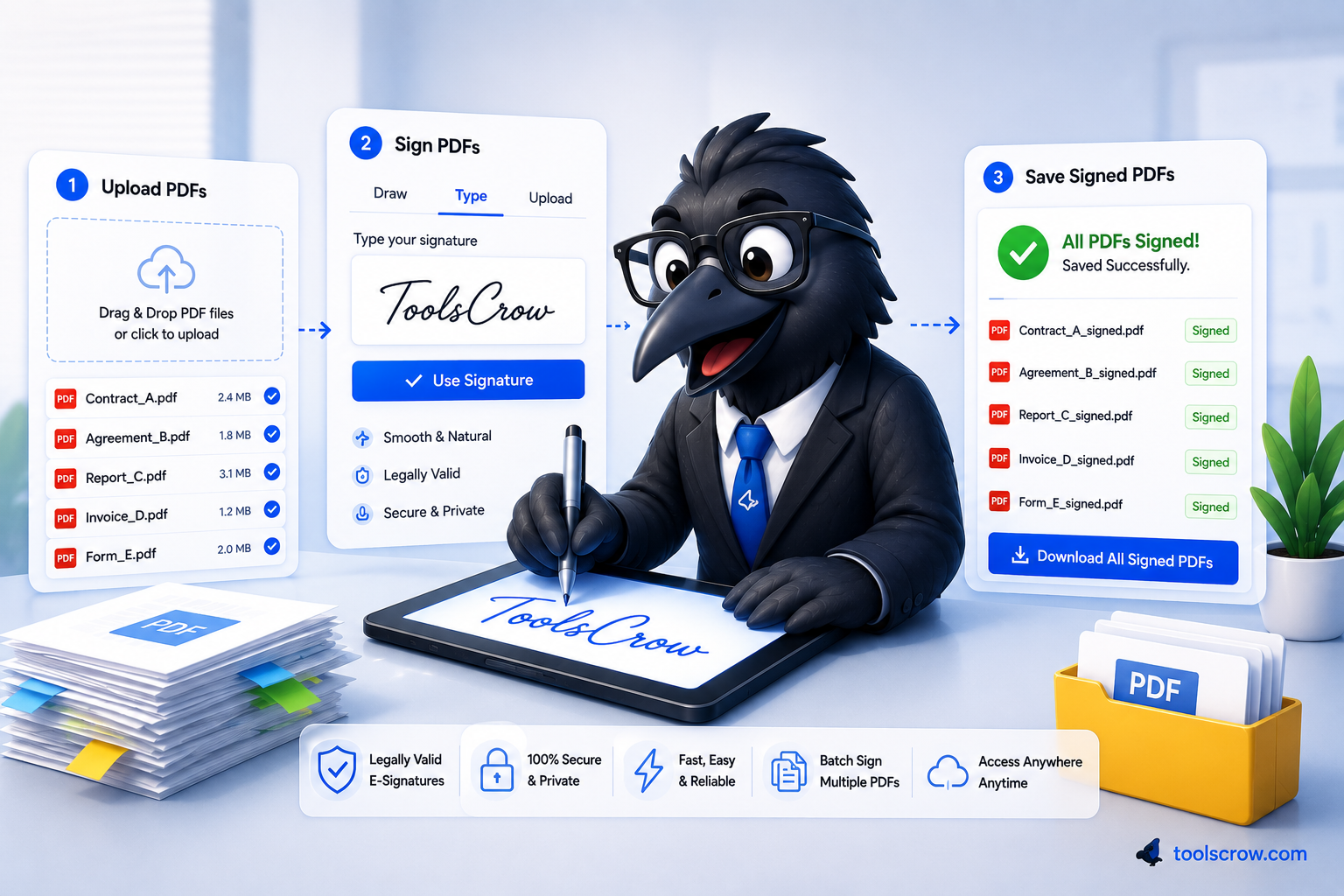
Step-by-Step: How to Sign Your PDF Online (Complete Walkthrough)
Here's the complete process from start to finish, covering all the tool's features so you can sign confidently regardless of which signature creation method you choose.
➡️ Follow along at toolscrow.com/pdf-tools/sign-pdf/ — free, no account, files stay in your browser.
Step 1: Upload Your PDF
Click the upload area, or drag and drop your PDF file directly onto it. The tool supports multi-page PDFs — once uploaded, every page is rendered and a thumbnail strip appears showing each page in the document. You'll see a progress indicator while the document loads, which is typically very fast for documents of a reasonable size (most everyday contracts, forms, and agreements are well under the threshold where this would take more than a second or two).
Once loaded, the main preview area displays your first page at full size, and the signature creation panel appears, ready for the next step.

Step 2: Create Your Signature
Choose one of the three tabs — Draw, Upload, or Type — based on the guidance in the previous section. Create your signature using your chosen method, then click the "Use" button for that method. A preview of your active signature appears in the Signature Preview area, confirming what will be placed on the document.
If you're not happy with the result, you can switch methods or redo the current one — clicking "Use" again on a different (or adjusted) signature replaces the active one before you place it.

Step 3: Navigate to the Right Page
If your document has multiple pages and you need to sign on a specific page (for example, the signature page is typically the last page of a contract), use the page thumbnails on the left or the next/previous page buttons in the preview toolbar to navigate to that page. The page indicator shows you which page you're currently viewing relative to the total ("Page 4/12," for example).
Step 4: Choose Placement Options
Before placing your signature, select a placement anchor:
- Center: Places the signature in the middle of the page — useful as a starting point you'll then drag into position.
- Bottom-right: Places the signature in the bottom-right corner — the conventional location for signatures on most documents, near "Signature: ___" lines.
- Custom Position: Allows for manual placement after the signature appears on the page.
Choosing "Bottom-right" as your default anchor often saves a step, since that's where signature lines are positioned on the majority of documents.
Step 5: Place the Signature
Click "Place on Current Page" to add your signature to the page you're currently viewing. The signature appears as a draggable, resizable element overlaid on the document.
If you need the same signature on every page of the document — common for initialing each page of a long contract — click "Place on All Pages" instead. This places a copy of your signature on every page at once, using the same anchor position you've selected.

Step 6: Position and Resize the Signature
Once placed, drag the signature to its exact position on the page — directly onto the signature line, initial box, or wherever it needs to go. Use the resize handle (typically in the bottom-right corner of the signature box) to make the signature larger or smaller to fit the available space appropriately. A signature that's too large can overlap surrounding text; one that's too small can look insignificant or hard to read. Aim for a size that feels proportional to other text on the page — roughly the height of two to three lines of body text is a reasonable default for most documents.
If you've placed a signature on multiple pages and need to adjust one individually, navigate to that page and adjust just that instance — each placement is independent.
Step 7: Use Undo If Needed
If you place a signature in the wrong spot, on the wrong page, or simply change your mind, the "Undo Last Placement" button removes the most recently added signature. If you need to start over completely — removing every signature from every page — use "Clear All Signatures" (with a confirmation prompt to prevent accidental data loss).
Step 8: Save Your Signed PDF
Once every signature is positioned correctly, click "Save Signed PDF." The tool processes the document — embedding each signature image into its corresponding page at the exact position and size you specified — and generates the final signed PDF. A progress indicator shows the processing status, especially useful for documents with many pages or many signature placements.
When processing completes, the signed PDF downloads automatically to your device, typically named with the current date for easy identification (e.g., "signed-document-2026-06-15.pdf"). Open it in any PDF viewer to confirm everything looks correct — the signatures should now be a permanent part of the document, flattened into the page content rather than existing as separate editable layers.

How to Save PDF with Signature now?

Bonus: Save Your Signature for Future Use
If you've created a signature you're happy with — particularly a drawn or typed one — use the "Download Signature Image" option to save it as a PNG file on your device. The next time you need to sign a document, you can upload this saved image directly via the Upload tab rather than recreating it from scratch. This is particularly useful if you've spent time getting a drawn signature to look just right.
Signing a PDF on Your Phone or Tablet
A significant share of documents that need signing arrive by email when you're away from a desk — and increasingly, people complete the entire signing process on their phone. A well-built browser-based signing tool works just as well on mobile as on desktop, with a few practical differences worth knowing.
Touch-Based Drawing Is More Natural
The Draw method genuinely shines on a touchscreen. Using your finger (or better, a stylus if your device supports one) to trace your signature produces results that look far closer to a natural handwritten signature than dragging a mouse cursor ever could. If you're signing on mobile, the Draw tab is often the best choice for this reason alone.
Mobile-Optimized Controls
A responsive PDF signing tool provides a separate, simplified control layout for small screens — typically condensing zoom, page navigation, save, and clear functions into a compact toolbar that fits comfortably above the document preview without requiring horizontal scrolling. Page thumbnails remain accessible, usually in a scrollable list, so you can still jump to a specific page in a long document.
Touch Gestures for Positioning
Placing, dragging, and resizing your signature works through touch gestures — tap and drag to move the signature, and use the resize handle (typically a small square in the corner of the signature box) with a touch-and-drag motion to adjust its size. The interaction model mirrors what most people are already familiar with from photo editing and document annotation apps.
Practical Mobile Signing Tip
If you receive a document via email on your phone, open the email's PDF attachment, save it to your device's file storage (Files app on iOS, or your downloads folder on Android), then open the signing tool in your mobile browser and upload the saved file. Most mobile browsers support file uploads from local storage, cloud storage (Google Drive, iCloud, Dropbox), and sometimes directly from the camera roll if the PDF was saved as part of a scanned document.
8 Mistakes People Make When Signing PDFs Digitally
Mistake 1: Signing Before Reading the Whole Document
This isn't specific to digital signing, but the speed and convenience of online tools can make it tempting to skip straight to the signature page. Read the entire document — every page — before signing. The convenience of e-signatures shouldn't come at the cost of due diligence. If the document is long, take the time it deserves; the signing process itself only takes a minute once you're ready.
Mistake 2: Making the Signature Too Large or Too Small
A signature that's disproportionately large compared to the rest of the document looks unprofessional and can obscure nearby text — particularly problematic if it covers a date field, a printed name, or other required information near the signature line. A signature that's too small can look like an afterthought or be difficult to read clearly. Resize your signature so it's proportional to the surrounding text — generally, a signature about the height of two to three lines of body text strikes the right balance for most documents.
Mistake 3: Placing the Signature on the Wrong Page
Multi-page contracts often require initials on every page and a full signature only on the final signature page — or sometimes signatures on multiple specific pages (each party's copy, an acknowledgment page, an addendum). Before placing anything, skim through the document to identify exactly which pages need what. Using "Place on All Pages" when only the last page needs a full signature, for instance, can look unusual to the recipient even if it doesn't invalidate anything.
Mistake 4: Forgetting to Check Page Orientation and Zoom Before Placing
If you place a signature while zoomed in or zoomed out significantly from 100%, the placement might look correct in the editor but appear oddly positioned at actual size — particularly near page edges. After placing a signature, zoom to 100% and visually confirm the placement looks correct relative to the full page before saving.
Mistake 5: Using a Visibly "Pasted" Signature Image
If you're using the Upload method with a photographed signature, a visible white or off-white rectangle around your signature — especially if the page background is a different shade — looks obviously pasted-on rather than integrated into the document. Use an image with a transparent background (PNG format with alpha channel) for a cleaner, more natural-looking result. Several free tools exist specifically for removing backgrounds from signature images.
Mistake 6: Not Saving a Copy of the Signed Document for Your Records
Once you click save and the file downloads, make sure it actually lands somewhere you'll find it again. It's good practice to immediately move the signed PDF to a dedicated folder — "Signed Documents 2026," for example — rather than leaving it in your general Downloads folder where it might get lost among hundreds of other files. If this document represents an agreement you're entering into, having your own copy readily accessible matters if any dispute arises later.
Mistake 7: Assuming Every Document Type Can Be Signed Electronically
As covered earlier, certain document categories — wills, some court filings, certain real estate transfers depending on jurisdiction — may still require traditional signatures, notarization, or witnesses regardless of how convenient electronic signing is. If you're unsure whether a specific document falls into one of these categories, a quick check with the requesting party or a legal professional avoids the situation where you've signed electronically only to be told it needs to be redone with a wet signature.
Mistake 8: Using a Tool That Requires an Account for a One-Time Signature
If you only need to sign a document once or occasionally, creating an account with a signing service — providing your email, setting a password, possibly verifying your identity — is unnecessary overhead for what should be a quick task. A genuinely free, no-account browser tool gets you from upload to signed download in the same amount of time, without creating yet another account you'll need to remember (and that will have your document history sitting in it indefinitely).
Frequently Asked Questions About Signing PDFs Digitally
Is a signature I draw with my mouse legally binding?
In most cases, yes. Under laws like the US ESIGN Act and UETA, and the EU's eIDAS regulation (for Simple Electronic Signatures), what matters legally is the signer's clear intent to sign and agree to the document's contents — not the specific method used to create the mark. A signature drawn with a mouse, when applied with genuine intent and in a context where electronic signatures are accepted, carries the same legal weight as a handwritten signature for the vast majority of contracts and agreements. Specific document types (wills, certain court filings, some property transfers) may be exceptions depending on your jurisdiction.
What's the difference between signing a PDF and using a service like DocuSign?
Services like DocuSign provide a complete e-signature workflow: they can send documents to multiple parties for sequential or parallel signing, track who has signed and when, send automatic reminders, and generate an audit trail with timestamps and certificates that document the entire signing process. Tools that let you sign a PDF yourself and download it are more like a digital pen — they're ideal when you're the only one signing, or when you'll handle sending the document to other parties separately (via email, for instance). For complex multi-party workflows with audit trail requirements, a dedicated e-signature platform may be more appropriate. For signing your own copy of a document — which represents the majority of everyday signing needs — a free browser-based signer accomplishes the same legal outcome.
Can I sign a PDF on my phone?
Yes. Browser-based PDF signing tools that are built responsively work fully on mobile browsers — you can upload a PDF (from your device's storage, cloud storage, or sometimes directly from a scanned photo), create a signature by drawing with your finger, typing, or uploading an image, position it on the document, and download the signed result. Drawing with a finger or stylus on a touchscreen often produces a more natural-looking signature than using a mouse.
Does my signature need to look exactly like my "real" signature?
Generally, no — there's no legal requirement that an electronic signature visually replicate your handwritten signature precisely. What matters is that it represents your intent to sign. That said, for documents where signature consistency might be checked against records on file (certain banking or identification contexts), using a signature that resembles what you've used elsewhere is sensible practice, even if not strictly required by law.
What happens to my PDF after I sign it online?
This depends entirely on the tool. With a browser-based tool that uses client-side libraries (like PDF.js and PDF-LIB), your file is processed entirely on your device — read into your browser's memory, modified there, and offered back to you as a download. No copy is transmitted to or stored on any server. With server-based tools, your file is uploaded, processed remotely, and the result sent back — meaning a copy of your document exists, even temporarily, on that company's infrastructure. Check the specific tool's privacy practices, or verify behavior yourself using your browser's developer tools (Network tab) if you're uncertain.
Can I add multiple signatures to one document — for example, for different signers?
Tools designed for single-user signing (where you create one signature and place it on the document) are built around the assumption that one person is doing the signing. If a document needs signatures from multiple different people, the typical workflow is for each person to sign their own copy using the tool, or for the document to be passed sequentially — each person opens the file (which now includes the previous person's signature, since it's flattened into the PDF), adds their own signature using their own draw/type/upload method, and saves a new version. For complex multi-signer workflows with tracking, a dedicated e-signature platform with built-in routing may be more practical.
Will my signature look the same when the recipient opens the PDF?
Yes — when a signature is embedded into a PDF using a library like PDF-LIB, it becomes part of the page's content, the same as any image or graphic on the page. It will display identically regardless of what PDF viewer or device the recipient uses to open the file — Adobe Reader, a browser's built-in PDF viewer, a mobile PDF app, or any other standard-compliant PDF software.
Can I edit or remove a signature after I've saved the PDF?
Once a signature is saved into the PDF (flattened into the page content), it becomes a permanent part of that page's visual content — it cannot be selected, moved, or deleted as a separate element using standard PDF viewers. If you need to make a change, you'd need to go back to your original unsigned PDF (kept as a separate file before you started signing) and redo the process. This is one reason it's good practice to keep your original, unsigned document as a backup until you're confident the signed version is final.
Is it safe to sign tax documents, loan agreements, or other sensitive paperwork using a free online tool?
This depends entirely on how the tool processes your file. If the tool processes everything locally in your browser — meaning your document is never uploaded to a server — then signing sensitive documents is no less safe than opening them in a desktop PDF reader on your own computer; the file simply never leaves your device. If the tool uploads your file to a server for processing, you're trusting that company's data handling practices with potentially sensitive financial, legal, or personal information. For documents like tax forms, loan agreements, medical records, or anything containing identification numbers or financial details, a tool that's verifiably browser-based offers a meaningfully higher privacy standard.
The Hidden Costs of "Free" E-Signature Services
Not all free PDF signers are created equal — and "free" sometimes comes with costs that aren't monetary but still matter. Here's what to watch for.
Cost 1: Your Document Leaves Your Device
Many "free" online PDF signers require you to upload your document to their servers. Your contract, lease, tax form, or NDA sits on someone else's infrastructure. Even if they claim to delete it immediately, you have no way to verify that. And you have no control over what happens during that window — whether it's logged, backed up, or accessible to staff. For documents containing your home address, Social Security Number, financial details, or business terms, this is a meaningful privacy risk. Browser-based signing tools that process locally eliminate this risk entirely.
Cost 2: Email Collection for Marketing
Some services let you sign for free — after you provide your email address. That email address goes onto a marketing list. You start receiving newsletters, promotional offers, or "upgrade to premium" emails. Sometimes the sign-up process includes an automatically checked box for "I agree to receive marketing communications" that you have to notice and uncheck. A genuinely free tool with no account required doesn't ask for your email in the first place.
Cost 3: Watermarks on Signed Documents
A shocking number of "free" PDF signers add a watermark to the output: "Created with [Service Name] Free Edition," "Powered by [Tool Name]," or a small logo in the corner of every page. On a signed document — which you're sending to a client, employer, landlord, or government agency — these watermarks look unprofessional at best and suspicious at worst. A recipient might question whether the document has been tampered with or why you used a free tool for something important. Any watermark on a signed document is unacceptable. Your signing tool should add nothing to your document except your signature.
Cost 4: Limited Signature Placement
Some free versions restrict where you can place a signature — maybe only on the first page, or only at the bottom-right corner with no ability to drag. Others allow only one signature placement per document, which is insufficient for multi-page documents requiring initials on every page. If a tool's free tier is essentially a demo that forces you to upgrade for basic functionality, it's not truly free for real-world use.
Cost 5: No Undo or Clear Function
Everyone makes placement mistakes — a signature that's too large, in the wrong spot, or on the wrong page. Tools without undo or clear-all-signatures functionality leave you with no way to correct errors except starting over from the beginning (re-uploading the original unsigned PDF). This is frustrating and time-wasting. A full-featured tool includes undo for the last placement and a way to remove all signatures at once.
Cost 6: Your Signature Image Is Stored on Their Servers
Some services not only process your document on their servers but also store your signature image — sometimes permanently, in association with your email address or IP address. That means a drawing of your signature, which could be used to forge your approval on other documents, sits in a database somewhere under someone else's control. A local-processing tool never transmits your signature anywhere; it exists only in your browser's memory and disappears when you close the tab.
When evaluating a free PDF signer, ask yourself: what is this company actually getting in exchange for providing this service? The answer for genuinely local-processing, no-account tools is "nothing" — which is what makes them worth using over the alternatives.
Sign Your Next PDF in Under Two Minutes — Here's Your Recap
Signing a PDF digitally isn't a workaround, a gray area, or something that needs a lawyer's sign-off before you trust it. For the overwhelming majority of documents — contracts, agreements, forms, leases, NDAs, applications — electronic signatures are explicitly recognized as legally binding under frameworks like the ESIGN Act, UETA, and eIDAS, provided they reflect genuine intent to sign.
The practical part is just as simple as the legal part. You don't need specialized software, a subscription, or an account. You need a PDF, a browser, and about two minutes:
- Upload your PDF — it loads directly into your browser, with thumbnails of every page.
- Create your signature using whichever method suits the moment — draw it for authenticity, type it for speed, or upload an existing image for consistency.
- Navigate to the right page (or pages) and place your signature using the anchor options or by dragging it into position.
- Resize it to look proportional, and use undo if you need to adjust.
- Save your signed PDF — it downloads directly to your device, ready to send.
And if your tool processes everything locally — as a browser-based tool built on PDF.js and PDF-LIB does — your document never leaves your device at any point in that process. For contracts, leases, financial agreements, and anything else containing information you'd rather keep private, that's not a minor convenience — it's the right way to handle sensitive paperwork.
Ready to sign your PDF right now?
Open the free PDF signer → toolscrow.com/pdf-tools/sign-pdf/ — draw, type, or upload your signature, no account required, files stay on your device.
Found this guide helpful? Share it with someone who's still printing documents just to sign them.
Comments (0)
No comments yet. Be the first to share your thoughts!
Leave a Comment
All comments are reviewed before publishing. Please keep it respectful and on-topic. Comments with links or promotional content will be rejected automatically.