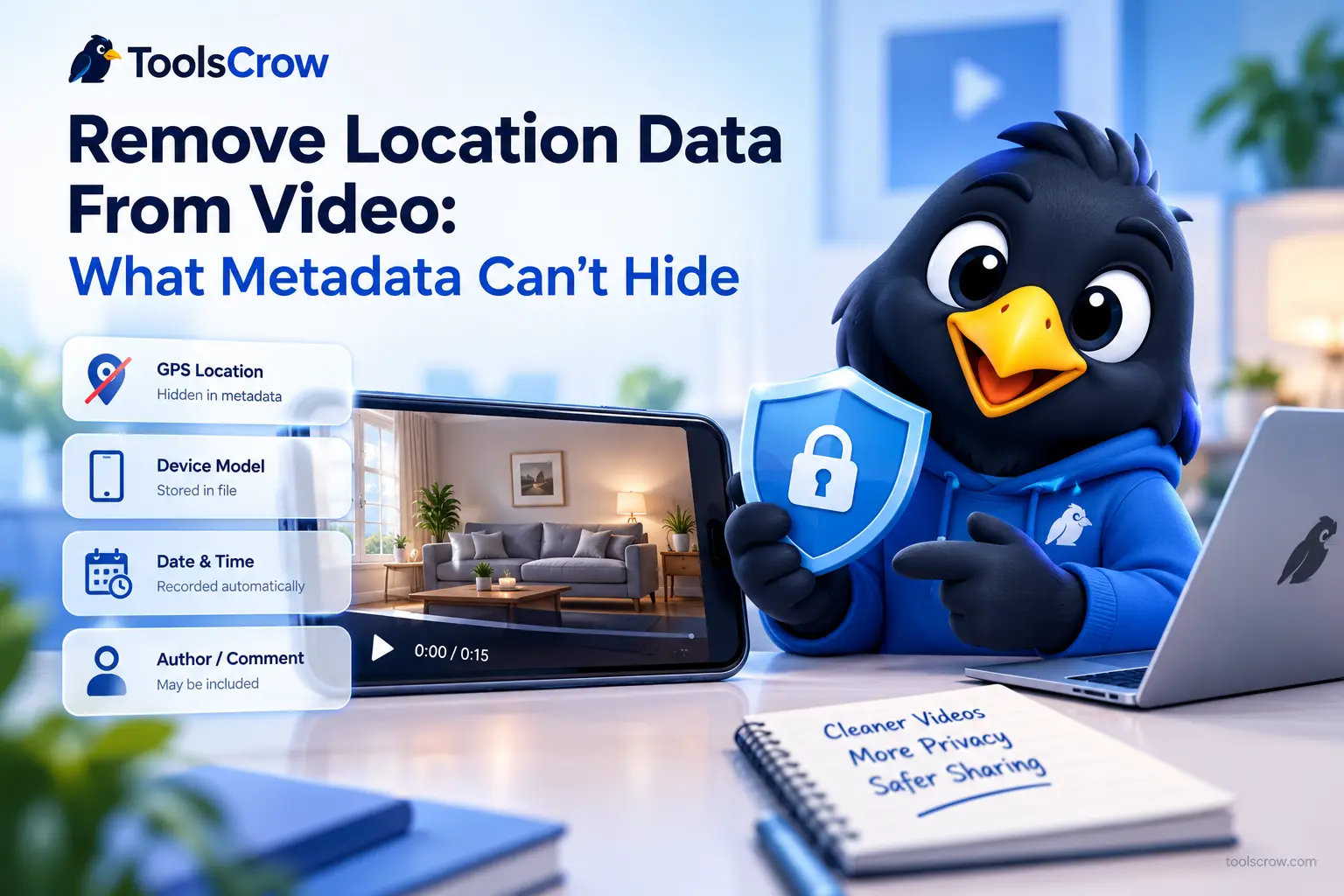
You are selling a couch, and the buyer asks for a short video of it. You film it in your living room, attach the file, and send it. The video shows a couch and a bit of wall. What you cannot see is that the file may also contain the GPS coordinates of where it was filmed, the model of your phone, and the exact minute you pressed record.
That hidden information is called metadata, and it travels with the file. This guide shows you how to check what your videos carry, which apps remove it for you and which do not, and how to strip it for free without uploading your video anywhere. It also covers something most guides skip: the ways a video can give away where you are even after every piece of metadata is gone. Here is how to Remove Location Data From a Video Before You Share It (and What Metadata Removal Won't Catch)
The Short Version
- Stop it at the source. Turn off location access for your phone's Camera app so new videos are not tagged in the first place.
- Strip it before you send a file. Remove the metadata from the video as the last step before sharing, using a tool that works in your browser and never uploads the file.
- Check what the picture and sound give away. Metadata removal does not hide a house number in the frame or an address someone says out loud.

What Your Phone Writes Into Every Video
When you record a video, your phone quietly adds information to the file. Depending on your settings, that can include the GPS coordinates of where you filmed, the make and model of the device, the software version, the date and time of recording, and sometimes an author or comment field. None of it shows while the video plays. Anyone who inspects the file can read it, and some apps and platforms read it automatically.
On an iPhone, location is saved inside the file next to the phone model and the iOS version. Whether location is written at all depends on one setting: whether the Camera app is allowed to use Location Services. If it is not, new videos are recorded without coordinates. One more detail worth knowing: iPhone location is stored in Apple-specific places inside MOV files, so a quick check that only looks at the standard location field can report nothing even when location is still there.
How to Check What Your Own Video Carries
On an iPhone, open the video in Photos and swipe up, or tap the info button. You will see the date and time, the device, and a small map if a location is attached. On a Mac or Windows computer, the file's Get Info or Properties panel shows some of the same details.
Treat this as a quick sanity check, not proof. These built-in panels do not display everything a file can hold, and what you see for a video you received in a message depends on what the sending app kept. A map on your own video means location is definitely there. No map does not guarantee the file is clean.

Does the App You Use Remove It for You?
Sometimes, but not always, and the answer depends on how the file travels. Independent tests published in 2026 by makers of metadata tools (who have a stake in the topic, so read this as a guide rather than gospel) report a consistent pattern.
| Where the video goes | What the tests report | What it means for you |
|---|---|---|
| Instagram, TikTok, YouTube (normal upload) | The copy served to viewers had no GPS or device details, because the platform re-encodes the video | Viewers are protected, but the platform still received your original file |
| WhatsApp, sent as a normal video | Re-encoded, metadata removed (one test shrank it to 480p) | Protected, at a large cost in quality |
| WhatsApp, sent as a document | Arrived byte for byte identical, everything kept | Not protected |
| Telegram, sent as a file | Everything kept | Not protected |
| Email attachment, cloud link, file transfer | You are sending the original file | Assume everything travels with it |
| Discord | Reports conflict and seem to depend on how you send | Do not rely on it |
The pattern to remember: platforms that re-encode your video tend to protect the people watching it, but they do not protect you from the platform itself, and any route that delivers your original file, including WhatsApp's document option, email, and cloud links, delivers the metadata too. Apps also change how they behave over time, so do not build your privacy on a table like this one. Remove the data yourself before you send.

Three Ways to Remove Location From a Video
Method 1: Stop Recording Location (Best for New Videos)
On an iPhone, go to Settings, then Privacy and Security, then Location Services, then Camera, and choose Never. New photos and videos will be recorded without GPS coordinates. The trade-off is that new videos will not carry a location, so they will not appear on the map view in Photos. This does nothing for videos you have already recorded.
Method 2: Turn Location Off When You Share (iPhone Only, Limited)
Open the video in Photos, tap Share, tap Options at the top of the share sheet, switch Location off, tap Done, and then share. The copy you send will not include your location.
Know what this does not do. It removes location only, so the phone model and other details can still travel with the file. It affects the copy you send, while the original on your phone keeps its location. And it only applies when you share from Photos, not when you attach the file from somewhere else. It is a useful quick option for a casual share, and not a full clean-up.
Method 3: Strip Everything With a Browser Tool (Thorough, Works for Any File)
The Remove Video Metadata tool rebuilds your video file from just its picture and sound. Because a new file is written from scratch, there is nothing left to carry the old information over. It removes GPS location, device make, model and software, the original recording date and time, and author or comment fields.
- Choose your video.
- Check the options on the page.
- Press the button and wait for the progress bar.
- Preview the result, then download it.
Three details make this worth using over a quick workaround. The video keeps its orientation, so it still plays the right way up. When the file format allows it, the video and audio are copied across without re-encoding, which makes it fast and means there is no quality loss. And the whole process runs inside your browser, so the file is never uploaded.
That last point matters more here than for almost any other tool. If a metadata remover works by uploading your video to a server, you have already handed your original file, location included, to a stranger before it was cleaned. A tool that works on your own device avoids that problem entirely. It is free, with no sign-up, no watermark, and no daily limit. The limits come from your device: phone clips of several hundred MB are usually fine, a desktop handles 1 to 2 GB, and files over about 4 GB are not supported. It works best in current Chrome, Edge, and Safari 16.4 or newer, including on iPhone and iPad.
A Simple Rule for the Order of Steps
If you also plan to trim, blur, or compress the video, do those first and remove the metadata last. A common piece of advice from people who work with this is to clean a file after final editing and just before it leaves your hands, so a later editing step cannot add information back. If you need to shrink the file as well, run the Video Compressor first, then the metadata remover as the final pass. Do not assume a compressor or converter removes metadata as a side effect. If privacy is the goal, make the removal its own deliberate step.
What Metadata Removal Will Not Hide
This is the part most guides leave out, and the tool's own notes are upfront about it. Removing metadata only removes the hidden information in the file. It does nothing about what the video itself shows and says.
Things That Are Visible in the Picture
A timestamp burned into the frame by a dashcam or security camera is part of the image, not metadata, so it stays. So can a house number, a street sign, a number plate, a package or letter with an address on it, a distinctive landmark through a window, or a reflection in a mirror or glass. The Blur Part of a Video tool is built for hiding a face, a name, an address, or a number plate, and the Video Trimmer lets you cut out a section you would rather not show at all.
Things That Are Audible
Someone saying an address, a full name, a school, or a workplace out loud is in the audio, not the metadata. If the sound is not needed, the Mute Video tool removes it. If it is needed, trim the part where those details come up.
Things You Add Yourself
A caption, title, or hashtag such as "filmed at my place on Maple Street" does the same job as the GPS tag you just removed. Read your own caption the way a stranger would.
A Limit Worth Understanding
Removing metadata is not a defense against a determined person who has your original file. It removes what a normal share would otherwise carry, which covers most everyday situations. Your original, with its full metadata, is still sitting on your phone, so keep it private and share only the cleaned copy.
A Before-You-Send Checklist
| Check | How |
|---|---|
| Does the video carry a location? | Open it in Photos and swipe up, or use Get Info or Properties on a computer |
| Is anything identifying visible? | Watch it once as a stranger would, then blur or trim |
| Is anything identifying said out loud? | Listen once with the sound on, then mute or trim |
| Does the caption give it away? | Reread the title, caption, and hashtags |
| Strip the metadata last | Run the Remove Video Metadata tool as the final step |
| Share the cleaned copy only | Keep the original private |
What About Android?
Android varies by manufacturer and by app, so there is no single set of steps that applies to every phone. Look in your Camera app's settings for a location tag option, and do not assume a gallery app's "hide location" option edits the file itself. Hiding something on screen and removing it from the file are different things. Because the browser tool works on the file directly, it behaves the same whichever phone recorded the video, as long as you use a current browser such as Chrome.
Photos Have the Same Problem
Everything above applies to photos too, usually in the form of GPS data inside the image file. For JPEG photos, the Metadata Viewer shows what a photo carries, including GPS when it is present, and the Metadata Cleaner creates a copy without it. Note that the viewer reads JPEG photos in detail and shows only basic file information for other file types, so it is not a way to check a video.
Frequently Asked Questions
Does removing metadata change the video quality?
No. When the file format allows it, the video and audio are copied exactly and only the surrounding file information is rebuilt, so quality does not change and the process is fast.
Will the video still play the right way up?
Yes. Orientation is kept because it affects how the video displays, not who made it or where.
Is my video uploaded when I use the tool?
No. Everything runs inside your browser using your own device. The file is never sent to ToolsCrow or anyone else, and it keeps working even if your connection drops after the page has loaded.
Does posting on Instagram, TikTok, or YouTube expose my location?
Independent tests report that the copy shown to viewers had no GPS or device details, because these platforms re-encode the video. The platform itself still received your original file, and platform behavior can change, so removing the data before you upload is the safer habit.
If I turned off location for the Camera, am I safe?
You are safe from GPS coordinates in new videos, but not from everything. Device details and timestamps can still be in the file, and visible or audible clues in the video itself are unaffected. Videos recorded before you changed the setting may still carry a location.
How do I know the removal worked?
Open the cleaned copy in the same info panel you used to check the original. If the map and device details are gone, that is a good sign. Remember that built-in panels do not show everything, so treat it as a sanity check rather than proof.
Why not just use the iPhone's Location off option when sharing?
It is fine for a quick, casual share, but it only removes location from the copy you send, leaves other details such as the phone model, and only applies when you share from Photos. Stripping the file removes everything in one pass and works no matter how you send it afterwards.
The Bottom Line
A video file carries more than the video. The easy wins are turning off location for the Camera app and removing metadata as the last step before you share a file. Just as important, watch and listen to your own video once as a stranger would, because no tool can hide an address you say out loud or a house number the camera shows. Clean the file, check the content, and share only the cleaned copy.
Clean your video now, free and with no upload:
Remove Video Metadata
Blur Part of a Video
Mute Video
Video Trimmer
Related reading: Free Online Video Compressor: Reduce Video File Size and Free Online Video Converter: Convert MP4, MOV and WebM.



Comments (0)
No comments yet. Be the first to share your thoughts!
Leave a Comment
All comments are reviewed before publishing. Please keep it respectful and on-topic. Comments with links or promotional content will be rejected automatically.