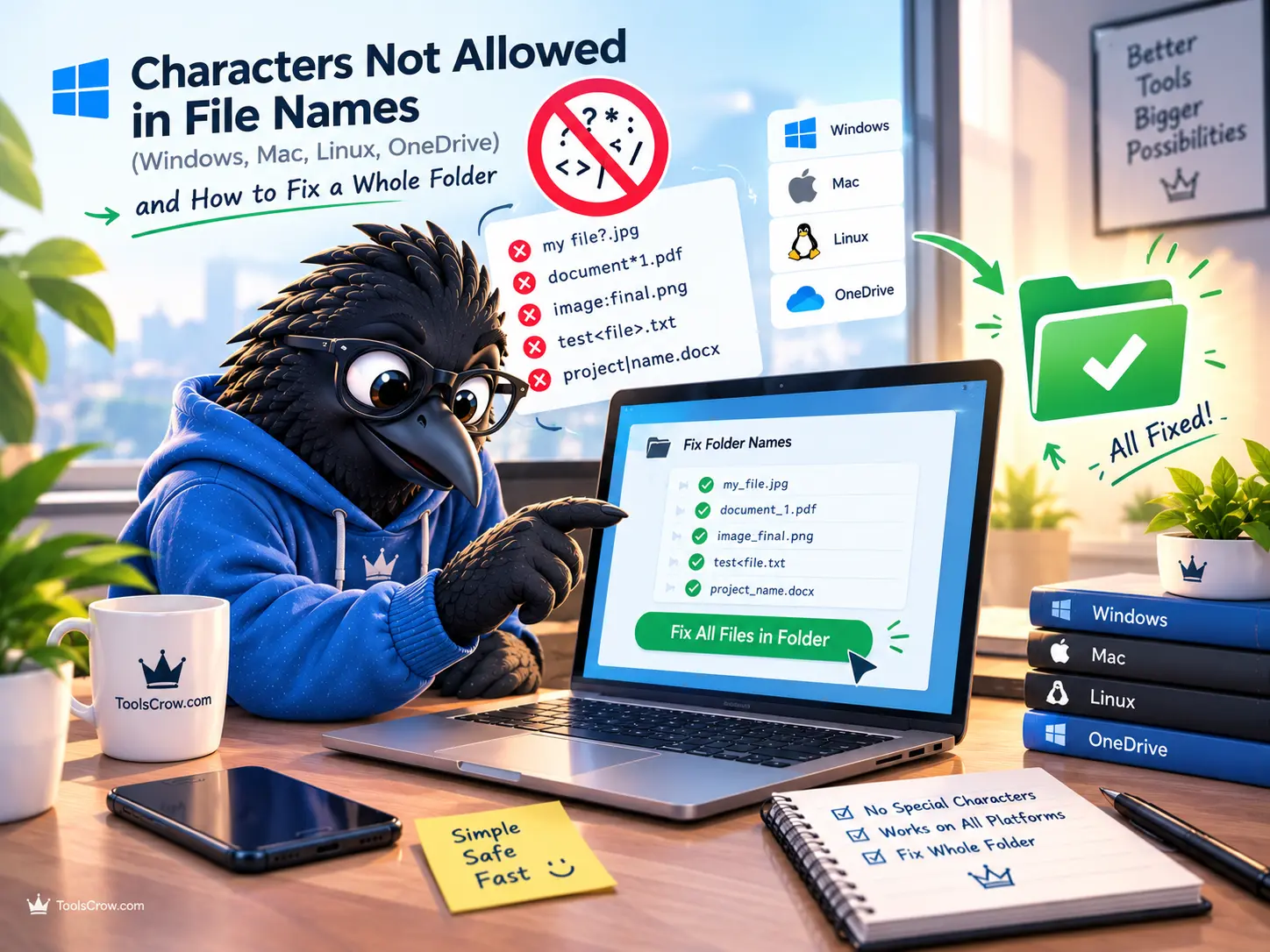
You rename a file "Q3 report: final?.xlsx" and Windows refuses. Or you copy a folder from a Mac onto a Windows drive and a few files fail with an error that does not say which ones. Or OneDrive sits there with a red cross on a file you have had for years. The cause is almost always the same: somewhere in the name, there is a character or a pattern that one system allows and another does not.
This guide lists the exact rules for each system, based on Microsoft's own documentation, explains why files that work on one computer break on another, and then shows a practical way to find and fix a whole folder at once instead of renaming files one by one.
The Short Answer
- Windows: no
< > : " / \ | ? *in a name. A name cannot end with a space or a period. The names CON, PRN, AUX, NUL, COM1 to COM9 and LPT1 to LPT9 are reserved, even with an extension. - Linux: only the forward slash and the invisible null character are blocked, but "allowed" does not mean "safe" once the file moves.
- macOS: more lenient than Windows, which is exactly why files created on a Mac often fail when they reach a PC. Accented characters add a second problem.
- OneDrive and SharePoint: the Windows list of characters, plus no leading or trailing spaces, a longer list of blocked names, and a 400-character path limit.
- The safe habit that works everywhere: letters, numbers, hyphens, underscores, and one dot before the extension.
Windows: The Strictest Rules of the Common Systems
The Nine Blocked Characters
Microsoft's documentation lists these characters as reserved in Windows file and folder names. Invisible control characters, such as a line break pasted in from a document, are not allowed either. See Microsoft Learn: Naming Files, Paths, and Namespaces for the full technical reference.
| Character | Name | Why it is reserved (in short) |
|---|---|---|
< | Less than | Used for input redirection on the command line |
> | Greater than | Used for output redirection on the command line |
: | Colon | Separates the drive letter (C:) and is used for special NTFS data streams |
" | Double quote | Wraps paths and names that contain spaces |
/ | Forward slash | Works as a path separator |
\ | Backslash | The main path separator |
| | Vertical bar | Passes output from one command to another |
? | Question mark | Wildcard for one character |
* | Asterisk | Wildcard for any number of characters |
The colon, question mark, and quote are the usual troublemakers, because they are natural to type in a real-world title such as "Meeting notes: Q3" or "What is our budget?".
Names That Cannot End With a Space or a Period
Microsoft says not to end a file or folder name with a space or a period. The underlying file system may technically store such a name, but the Windows shell and user interface do not handle it properly. In Microsoft's developer documentation, the warning is stronger: trailing spaces can make a file or folder difficult or impossible to access, and many applications fail on them. A name that starts with a period, like .gitignore, is fine.
This is a very common cause of Mac-to-Windows trouble. A name with a trailing space is easy to create by accident and almost impossible to notice by eye.
Reserved Names: CON, PRN, AUX, NUL and Friends
Windows keeps a short list of names for legacy devices from the DOS era, such as the console and printer ports. You cannot use these as file or folder names: CON, PRN, AUX, NUL, COM1 through COM9, and LPT1 through LPT9. Microsoft's current documentation also lists the superscript forms COM¹, COM², COM³, LPT¹, LPT², and LPT³, because Windows treats those superscript digits as digits.
Two details catch people out. First, the rule applies even with an extension: Microsoft advises against NUL.txt as well as NUL. Second, the reserved word has to be the whole name. auxiliary_data and CON_Folder are fine, while aux.txt and Con.pdf are not.
Path Length: The 260-Character Limit
Windows has a traditional limit of 260 characters for a full path, which counts the drive letter, every folder name, the separators, and the file name together. NTFS itself can store much longer paths, up to 32,767 characters, and since Windows 10 version 1607 you can opt in to removing the 260 limit. The catch is that many programs still enforce it, including .NET Framework apps older than version 4.6.2. In practice, 260 remains the safe number to design around.
The important point is that the limit applies to the whole path, so the same file can pass in one place and fail in another. A path that is fine at C:\Data can break at C:\Users\yourname\OneDrive - Company Name\Projects\ because the longer starting location uses up characters.
Linux: Almost Anything Goes, Which Causes Its Own Trouble
Linux file systems block only two things in a name: the forward slash, because it separates folders, and the invisible null character. A single name is typically limited to 255 bytes. Because that is a byte limit, accented and non-Latin characters take more than one byte each, so a name with many of them hits the limit sooner than you would expect.
Linux is also case-sensitive, so Report.pdf and report.pdf can sit in the same folder as two different files. That is fine on Linux and a problem the moment those files are copied to Windows or to a default Mac, where the two names count as the same file and one can overwrite the other.
Just because Linux allows a space, a quote, or a leading dash in a name does not make it a good idea. Those names tend to break shell scripts and command-line tools, and files with Windows-illegal characters cannot move to a Windows machine later without being renamed.
macOS: Lenient, With Two Hidden Traps
macOS lets you create names that Windows will not accept. That leniency is the main reason a folder works perfectly on a Mac and then produces errors on a PC, in a ZIP file, or in a cloud sync. Two other Mac behaviors are worth knowing.
Case Is Ignored by Default
A default Mac volume is case-insensitive, like Windows. If you copy a folder from Linux that contains both Notes.txt and notes.txt, one of them can silently replace the other.
Accented Characters Look the Same but Are Not
An accented letter such as "é" can be stored in two ways: as one combined character, or as a plain "e" followed by a separate accent mark. macOS commonly uses the second form for file names, while Windows and Linux typically use the first. The two names look identical on screen but are different underneath.
The result depends on the app and the file system, but it can include duplicate files, sync conflicts, or files that seem to be missing. On Linux, both versions can exist side by side as two separate files with names that look the same. If you move accented file names between a Mac and anything else, removing the accents from the names (for example, "café" to "cafe") avoids the problem entirely, at the cost of losing the accent in the name.
OneDrive and SharePoint: Where Most People Actually Hit These Rules
For many people, the first sign of a naming problem is a OneDrive sync error, not a Windows dialog box. Microsoft's published restrictions for OneDrive and SharePoint are listed in Microsoft Support: Restrictions and limitations in OneDrive and SharePoint:
- Blocked characters:
" * : < > ? / \ | - Leading and trailing spaces are not allowed, and neither are names that end with a period.
- Blocked names:
.lock, CON, PRN, AUX, NUL, COM0 to COM9, LPT0 to LPT9,desktop.ini, and anything starting with~$. The text_vti_cannot appear anywhere in a name. - Path length: the full path, including folder and file name, is limited to 400 characters.
- The # and % characters are supported in current setups, but some organizations restrict them. If a name with those characters fails at work or school, ask your administrator.
Note that OneDrive's list includes COM0 and LPT0, which Microsoft's Windows documentation does not list. Microsoft also changed how OneDrive for Mac handles invalid characters in January 2025, so Mac users should check the current page. Even so, avoiding these characters remains the safe choice, because the same files usually need to work on Windows and on the web too.
What Happens When OneDrive Renames Your File
When OneDrive finds an invalid character, it can offer to rename the file, replacing each invalid character with an underscore. That sounds helpful, but Microsoft warns about a side effect: if you had already shared the file, the people you shared it with can no longer open it, because the name changed. If a shared file suddenly stops working, a rename like this is one of the first things to check.
Compare the Rules Side by Side
| Rule | Windows | Linux | OneDrive and SharePoint |
|---|---|---|---|
| Blocked characters | < > : " / \ | ? * and control characters |
Only / and the null character |
" * : < > ? / \ | |
| Trailing space or period | Not allowed | Allowed by the file system | Spaces at either end and trailing periods not allowed |
| Reserved names | CON, PRN, AUX, NUL, COM1 to 9, LPT1 to 9 (even with an extension) | None, apart from . and .. |
The Windows names plus COM0, LPT0, .lock, desktop.ini, ~$ prefix, _vti_ |
| Length | 260 characters for the full path by default | 255 bytes per name | 400 characters for the full path |
Spaces, Accents, and Other Names That Are Allowed but Cause Trouble
Some names are legal everywhere and still cause friction later. Spaces are the classic case. They are allowed on every major system, but when a file becomes a web address, a space turns into %20, and in scripts and command lines a name with spaces has to be wrapped in quotes or it is read as several separate items. Accented characters carry the Mac, Windows, and Linux issue described above. Mixed capitalization carries the case-collision risk.
If a file will ever become part of a web address, use hyphens rather than underscores between words, since search engines treat hyphens as word separators.
The Safest Naming Pattern for Any System
A pattern that avoids every problem above is short and boring on purpose:
- Use only letters, numbers, hyphens, and underscores, with a single dot before the extension.
- Do not start or end a name with a space or a period.
- Avoid reserved names such as CON, PRN, AUX, NUL, COM1 to COM9, and LPT1 to LPT9, even as part of a name like
con.txt. - Keep folders shallow and names reasonably short, because the whole path counts toward the length limit.
- Do not rely on capital letters to tell two files apart.
How to Find and Fix a Whole Folder
Renaming one file by hand is easy. Fixing hundreds is not, and the main difficulty is not knowing which files are the problem. This four-step process uses two free tools: one to find problems and one to fix the common ones in bulk.
Which Tool Should You Use?
| Your situation | Best tool |
|---|---|
| I want to check whether a path is valid before I move anything | Path Validator |
| I have a folder full of files with illegal characters or awkward names | Filename Sanitizer |
| I need to rename many files to a specific pattern | Bulk File Renamer |
| I want to check a folder, fix it, and then confirm it is clean | Path Validator, then Filename Sanitizer, then Path Validator again |
Step 1: Get a List of Your File Paths
The Path Validator works on a list of paths pasted as text, one per line. You can build that list from the folder itself. On Windows, open Command Prompt inside the folder and run:
dir /s /b > paths.txt
On a Mac or Linux, open Terminal inside the folder and run:
find . -type f > paths.txt
Each command writes every file path to a text file, one per line, which you can open and paste straight into the tool.
Step 2: Check the List With the Path Validator
Paste the paths in, set the maximum path length (260 is the conservative default for Windows), and run the check. The tool tests each path against illegal characters, Windows reserved names, trailing dots or spaces, your chosen length limit, and case-only collisions, meaning two paths that differ only by capital letters. It checks the text of the paths only and does not look at your actual files, so nothing is changed. You can export the report to work from.
Set the length limit to match where the folder is going, and remember to include the full destination path, not just the folder you are checking. For OneDrive the real limit is 400, but staying near 260 keeps the files usable in older programs as well.
Step 3: Fix the Common Problems in Bulk With the Filename Sanitizer
The Filename Sanitizer cleans many names at once. Drop in your files, switch on the rules you want, and press Preview to see the result before anything is downloaded. When it looks right, use Download Cleaned Files. Each rule can be turned on or off independently:
- Remove illegal or risky characters: removes
\ / : * ? " < > | - Replace spaces with dashes: good for web addresses and scripts
- Strip accents: turns "é" into "e", which avoids the Mac, Windows, and Linux accent problem
- Force lowercase: helps with case collisions and web servers
- Collapse multiple dashes or underscores: tidies up after the other rules
File extensions are kept and made lowercase, and only the part of the name before the final dot is changed. If cleaning would leave a name completely empty, such as a name made only of symbols, the file is renamed to a generic "file" placeholder.
| Your situation | Rules to switch on |
|---|---|
| Moving a folder from a Mac or Linux to Windows or OneDrive | Remove illegal characters |
| Files will become web addresses or be used in scripts | Illegal characters, spaces to dashes, lowercase, collapse repeats |
| Syncing accented names between a Mac and Windows or Linux | Strip accents |
| Just tidying a messy folder | Spaces to dashes and collapse repeats, to taste |
Two cautions apply before you download. First, cleaning can make two different names identical. For example, a:b.txt and a?b.txt would both become ab.txt. The same can happen when lowercase is switched on and you have Report.pdf and report.pdf. Scan the preview for repeated names before you download, and rename one by hand if you find a pair. Second, keep your original files until you have checked the cleaned ones, since you are working with copies of your names.
Step 4: Fix What a Bulk Cleaner Cannot, Then Check Again
The Sanitizer's rules cover the common cases, but several problems need a human decision, and some are not among its listed rules at all:
- Reserved names such as
CON.txtoraux.pdf: rename them to something likeconsole.txt. - Trailing spaces and periods: remove them by hand where the validator flags them.
- Paths that are too long: shorten folder names, remove unnecessary folder levels, or move the folder closer to the root.
- OneDrive-only blocked names such as
desktop.ini, names starting with~$,.lock, and COM0 or LPT0. - The superscript forms of COM and LPT that Microsoft documents. The Path Validator's list mentions COM1 to 9 and LPT1 to 9 only, so these rare names are worth a quick manual look.
For many manual renames at once, the Bulk File Renamer can help. Once you have fixed the remaining files, build a fresh path list and run the Path Validator again. A clean report is your signal that the folder is safe to copy, sync, or upload.
Common Error Messages and What They Mean
| What you see | Likely cause | What to do |
|---|---|---|
| "A file name can't contain any of the following characters" | One of the nine blocked Windows characters in the name you typed | Remove or replace it, for example swap a colon for a dash |
| "The file name(s) would be too long for the destination folder" | The full path would exceed the path length limit | Shorten the file or folder names, or copy to a location closer to the root |
| A OneDrive sync error or red cross on one file | An invalid character, a blocked name, a space at the start or end, or a path over 400 characters | Rename the file using the rules above, then let sync retry |
| A file works for you but a shared link stopped working | OneDrive renamed it after finding an invalid character | Rename it properly and share the link again |
| Two files that look identical appear after a Mac and PC sync | Accented characters stored in different forms | Strip accents from the names, then delete the duplicates |
Frequently Asked Questions
What characters are not allowed in Windows file names?
The nine characters < > : " / \ | ? *, plus invisible control characters. A name also cannot end with a space or a period, and the device names CON, PRN, AUX, NUL, COM1 to COM9, and LPT1 to LPT9 are reserved.
Why can't I name a file CON or NUL?
They are legacy device names inherited from the DOS era, such as the console and a null device. Windows reserves them in every folder, with or without an extension, so a file called CON.txt cannot be created normally.
Why does a file name work on my Mac but fail on Windows?
macOS accepts names that Windows blocks, such as ones containing a colon or ending in a space. The Mac stores them without complaint, and the error only appears when the file reaches a Windows drive, a ZIP extraction, or a cloud sync that enforces the stricter rules.
What is the maximum file name length?
It depends on what is counted. Windows' traditional limit is 260 characters for the whole path. Linux typically allows 255 bytes for a single name. OneDrive and SharePoint allow 400 characters for the full path. The full path is what usually causes problems, not the file name alone.
Why does OneDrive keep renaming my files?
It found an invalid character or a name pattern it does not allow, and it replaces each invalid character with an underscore. Rename the file yourself to something that follows the rules, and note that any link you had already shared may stop working after an automatic rename.
Are spaces allowed in file names?
Yes, in the middle of a name on every major system. The exceptions are spaces at the very start or end, which OneDrive blocks and Windows does not handle properly. Spaces also become %20 in web addresses and need quoting in scripts, which is why many people prefer hyphens.
Should I use hyphens or underscores?
Either is safe for the file system. If the file might become a web address, hyphens are the better choice, because search engines treat hyphens as word separators. Pick one style and use it consistently.
Will cleaning my file names change the files themselves?
The Filename Sanitizer is built to change names, not contents. Extensions are preserved. Keep your originals until you have confirmed the cleaned copies open correctly.
The Bottom Line
Most file naming problems come from a handful of rules: nine blocked characters on Windows, no trailing spaces or periods, a short list of reserved names, and path limits that count the whole path. The reason they surprise people is that other systems are far more relaxed, so a file is created happily and only fails later, on a different computer or in the cloud.
The fix is a habit and a process. Name files with letters, numbers, hyphens, and underscores from the start. When you inherit a messy folder, list its paths, check them with the Path Validator, clean the common problems in bulk with the Filename Sanitizer, fix the few leftovers by hand, and check again.
Check and clean a folder now, free:
Path Validator: find illegal characters, reserved names, long paths, and case collisions
Filename Sanitizer: fix unsafe characters, spaces, and accents in bulk
Bulk File Renamer: rename many files at once
All File Tools

Comments (0)
No comments yet. Be the first to share your thoughts!
Leave a Comment
All comments are reviewed before publishing. Please keep it respectful and on-topic. Comments with links or promotional content will be rejected automatically.