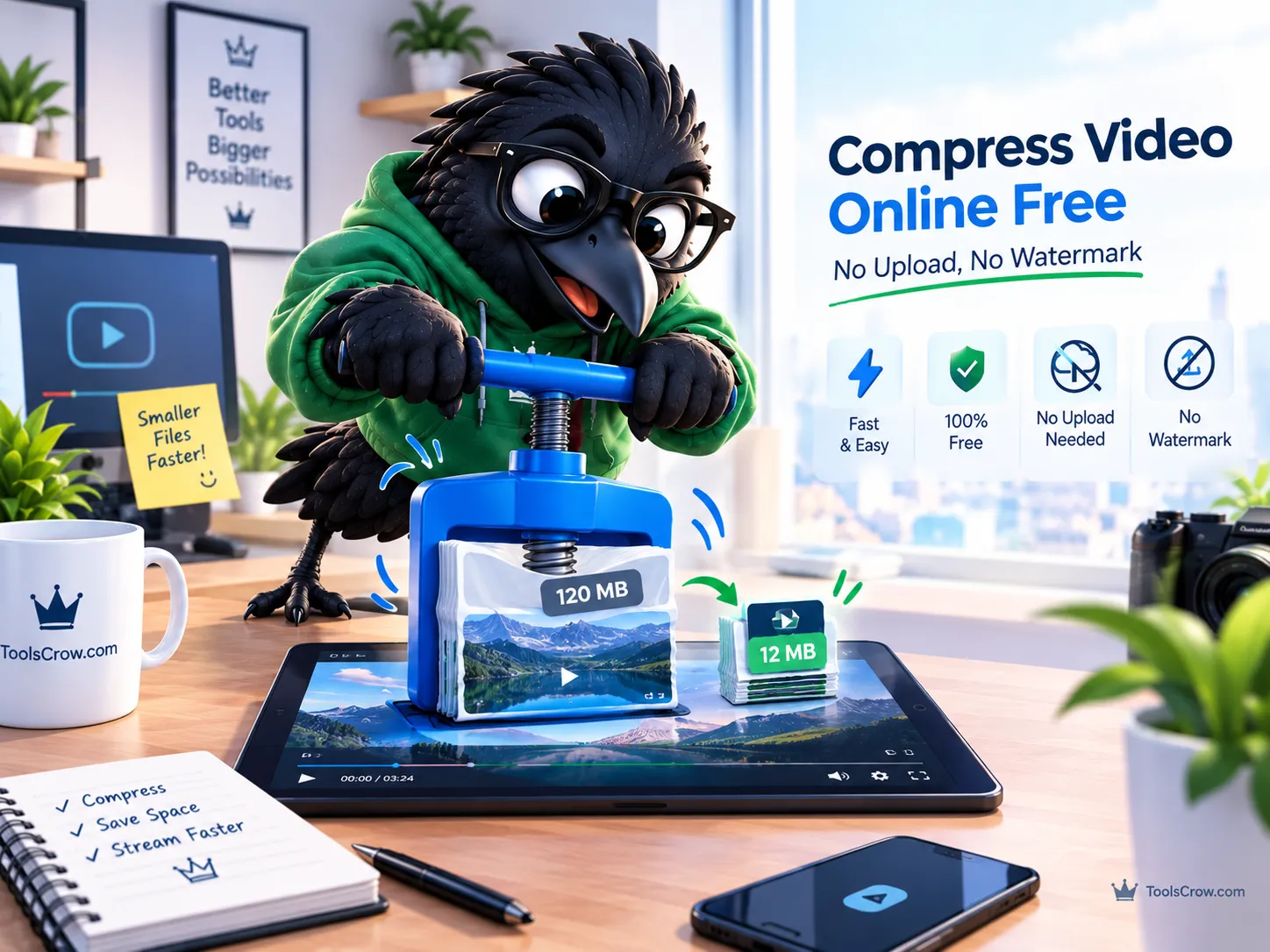
Your video is too large to send. WhatsApp rejects anything over 16MB. Gmail won't attach a file over 25MB. Discord servers with a free-tier limit cap uploads at 25MB too. A 40-second clip from your phone just came out at 180MB - 7 times the size of what those platforms will accept - and you don't want to install editing software or learn what a bitrate is just to send a video to your family group chat.
Here's the fastest way to fix it. Open the free Video Compressor at toolscrow.com, drop in the file, choose either a quality preset (for "just make it smaller") or an exact MB target (for "it must fit under 25MB"), and the video compresses right in the browser tab you already have open. No upload to any server. No watermark. No signup. No app to install.
The rest of this guide covers what actually makes a video smaller without making it look worse, which mode to use for which situation, how to hit a specific size target on the first try instead of guessing three times, and which browser gives you the fastest results. It also covers the honest case nobody else writes about: when a video barely shrinks and why that's not a bug.
Quick Summary: How to Compress a Video Right Now
- No size limit to hit? Choose the Balanced quality preset - usually 50-80% smaller with no visible difference.
- Have a hard limit? Type the exact MB target - the tool calculates the right bitrate and resolution automatically.
- Sending to a specific platform? Use the WhatsApp, Email, Discord, Instagram, TikTok, or YouTube one-click presets.
- Best browsers: Chrome, Edge, Safari 16.4+ - everything runs locally on your device, nothing is uploaded.
- Real results: 45MB WhatsApp video → 8MB. 400MB OBS gaming clip → 60MB in under a minute.
- Nothing leaves your device - the compression uses your browser's own hardware encoder.

Why Your Phone Video Is Too Large to Send (And Why It's Not Your Fault)
Phone cameras record video at bitrates far higher than any messaging app, email provider, or social platform is built to receive. That's the entire reason this problem exists, and it happens for a good reason: the manufacturer's priority when recording is giving you footage with enough detail to edit, crop, zoom, and color-correct later. Not making a file small enough to email. A one-minute 4K clip on a modern phone can easily land at 400MB - recorded at a bitrate many times higher than what a viewer would actually notice if it were lower.
Compression closes that gap. Re-encoding at a lower bitrate removes information the eye mostly can't perceive anyway - subtle gradients, fine texture in visually noisy areas, color precision beyond what a phone screen can distinguish - while keeping the footage recognizably the same. In practice, this produces files 50 to 80 percent smaller with no visible quality loss on the screens where most videos actually get watched.
Quality vs Target Size: Which Video Compression Mode to Use
Every real-world video compression need falls into one of two categories, and knowing which applies before touching any settings saves a round of trial and error.
Quality-first compression is the right approach when there's no hard size limit - just a general desire for a smaller, more shareable file. Choose a quality preset like Balanced, and the tool applies a moderate, broadly-safe bitrate reduction and hands back whatever size results. This is the right mode for "I just want this smaller before I text it to someone" with no specific number in mind.
Size-first compression is the right approach when there's an actual ceiling to hit - Discord's 25MB cap, an email attachment limit, a form's upload restriction. Rather than guessing at a quality setting and hoping the result lands under the limit, typing the exact target size in MB tells the tool to work backward: calculate the bitrate that will land just under that number, and reduce resolution automatically if the target is small enough that bitrate reduction alone can't get there. This mode exists specifically to avoid the frustrating cycle of compress, check, still too big, compress again at a guessed lower setting, check again.

How to Compress a Video Without Uploading It Anywhere
Most online video compressors work by uploading your file to a remote server, processing it there, and sending the compressed result back to your browser. That means your video leaves your device, sits on someone else's computer during processing, and may or may not actually be deleted afterward.
The free Video Compressor at toolscrow.com works differently. The entire compression runs in the browser using the device's own built-in hardware video encoder - the same processing chip already inside your phone or laptop - via the WebCodecs API. It outputs H.264 for an MP4 or VP9 for a WebM. Your video never leaves the device, at any point.
This matters for two very practical reasons beyond privacy. First, speed: there's no upload wait, no queue, no "your file is being processed, check back in a few minutes" - a short phone clip typically finishes in seconds because the device's own hardware is doing the work. Second, and more fundamentally, the file never travels at all. For anything remotely sensitive - unreleased content, a client video under NDA, home footage - that distinction is the actual reason to choose a browser-based tool over a typical upload-and-download compressor.
The honest tradeoff of this approach: the maximum file size depends on the device's own memory and processing power, not a server quota. Phone clips of several hundred megabytes work fine on modern phones. A desktop or laptop typically handles files in the 1 to 2GB range comfortably, with a hard ceiling around 4GB. For the vast majority of real compression needs, that ceiling never actually comes into play.
How to Reduce Video File Size Further: Resolution, Frame Rate, and Audio
Beyond the core quality-versus-target-size decision, three additional settings exist specifically for the situations where bitrate reduction alone doesn't get a file small enough, or where part of the video isn't needed in the final result.
Capping the resolution - scaling a 4K or 1440p source down to 1080p or 720p before encoding - is often the single most effective lever when a target size is aggressive relative to the video's length. Fewer pixels need encoding per frame, which reduces file size dramatically with a visual cost that's usually unnoticeable on a phone or chat-app preview window.
Capping the frame rate matters specifically for screen recordings and gaming footage, where 60fps is often recorded by default but rarely needed. Reducing to 30fps can meaningfully shrink a file with essentially no perceived quality loss for most non-action screen content.
Dropping the audio track entirely is the most aggressive option, and it's the right call specifically when a video is shared purely for its visual content - a silent demo clip, a visual reference, footage that will have narration added later. Removing audio removes a whole data stream from the file, which can help hit a very tight target when every other option has already been applied.
How Much Smaller Will Your Video Actually Get?
Compression statistics in the abstract are less useful than what actually happens on real files. Here's what two genuinely different use cases look like in practice, based on real results reported by people using this exact tool.
A 30-second phone video recorded for a WhatsApp status, originally 45MB, compressed down to 8MB on the Balanced setting - small enough to post without WhatsApp's size rejection, with no visible quality loss on a phone screen, which is the only screen that video was ever going to be viewed on.
A 400MB raw gaming clip recorded through OBS - the kind of screen-capture footage that records at a very high, editing-friendly bitrate by default - compressed down to 60MB in under a minute, still looking clean at 1080p playback. This is a specifically useful case because screen recordings and OBS captures often compress less dramatically than ordinary phone footage; a result like this reflects a genuinely good outcome for that category of file, not an inflated best-case number.

How to Compress Video for WhatsApp, Email, Discord, and More
For the most common destinations a compressed video actually ends up - a messaging app, an email, a specific platform - guessing at the right size target isn't necessary. Toolscrow's compression hub includes dedicated one-step presets built around the exact limits of the most common destinations: WhatsApp, Email, Discord, Instagram, TikTok, and YouTube. Each applies the right target automatically rather than requiring the specific limit to be looked up and typed in manually.
For destinations that aren't named platforms but still have a specific number to hit - a form upload capped at a round figure, a file-sharing limit, an old email client with an unusual ceiling - the exact-MB presets cover the common round numbers directly: 5MB, 8MB, 10MB, 15MB, 20MB, 25MB, 50MB, 100MB, and 200MB - each one measuring the result and retrying automatically until the output actually lands under the stated number.
For a whole folder of clips rather than one file at a time, the Batch Video Compressor applies one chosen setting across every selected video in a single pass - useful for clearing out a phone's camera roll or preparing several clips for upload at once.

Why Your Video Won't Compress (And When That's Completely Normal)
Occasionally a video gets compressed and the resulting file is barely smaller than the original - which understandably reads as the tool not working. In most cases, this happens for a specific, explainable reason rather than a malfunction: the video was already heavily compressed before it arrived.
A video downloaded from a social media platform, forwarded through several rounds of messaging apps, or exported from certain editing software has often already had its bitrate reduced substantially by whatever system touched it previously. Compressing an already-compressed file has much less room to work with, because most of the "easy" data reduction has already happened upstream.
A genuinely trustworthy compression tool should say this plainly rather than pretending every file will shrink dramatically regardless of its starting condition. Any tool that claims uniform, guaranteed shrinkage on every file isn't telling you the truth about how video compression actually works.
Which Browser Works Best for Video Compression
Because this kind of compression runs using the browser's own video hardware engine rather than a remote server, which browser is being used genuinely affects both speed and, in some cases, whether the tool works at full capability at all. Current versions of Chrome, Edge, and Safari (version 16.4 or newer, which includes recent iPhones and iPads) include the WebCodecs engine this type of tool depends on, and perform best. Recent versions of Firefox handle many files successfully as well, though with somewhat less consistent support. Older or less common browsers may fall back to a much slower processing mode, or may not support the feature at all.
One specific quirk worth knowing: on Chrome running on Linux, the browser's built-in encoder can't produce AAC audio, which is the standard audio format most devices expect. When this happens, the output file gets Opus audio instead, which plays correctly in Chrome, Firefox, Edge, VLC, and recent Safari versions - but if AAC audio specifically is required for compatibility, running the compression in Chrome or Edge on Windows or macOS, or in Safari, avoids the issue entirely.
Frequently Asked Questions About Online Video Compression
Will compressing a video damage the original file?
No. A browser-based compressor reads the original file and creates a new, separate, compressed file as its output - the source video on the device is never modified or deleted in the process. This means it's always safe to compress a copy for sharing while keeping the original, full-quality file untouched for any future use that might need it.
Is there a difference between compressing to MP4 versus WebM?
MP4 (using H.264 encoding) has the broadest compatibility across devices, apps, and platforms, and is the safer default choice when the destination isn't specifically known. WebM (using VP9 encoding) can produce smaller files at comparable visual quality in some cases, and is well-supported by most modern browsers and platforms, but has somewhat less universal compatibility with older software or certain messaging apps. For sharing with a general audience or an unknown destination, MP4 remains the more broadly compatible choice.
Why does my screen recording compress less than my phone video?
Screen recordings, particularly from software like OBS, are often captured at a bitrate specifically tuned for editing flexibility rather than storage efficiency, but they also frequently contain large areas of static or simple content that compress very efficiently by nature. The net result varies by content: fast-moving gameplay footage compresses less dramatically than, say, a static screen-share presentation, because motion-heavy footage genuinely needs more data to represent cleanly at any bitrate. The 400MB-to-60MB OBS example earlier in this guide reflects a realistic, good outcome for motion-heavy gaming content specifically - not every screen recording will compress by that same ratio.
Can I compress a video on my phone, or do I need a computer?
Yes, a phone works for this directly, since the entire process runs in the browser using the device's own hardware. Modern phones have the WebCodecs-capable browsers and hardware encoders this type of tool depends on, which is specifically why no app installation or desktop software is needed for ordinary phone video compression - the browser already installed on the phone handles it.
How do I know if the compressed file will actually look fine before I send it?
A trustworthy compression tool shows a preview of the compressed result alongside the before-and-after file sizes before the file is downloaded or shared, which allows a quick visual check rather than compressing blind and finding out only after sending it. For anything genuinely quality-sensitive, previewing that result at the resolution and screen it will actually be watched on - checking a phone-destined video on a phone screen, not just a laptop - gives the most accurate sense of whether the compression level chosen is actually acceptable for that specific use.
Compress Your Video Now - Free, No Upload, No Watermark
Most video compression needs break down into one of two simple questions: is there a specific size limit to hit, or is the goal just "smaller, without thinking too hard about it"? Knowing which applies before opening any tool is most of the decision already made - quality-first compression for the general case, target-size compression for anything with a hard ceiling to clear.
The free Video Compressor at toolscrow.com handles both approaches directly in the browser, with nothing uploaded and no watermark added to the result. For a specific destination - WhatsApp, email, Discord, or an exact MB target - the full set of 21 compression presets skips the guesswork entirely and applies the right target automatically.
Compress your video now, free:
Video Compressor - quality preset or exact MB target, no upload, no watermark
Also useful: Video Resizer for scaling resolution directly, Video Trimmer for cutting a clip down before compressing it, and Video Converter for changing formats without uploading anywhere.

Comments (0)
No comments yet. Be the first to share your thoughts!
Leave a Comment
All comments are reviewed before publishing. Please keep it respectful and on-topic. Comments with links or promotional content will be rejected automatically.