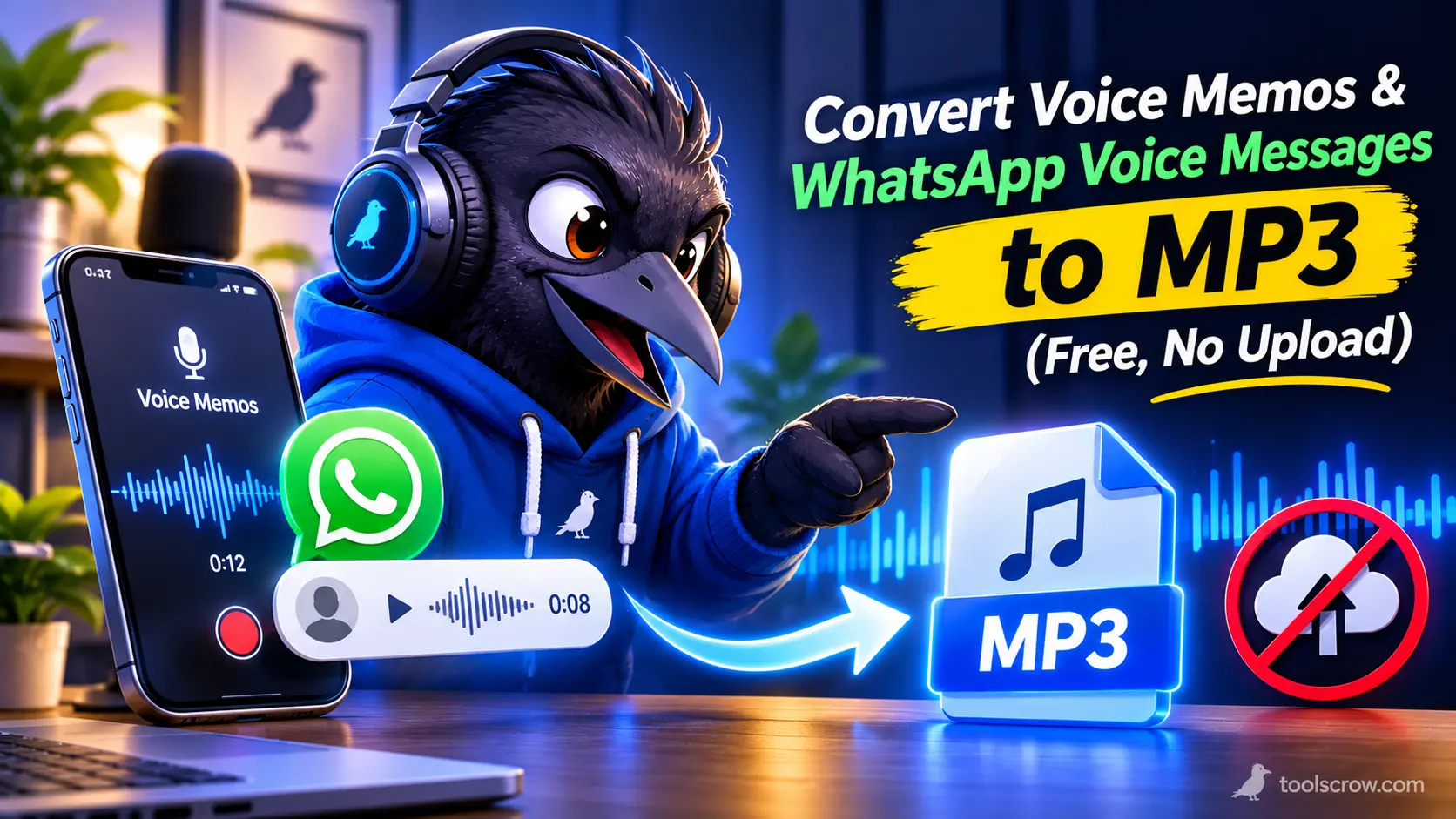
How to Convert Voice Memos and WhatsApp Voice Messages to MP3 (Free, No Upload)
You have a voice recording on your phone that matters. Maybe it is an interview you recorded in Voice Memos, a lecture, a voicemail from someone you miss, or a long WhatsApp voice note you want to keep. Then you try to use it somewhere else, and it will not cooperate. The iPhone recording will not open in an older Android app or a car stereo. The WhatsApp audio shows up as a strange .opus file that your music player ignores and your video editor rejects.
The fix is almost always the same: convert the file to MP3, the format that plays on nearly everything. This guide shows exactly how to do it for free, in your browser, without uploading your private recordings to a stranger's server. It covers iPhone Voice Memos, Android recordings and WhatsApp voice messages, explains the settings that actually matter, and clears up the most common bad advice, which is to simply rename the file.
Disclosure: we build the ToolsCrow audio tools used in this guide. The tool pages state that they run in your browser and that nothing is uploaded. We also explain when you do not need to convert at all, and where conversion has limits.
The Short Answer
- iPhone Voice Memos: open the memo, tap the three dots, choose Share, then Save to Files. Open the M4A to MP3 Converter in Safari, pick the file from Files, choose about 128 kbps (mono is fine for speech), press Convert and download the MP3.
- WhatsApp voice messages: press and hold the message, share it to your Files or file manager to save the .opus file, then open the OPUS to MP3 Converter, choose about 96 to 128 kbps mono, convert and download.
- Do not just rename the file. Changing .m4a or .opus to .mp3 changes the label and not the audio, and it fails in many apps.
Why Voice Recordings From Phones Will Not Play Everywhere
Every audio file has two parts, and people often mix them up. The codec is the method used to squeeze the sound into a small file. The container is the file type that holds it. Your phone picks modern, efficient formats because they make small files that sound good. The trade-off is that older or simpler software may not understand them.
- iPhone Voice Memos are saved as M4A files, Apple's container for AAC audio. Apple devices play them without trouble. Older players, some car stereos, some editors and some websites do not.
- WhatsApp voice messages are commonly saved as Opus audio, usually in an Ogg container, with the file ending .opus. Opus is excellent for speech, but plenty of music players and video editors cannot open it.
- MP3 is the old, universal format. It is less efficient than AAC or Opus, but nearly every phone, computer, car stereo, browser and editor can play it.
That is the whole reason this conversion is so common. You are not fixing a broken file. You are translating it into the format everyone understands.
Do You Actually Need MP3? A Quick Honest Check
Converting always costs a small amount of quality and usually makes the file bigger, so skip it if you can.
- You only play it on an iPhone, iPad or Mac: M4A already works. No conversion needed.
- You only want to listen to a WhatsApp voice note on a computer: a free player such as VLC plays Opus without converting anything.
- You are sending it to a modern phone: M4A usually plays on current Android phones too, though support can vary by app and device.
- You need it for an older device, a car stereo, a website upload, a podcast host, a video editor or any app that complains about the format: convert to MP3.
- You plan to edit it further: consider WAV instead of MP3, as explained in the settings section.
Which File Do You Have?
Many people are not sure what format their recording is, and some file managers hide extensions. Check the actual name of the file you saved, then use the matching converter: .m4a goes to the M4A to MP3 Converter, .opus to the OPUS to MP3 Converter, .ogg to the OGG to MP3 Converter, and .aac to the AAC to MP3 Converter. For anything else, use the general Audio Converter.
If you are not sure what a file is, the Audio File Info and Quality Analyzer shows details such as duration, sample rate, bitrate, peak level, loudness and clipping, which also helps you spot a recording that is too quiet or distorted before you convert it.
Part 1: Convert iPhone Voice Memos to MP3
Step 1: Get the Recording Out of Voice Memos
Here is the part that trips up many people: on an iPhone, there is no folder you can browse to find your voice memos. The app keeps its library in private storage that the Files app cannot open. The way out is to share or export the recording, and what you receive is an .m4a file.
- Open Voice Memos and tap the recording.
- Tap the three dots button, then Share.
- Choose Save to Files and pick a location, such as On My iPhone or iCloud Drive. You can also use AirDrop to a Mac or Mail to send it to yourself.
To export several at once, tap Edit in the list, select the recordings you want, and use Share.
Step 2: Convert It With the M4A to MP3 Converter
- Open the M4A to MP3 Converter in Safari on the iPhone, or in Chrome, Edge or Safari on a computer.
- Drop the file in, or tap to browse and choose it from Files. According to the tool page, the file is decoded on your device and nothing is uploaded.
- Choose the output settings. For speech, the page's own tip is that 96 to 128 kbps mono is enough. If you want extra margin, 192 kbps keeps the conversion from being audible.
- Press Convert and preview. The tool really encodes the MP3 and then decodes it again so you hear the exact result and see the true file size.
- Download the MP3. Open it to confirm it plays.
If You Are on a Mac
Macs have a built-in route too. One guide describes opening the recording in the Music app and choosing File, then Convert, then Create MP3 Version, which works if your import settings are set to MP3. The browser converter is simpler if you only have a few files and do not want to change any settings.
A Note on Lossless Voice Memos
Voice Memos has two quality settings, found under Settings, then Voice Memos (on newer versions of iOS, under Apps, then Voice Memos), then Audio Quality. Compressed uses AAC, and Lossless uses Apple Lossless. Both are saved as .m4a files. One reviewer measured about 0.5 MB per minute for Compressed and about 1.7 MB per minute for Lossless, roughly 3.5 times larger, and you will not hear a difference on a phone speaker. Reports disagree about which one is the default on a given phone, so check yours.
The ToolsCrow page describes the M4A format as normally AAC. If a Lossless memo will not open in your browser, try Safari on an Apple device, which is most likely to read Apple's own format, or switch future recordings to Compressed. Browser support for Apple Lossless varies.
Converting Many Memos at Once
If you have a whole folder of recordings, the Batch Audio Converter and Compressor converts or compresses many files at once into a single ZIP.
Part 2: Convert Android Voice Recordings
Android recorders are less uniform than the iPhone's. Many use M4A with AAC audio, some offer 3GP, and some phones or apps use other formats, so the first step is to find out what you have.
- Open your recorder app, find the recording, and use Share or Save to save it to your phone's storage or Files.
- Check the file ending. If it is .m4a, use the M4A to MP3 Converter. For other endings, use the Audio Converter, which handles MP3, WAV, OGG, WebM/Opus, M4A and more.
- Open the converter in Chrome, pick the file, choose about 128 kbps, convert and download.
Part 3: Convert WhatsApp Voice Messages to MP3
Step 1: Save the Voice Message as a File
A voice message lives inside WhatsApp until you save it out. The steps vary a little by phone and WhatsApp version, but this is the usual route.
On an iPhone:
- Open the chat and press and hold the voice message.
- Choose Forward, then tap the share icon.
- Choose Save to Files, or another app, to export the audio.
On Android:
- Open the chat and press and hold the voice message.
- Tap the share icon.
- Choose a folder in your file manager to save it. The file is usually .opus or .ogg.
Save important voice notes before you delete a chat. Guides warn that deleting the message or chat can delete the file from your device too.
Step 2: Convert It With the OPUS to MP3 Converter
- Open the OPUS to MP3 Converter in Chrome or Firefox. The page notes that some browsers need Ogg Opus support, and it recommends those two.
- Drop in the .opus file. It is decoded on your device, and nothing is uploaded.
- Choose the output settings. The page suggests 128 kbps for speech, and notes that voice notes are typically only 16 to 32 kbps, so a 96 kbps MP3 is plenty. Use mono for speech.
- Press Convert and preview, listen to the result, and download the MP3.
Why Is My MP3 So Much Bigger Than the Voice Note?
Opus is among the most efficient formats for speech, while MP3 is older and needs more data for the same sound. A WhatsApp voice note at 24 kbps converted to a 128 kbps MP3 will be several times larger. That is normal. If size matters, lower the bitrate, since the tool page itself suggests this, and use mono.
Sending the Result Back Through WhatsApp
Chat apps limit file sizes, and mobile data can be expensive. If you need to send a large recording, the WhatsApp Audio Compressor shrinks voice notes and clips for messaging apps.
The Best Settings for Voice Recordings
Most people overthink this. For a voice recording, a modest bitrate sounds clean, because speech needs far less data than music. Use this table as a starting point.
| What you are doing | Format | Settings | Why |
|---|---|---|---|
| Keeping or sharing a voice note or memo | MP3 | 96 to 128 kbps, mono | The tool pages say this is plenty for speech. |
| Interview you will publish, or a podcast | MP3 | 128 to 192 kbps | A little more margin for the final file. |
| Recording you will edit further | WAV, then MP3 at the end | Lossless WAV first | Avoids stacking another lossy step before you edit. |
| Music, or anything with music in it | MP3 | 192 to 256 kbps or more | Music needs more data to sound clean. |
| Email or a size-limited upload | MP3 | 64 to 96 kbps mono, or compress to a target size | Smaller files that still sound clear. |
Why You Should Convert to WAV if You Will Keep Editing
Both the original recording (AAC or Opus) and an MP3 are lossy. Converting one lossy format to another is called a transcode, and some extra quality is lost each time. Both ToolsCrow converter pages make this point: pick a bitrate at or above the original's to limit the damage, and keep the original. If you plan to trim, clean up and normalize the audio in several steps, convert to WAV first with the M4A to WAV Converter, do your editing, and make the MP3 as the very last step.
Mono vs Stereo
A single voice recorded on a phone is effectively one channel. Choosing mono for speech halves the data with no loss in clarity. If your file is stereo and you want mono, the Stereo to Mono Converter folds it down.
Always Keep the Original
The original M4A or Opus file is the best-quality copy you will ever have. Make the MP3 as a copy, and do not delete the source until you have listened to the result all the way through.
File Sizes: What to Expect
MP3 size depends only on the bitrate and the length. The ToolsCrow pages give a rule of thumb of about 1 MB per minute at 128 kbps and about 2.4 MB per minute at 320 kbps. Here is the same arithmetic for common voice settings. These are calculated figures (bitrate times time, divided by eight), so real files will differ slightly.
| MP3 bitrate | Per minute | 10 minutes | Minutes that fit in 20 MB |
|---|---|---|---|
| 64 kbps | About 0.5 MB | About 4.8 MB | About 42 |
| 96 kbps | About 0.7 MB | About 7.2 MB | About 28 |
| 128 kbps | About 1 MB | About 9.6 MB | About 21 |
| 192 kbps | About 1.4 MB | About 14.4 MB | About 14 |
For comparison, one measurement of a Compressed iPhone voice memo found about 0.5 MB per minute and a Lossless one about 1.7 MB per minute, so a 128 kbps MP3 can be bigger than a Compressed memo and smaller than a Lossless one. A WhatsApp voice note at 16 to 32 kbps is only about 0.12 to 0.24 MB per minute.
Hitting a Size Limit
Email services often cap attachments at around 20 to 25 MB, and Gmail's limit is 25 MB. Email attachments carry some encoding overhead, so leave headroom. If your recording is too big, use the Compress Audio to 10MB or Compress Audio to 25MB tools, which aim at a target size automatically, or work out the bitrate you need with the Audio Bitrate Calculator and check the result with the Audio File Size Calculator. You can also switch to mono and a lower bitrate such as 64 kbps for speech, or share a link from cloud storage instead of attaching the file.
After Converting: Clean Up, Trim and Tag
Since you now have a file that every tool can open, this is the moment to improve it. All of these tools run in your browser.
| Problem | Free tool |
|---|---|
| Background hiss, hum or steady noise | Audio Noise Reducer (it removes steady noise and not echo or sudden sounds) |
| Noise and uneven volume in one step | Clean Voice Recording chains noise reduction and normalization |
| Too quiet or inconsistent volume | Audio Normalizer |
| You only need part of it | Audio Trimmer |
| No title or name on the file | MP3 Metadata and Tag Editor (the converters do not keep tags, so add them here) |
Share It Where It Is Going
- A podcast host or website: MP3 is the safe, accepted format.
- A video editor: use the MP3 or the WAV. If an editor rejected your .opus file, the converted version usually imports.
- A car stereo or old MP3 player: MP3 on a USB stick is the most dependable. Check the device's manual for limits.
- A friend on any phone: MP3 plays on virtually everything.
- Long-term storage: keep the original, and a WAV copy if the recording is irreplaceable.
The Biggest Myth: "Just Rename the File to .mp3"
You will see this advice repeated across the web, and it is the most common reason people get stuck. Renaming voice.m4a to voice.mp3 changes only the name. The audio inside is still AAC, and the same goes for Opus. Some forgiving players look at the real contents and play it anyway, which is why the trick sometimes seems to work. Many other apps, websites, car stereos and editors trust the extension, fail to open the file, or reject it. Renaming can also hide the real format from you later and make problems harder to diagnose. A real conversion takes under a minute and avoids all of that.
Privacy and Consent: Treat Voice Recordings Carefully
Voice recordings are personal in a way that few other files are. They may hold your voice, other people's voices, private conversations, names, addresses or medical and legal details.
- Prefer tools that stay on your device. The ToolsCrow converter pages state that the file is decoded and re-encoded in your browser and is never sent anywhere. Many online converters upload your audio to a server, so for sensitive recordings, check how a tool works before you use it.
- Think before sharing other people's voice notes. A voice message sent to you in confidence is not automatically yours to publish or forward. Ask first.
- Recording consent. Rules for recording conversations differ by country and region. In some places, everyone must agree, and in others, one participant's consent is enough. This is general information and not legal advice, so check your local rules and tell people you are recording.
- Keep important recordings backed up in more than one place before you delete anything from your phone.
Troubleshooting
My file will not load in the converter
Your browser may lack the right decoder. For M4A files, try Chrome, Edge or Safari. For WhatsApp .opus files, try Chrome or Firefox. If you are on a phone and it still fails, try a computer. Purchased music with copy protection cannot be converted.
I cannot find my voice memos on my iPhone
They are not in the Files app by default, because Voice Memos keeps its library in the app's own storage. Open the memo and use Share, then Save to Files, to export a copy.
The MP3 is much bigger than the original
That is expected, because MP3 is less efficient than AAC or Opus. Lower the bitrate, use mono and, if needed, use a compress-to-size tool.
The result sounds thin or muffled
The bitrate may be too low, or the original may be poor. Try 128 kbps or 192 kbps. If the recording was quiet or noisy to begin with, clean it up with the Noise Reducer and Normalizer first.
The MP3 has no title or name
Tags are not carried over by the converter. Add a title and other details with the MP3 Metadata and Tag Editor.
A Lossless iPhone memo will not convert
Apple Lossless is not supported equally in every browser. Try Safari on an Apple device, or switch future memos to Compressed in Voice Memos settings.
The converter is slow or freezes on a long recording
Long files take time and memory, especially on a phone. Close other apps, plug in your phone, or use a computer. You can also split a long recording into parts first with the Audio Trimmer or Audio Splitter.
The sound is too quiet after converting
Converting does not change loudness. If it was quiet before, use the Audio Normalizer or the Audio Volume Changer.
Frequently Asked Questions
How do I convert an iPhone voice memo to MP3 for free?
Share the memo to Files (Voice Memos, three dots, Share, Save to Files), open a browser-based converter such as the ToolsCrow M4A to MP3 Converter in Safari, choose the file, pick about 128 kbps, convert and download. No app or account is needed.
Why won't my WhatsApp audio play on my computer?
Many players and editors do not support Opus. VLC plays it, or you can convert it to MP3 with an OPUS to MP3 converter.
Can I just rename my voice memo to .mp3?
No. Renaming changes the label and not the audio, and many apps and devices will fail to play the file. Use a real converter.
What is the best MP3 bitrate for voice?
For speech, 96 to 128 kbps mono is enough, according to the ToolsCrow tool pages. Use 192 kbps if you want extra margin or if the recording includes music.
Why is the MP3 bigger than my voice note?
AAC and Opus are more efficient than MP3, especially for speech. WhatsApp voice notes are only about 16 to 32 kbps, so a 128 kbps MP3 is several times larger. Lower the bitrate and use mono.
Is it safe to convert private voice recordings online?
It depends on how the converter works. A tool that processes the file in your browser, as the ToolsCrow converters state they do, does not send your audio anywhere. Upload-based services copy your recording to their servers, so avoid them for sensitive files.
How do I email a long voice memo?
Convert it to MP3 at 64 to 96 kbps mono, or use the Compress Audio to 10MB or 25MB tools to hit a size target. You can also share a link from cloud storage.
Do titles and tags carry over after conversion?
No. The converters do not keep tags. Add them afterward with the MP3 Metadata and Tag Editor.
The Bottom Line
Voice memos and WhatsApp voice messages are stored in efficient modern formats that not every device understands. Converting them to MP3 takes under a minute, costs nothing and does not require you to upload your private recordings anywhere. Share or export the file out of the app, run it through the right converter, choose 96 to 128 kbps mono for speech, and keep the original.
Ready to try it? For iPhone and many Android recordings, open the free M4A to MP3 Converter. For WhatsApp voice messages and other .opus files, open the free OPUS to MP3 Converter. Then browse the full set of ToolsCrow audio tools to trim, clean up, compress and tag your file.
Try M4A to MP3
Convert M4A to MP3 online for free. Convert Apple audio files to universal MP3 format.
Open Tool
You Might Also Like
All posts →
Comments (0)
No comments yet. Be the first to share your thoughts!
Leave a Comment
All comments are reviewed before publishing. Please keep it respectful and on-topic. Comments with links or promotional content will be rejected automatically.