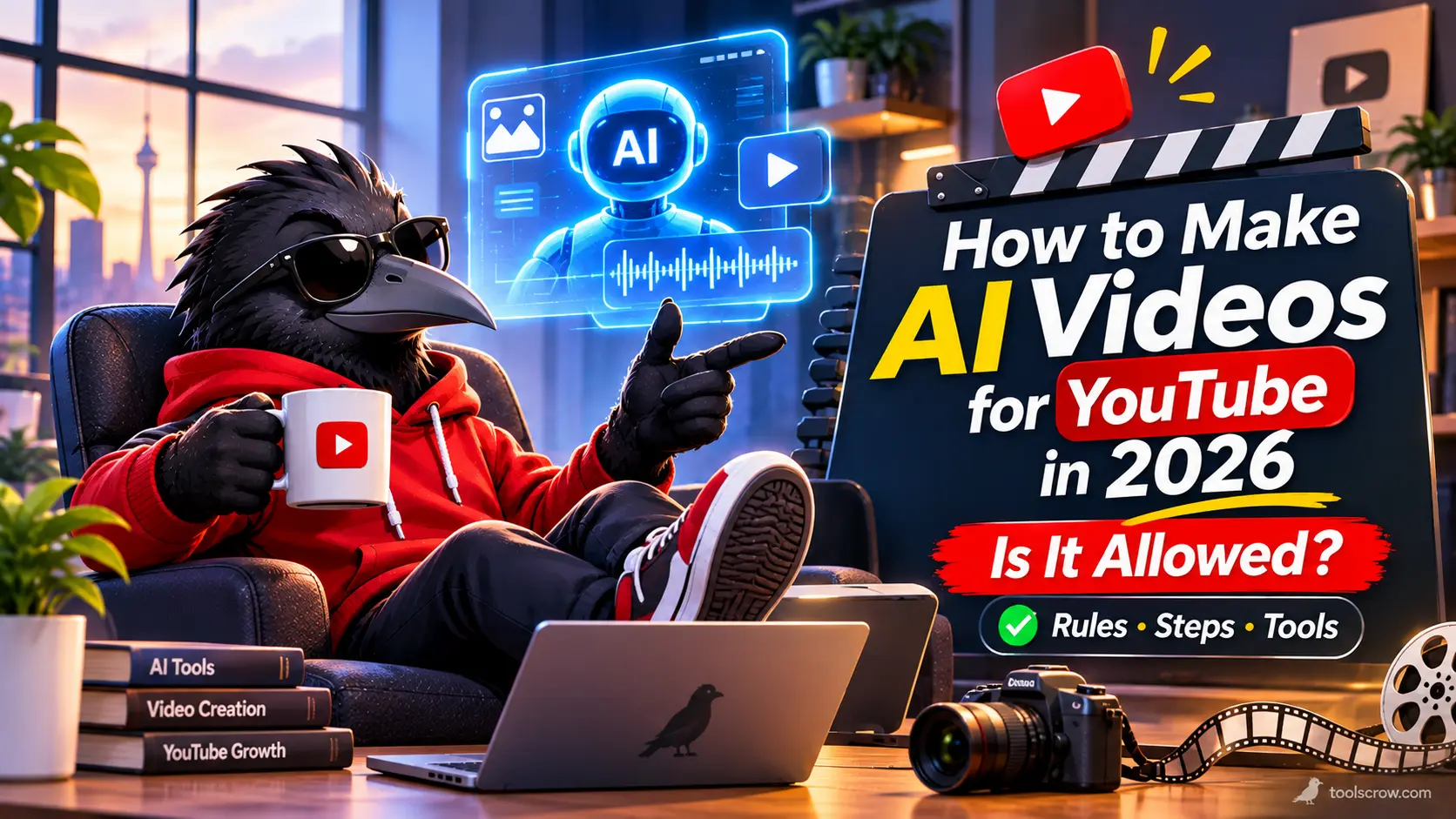
How to Make AI Videos for YouTube in 2026 (Is It Allowed? Rules, Steps and Tools)
If you have ever scrolled past a video with an eerie AI voice, a slideshow of generated images and a title shouting about an impossible story, you have seen the reason YouTube changed its rules. Over the last two years, the platform filled up with mass-produced AI videos, and YouTube responded with tighter monetization rules, automatic AI labels and a clarified policy in July 2026. So before you invest time and money in making AI videos, one question deserves a straight answer: does YouTube actually allow it?
Yes, YouTube allows AI-generated and AI-assisted videos. It does not ban AI, and it does not penalize you simply for using it. What it penalizes is low-value, repetitive, mass-produced content, whether or not AI made it, and it expects you to disclose realistic synthetic media. The difference between a channel that grows and one that loses monetization is mostly about how you use the tools, not whether you use them.
This guide explains the rules in plain language, shows you which kinds of AI videos are safe and which are risky, and walks you through a complete ten-step workflow to make a real AI-assisted video, from idea to upload. It also shows how to polish the result with free browser tools. Policies can change quickly, so treat this as a guide and confirm the details on YouTube's own Help pages. This is general information and not legal advice.
A note on tools: ToolsCrow does not generate AI video. You will use an AI generator or editor of your choice for the footage, and free ToolsCrow tools for the finishing work, such as cleaning audio, trimming, subtitles, titles, thumbnails and descriptions. The ToolsCrow tool pages state that these tools run on your device and do not upload your files.
The Short Answer
- Is AI video allowed on YouTube? Yes. AI is fine. Spammy, template-based, mass-produced content is not eligible for monetization.
- Do I have to label it? Only if it contains realistic altered or synthetic content that a viewer could mistake for a real person, place or event. AI-written scripts, captions, animation and clearly fantastical visuals do not need a label.
- Can I monetize it? Yes, if the videos add your own original insight and are meaningfully different from each other. Channels built on generic AI templates, shock-value formulas or fake AI "experts" giving health, legal, financial or political advice cannot monetize.
- What should I do? Use AI as a production assistant, bring your own ideas and research, vary your videos, disclose realistic content, and publish fewer, better videos.
Does YouTube Allow AI Videos? The Three Systems You Need to Know
When people ask whether AI is "allowed," they are usually mixing up three separate systems. Each has its own rules.
| System | What it controls | What it means for AI videos |
|---|---|---|
| Community Guidelines | What can be on YouTube at all | AI videos follow the same rules as any video: no deceptive content, harassment, harmful misinformation, impersonation or spam. |
| AI disclosure | Transparency for viewers | You must label realistic altered or synthetic content that could be mistaken for real. Many uses of AI need no label. |
| YouTube Partner Program (monetization) | Whether a channel can earn ad revenue | The "inauthentic content" policy removes monetization from generic, repetitive, mass-produced or deceptive content, including AI-made content. |
A video can follow the Community Guidelines and still lose monetization. A video can be clearly labeled as AI and still be demonetized for being generic. A video with no AI at all can be demonetized for being repetitive. Keeping the three systems separate in your head makes the rest of this guide easier.
A Short Timeline of What Changed
- Late 2023 to 2024: YouTube introduced a requirement to disclose realistic content made with altered or synthetic media.
- July 15, 2025: YouTube renamed its "repetitious content" monetization policy to "inauthentic content," to make clear that it covers mass-produced and repetitive videos. YouTube said this was a minor update to long-standing rules.
- January 2026: Reports describe enforcement waves against channels built on mass-produced AI content, with channel-level review.
- May 27, 2026: YouTube announced that it would begin automatically labeling videos with significant photorealistic AI content, even if creators do not disclose it, while still requiring manual disclosure.
- July 2026: YouTube clarified the inauthentic content policy by listing three specific categories of content that cannot be monetized. Reporting at the time stressed that the rules themselves were not new and that the update was a clearer explanation.
The Monetization Rules: Three Types of Content That Cannot Earn
Based on YouTube's July 2026 clarification as reported by trade press, these are the three categories. They apply to all YouTube Partner Program members, and YouTube did not publish a numeric threshold for how much of this content is too much, so assume that it is judged across your whole channel.
1. Generic or Repetitive Content
This is content that looks like it was made from a template, or that feels repetitive when a viewer watches several of your videos in a row. YouTube's examples include videos with low educational value, little commentary and minimal variation from one upload to the next, characters put in the same situation over and over with the same outcome, image slideshows and templated storylines, and AI content made from generic templates that gives the impression of mass production without the creator's own insight or perspective.
How to stay safe: make each video different in substance, not only in topic. Add your own analysis, a distinct point of view, original research, your own footage or a recognizable format that you evolve.
2. Unsatisfying or Off-Putting Content
This covers content that depends on emotionally manipulative formulas, copies existing formats until videos feel interchangeable, or seems designed to shock viewers just to get views. YouTube's examples include repeated disturbing themes without a coherent story, series of animals in exaggerated distress, videos that stitch together unrelated AI clips with no logical progression to surprise or shock, and deceptive realistic visuals, such as making viewers believe a fake celebrity death or natural disaster has happened.
How to stay safe: give every video a clear narrative arc, do not fake real events, and do not use distress as a gimmick.
3. AI Personas on Sensitive Topics
YouTube is comfortable with AI characters and avatars in videos. The problem arises when an AI persona presents itself as a human expert giving advice on health, legal issues, finances or politics. In that case, YouTube says that the channel will not be allowed to monetize. Examples include an AI "doctor" promoting wellness remedies, an AI "podcast host" giving financial tips and an AI "lawyer" offering legal advice.
How to stay safe: if your topic is health, money, law or politics, do not present an AI avatar as a human expert. Use a real, accountable person, or be clearly transparent that content is general information produced with AI assistance and check every claim yourself.
What the Policy Does Not Say
- It does not say that AI-assisted videos cannot be monetized. Several sources note that YouTube has said that creators may continue using generative AI, provided they follow monetization and disclosure rules.
- It does not say that faceless channels are not allowed. A faceless channel with genuine research and a distinct narrative voice is in a very different position from a faceless channel that publishes many near-identical videos.
- It does not define how many "bad" videos tip a channel over the line.
When You Must Disclose AI Content on YouTube
Disclosure is a transparency rule, separate from monetization. YouTube requires you to tell viewers when content is realistic and was made with altered or synthetic media, meaning content a viewer could easily mistake for a real person, place, scene or event.
| You must disclose | You do not need to disclose |
|---|---|
| Using the realistic likeness of a person, such as swapping a face or generating a person's voice to narrate | Clearly unrealistic or animated content, such as a fantasy scene or someone riding a unicorn |
| Altering footage of real events or places | Color adjustments, lighting filters and similar inconsequential edits |
| Generating realistic scenes of fictional events, such as a tornado heading toward a real town | Production help: scripts, outlines, titles, thumbnails, infographics, captions and idea generation |
| Other realistic synthetic video or audio that could pass as genuine | Video sharpening, upscaling or repair, and voice or audio repair |
Secondary sources add that a clearly synthetic text-to-speech narration that is not impersonating anyone does not by itself trigger disclosure, and that cloning your own voice does not misrepresent anyone. Cloning someone else's voice, however, does fall under the likeness rules.
What Changed in May 2026
YouTube said it would begin rolling out internal detection that automatically applies an AI label when it identifies significant photorealistic AI content, even when the creator did not disclose it. Creators are still expected to disclose manually. For long videos, the label appears below the player, and on Shorts it appears as an overlay. For content that is unrealistic, animated or only slightly altered, the disclosure is shown in the expanded description instead. YouTube has also warned that it may take enforcement measures against creators who consistently choose not to disclose.
How to Disclose
When you upload, YouTube Studio asks whether your content is altered or synthetic and seems real, in a field in the video details. Menu names change over time, so look for the AI or altered content question on the details page. If you select yes, a label is added. When you are unsure, a simple three-question test helps:
- Does it show or sound like a real person, place or event?
- Was it created or significantly changed with AI or other synthetic tools?
- Could a viewer easily mistake it for real?
If all three answers are yes, disclose it. If you are on the fence, disclosing is the safer choice.
Which Kinds of AI Videos Are Safe and Which Are Risky
| Format | Example | Disclosure | Monetization risk |
|---|---|---|---|
| AI-assisted explainer with your own research and voice | A personal finance explainer you researched, with AI helping the outline and edit | Usually none | Low, if your analysis is original and each video is different |
| Faceless video with AI voiceover and AI or stock B-roll | A history or science channel with a distinct narrative voice | Usually none, unless visuals look like real footage of real events | Medium, rising sharply if videos feel templated |
| Clearly stylized AI animation or story | A fantasy short with obvious stylized characters | Usually none | Medium, higher if stories are interchangeable or manipulative |
| Realistic AI footage of events or people | Photorealistic scenes that look like documentary footage | Required | Medium to high, and high if it misleads |
| AI avatar presenter on a non-sensitive topic | A cooking, gaming or software tutorial presenter | Depends on how realistic the avatar is | Low to medium if the content is genuinely useful |
| AI avatar presented as a human expert on health, law, finance or politics | An AI "doctor," "lawyer" or "financial advisor" | Likely required | Not eligible for monetization |
| Real footage enhanced with AI | Auto-captions, noise removal, translation or upscaling | Usually none for production assistance | Low |
| Bulk-produced videos from one template | Twenty near-identical clips a day | Varies | Very high |
How to Make an AI Video for YouTube: 10 Steps
Step 1: Pick a Niche and an Angle Only You Can Offer
This step decides whether your channel survives the monetization rules. Generic AI channels fail because anyone can copy them. Before you generate anything, answer these four questions in writing:
- What do I know, have seen or can research that most people have not? Personal experience, a profession, a hobby, access to data or a specific audience you understand.
- What is my point of view? A video that only summarizes what is already online is the easiest to replicate.
- What will be different in every video? A new question, new evidence, a new example, a new conclusion.
- What can the viewer do or understand after watching? If the answer is nothing, it is entertainment filler.
Pick a narrow topic, such as "budget travel in Southeast Asia for older travelers," and not a broad one such as "travel." Narrow topics are easier to make original and easier to find.
Step 2: Research and Write the Script (AI Is a Helper, Not the Author)
You can use an AI assistant to brainstorm, outline and draft, but the script must contain your thinking. A reliable method is to write your key points and facts first, then ask AI to tighten the wording, suggest examples and spot gaps. Always check facts yourself, because AI writing can sound confident while being wrong.
- Length: a narrated video runs at roughly 130 to 150 words per minute, so a 6-minute video is about 800 to 900 words. Use the free Words Counter to check.
- Hook: open with the problem or the promise in the first 10 seconds.
- Structure: a clear beginning, middle and end, with a reason to keep watching at every transition.
- Proofread: run the final script through the Grammar and Spell Checker before you record or generate a voice.
Step 3: Create the Voice
You have three choices, and the first is the safest for viewer trust.
- Your own voice. It is the most distinctive, and it adds a human element that mass-produced channels lack. A decent microphone in a quiet, soft room is enough. You can record straight in your browser with the free Audio Recorder.
- An AI voice (text to speech). Acceptable when it reads original material. A clearly synthetic voice that is not imitating anyone generally does not trigger disclosure. Pick a natural voice, set the pacing yourself and fix mispronunciations.
- A cloned voice. Cloning your own voice is generally fine. Cloning someone else's voice without permission is a likeness problem and requires disclosure at the least.
Polish the Audio With Free Tools
- Reduce steady background noise with the Audio Noise Reducer. It works on steady noise such as hiss and fans, and the page advises starting around 50 percent strength.
- Tighten the pauses with Remove Silence from Audio, leaving a short natural pause of about 0.1 to 0.3 seconds.
- Set a consistent loudness with the LUFS Normalizer, which includes a preset of minus 14 LUFS for YouTube and Spotify.
Step 4: Plan the Visuals With a Shot List
Do not generate random clips. Write a shot list that matches your script, one visual idea for each section. For every line of narration, ask what the viewer should see. A good mix keeps the video interesting and original:
- AI-generated clips or images for scenes you cannot film.
- Your own screen recordings for demos and tutorials. The free Screen Recorder captures a screen in your browser.
- Real photos, charts and graphics for evidence and data.
- Your own footage, even simple clips, which instantly add authenticity.
Using a mix of sources is one of the clearest signals that a video was made by a person with a point of view.
Step 5: Generate the AI Footage
Choose a generator that fits the job (see the tool section below), then follow these habits:
- Prompt like a director. Describe the subject, the action, the setting, the lighting and the camera movement. For example: "A slow push-in on a lighthouse at dusk, waves breaking, soft golden light, cinematic, no text."
- Keep a consistent style. Reuse the same style words and, when possible, start from the same reference image so clips look like they belong together.
- Generate more than you need. Most clips are short, often just a few seconds, and some will have flaws. Pick the best takes.
- Check each clip for AI glitches: warped hands and faces, objects that morph, strange text, physics that do not make sense and flickering backgrounds.
- Avoid real people and real events. Do not generate realistic footage of real individuals or of events that did not happen without disclosure, and never to mislead.
- Check the license. Free tiers often add a watermark or limit you to non-commercial use. If your channel is monetized, make sure your plan grants commercial rights.
Step 6: Edit It Into a Real Video
Generation is the easy part. Editing is where the video becomes yours. Use any editor you like, such as a free desktop editor. Focus on:
- Pacing: cut to the rhythm of the narration, and change the visual every few seconds.
- Variety: mix AI clips with screen recordings, graphics and your own footage.
- Sound design: add quiet, properly licensed music under the voice, and keep it low.
- On-screen text: use short phrases to emphasize key points.
- Trim the fat. If a section does not move the story forward, cut it. The Video Trimmer removes the ends of a clip quickly.
- Subtitles: add captions with the Add Subtitles to Video tool. Captions help viewers who watch without sound and improve accessibility.
- Shorts and vertical: if you are repurposing, crop to 9:16 with the Video Cropper.
- File size and format: if your export is huge, the Video Compressor can shrink it, and the Video Codec Checker confirms the format.
Step 7: Make a Thumbnail That Matches the Video
A thumbnail must honestly represent the video. You can generate a background with AI, then add bold text and test it. The free Text Overlay Designer adds large, outlined lettering, the Background Remover cuts out a subject, and the YouTube Thumbnail Preview shows how it looks in the homepage, search and phone-sized suggested layouts. Vary the look of your thumbnails over time. Reports suggest that identical templates across many videos are part of what makes channels look mass-produced.
Step 8: Write the Title, Description, Chapters and Hashtags
- Title: write a clear, honest, searchable title and test it with the YouTube Title Analyzer.
- Description: lead with a keyword-rich summary, then add links and a call to action. The YouTube Description Generator gives you a structured starting point.
- Chapters: the YouTube Chapter Generator formats timestamps correctly, which helps viewers and search.
- Hashtags: use three to five relevant ones with the Hashtag Generator. YouTube ignores all hashtags on a video that has more than 15.
Step 9: Disclose Correctly and Run a Pre-Publish Check
Before you publish, apply the three-question disclosure test from earlier and set the disclosure if needed. Then run this quick check:
- Does the video contain something that only I could have made: an opinion, experience, research or format?
- Is every fact checked?
- Do the title and thumbnail honestly match the content?
- Does anything look like real footage of something that did not happen?
- Does it avoid using a real person's face or voice without permission?
- Is every image, clip and track licensed for commercial use?
- Is it meaningfully different from my last five videos?
Step 10: Publish, Measure and Improve
After publishing, watch your analytics. Look at where viewers drop off, whether your click-through rate changes with different thumbnails, and which topics bring returning viewers. Use that to improve the next video, not to copy yourself. A steady rhythm of one or two strong videos a week, each clearly different, is healthier than a flood of near-copies.
The AI Video Tool Landscape (and the Licensing Traps)
AI video tools change monthly, and roundups disagree about rankings, prices and even which products still exist, so check each product's current page. Rather than rank them, here is how to think about the categories.
| Type | What it does | Examples reported in 2026 roundups | Watch out for |
|---|---|---|---|
| Text-to-video and image-to-video generators | Create short clips from prompts or still images | Google Veo, Kling, Runway, Luma and others | Short clips, credit-based pricing, flaws in motion, watermarks on free tiers |
| Avatar and presenter tools | A digital presenter delivers your script | HeyGen, Synthesia and similar | Rules on sensitive topics, and whether viewers find it generic |
| Script-to-video assemblers | Build a whole video from a script using stock and AI footage | InVideo AI, Pictory, Fliki and similar | The easiest path to templated, mass-produced output |
| AI-assisted editors | Captions, cleanup, cutting and effects on your footage | CapCut, Descript, Clipchamp and similar | Check export limits and watermarks |
Three Licensing Traps for Creators
- Free tiers are usually for testing. Roundups consistently report that free plans add a watermark, restrict clip length or resolution, or limit you to personal, non-commercial use. Paid plans generally grant commercial rights, but terms differ, so read them.
- Credits run out fast. Many generators charge by the second or per generation, and you will discard some clips. Budget for retries.
- Availability changes. Products launch, merge and shut down. One 2026 roundup reports that a well-known generator's web app was discontinued, while others still list it, so confirm that a tool exists and what it costs before you build a workflow around it.
Where ToolsCrow Fits In
| Step | Free ToolsCrow tool |
|---|---|
| Script length and proofreading | Words Counter, Grammar and Spell Checker |
| Recording and cleaning your voice | Audio Recorder, Noise Reducer, Remove Silence, LUFS Normalizer |
| Screen demos | Screen Recorder |
| Trimming, cropping, compressing, subtitles | Video Trimmer, Video Cropper, Video Compressor, Add Subtitles to Video |
| Thumbnails | Text Overlay Designer, Background Remover, YouTube Thumbnail Preview |
| Title, description, chapters, hashtags | YouTube Title Analyzer, Description Generator, Chapter Generator, Hashtag Generator |
The Originality Checklist: Keep Your Channel Monetizable
The policy is vague about thresholds, so the safest approach is to build originality into your process. Use this checklist every few weeks.
- The side-by-side test. Line up your last ten videos. If they look like one video uploaded ten times, with the same structure, same visuals, same phrases and same thumbnail style, you are at risk.
- The substance test. For each video, write one sentence that says what is new or different in it. If you cannot, it is probably filler.
- The human test. Can a viewer tell that a person with a perspective made this? Your voice, your examples, your opinions and your footage all help.
- The variety test. Do titles, thumbnails, structures and visuals vary enough to feel fresh?
- The value test. Would you recommend this video to a friend interested in the topic?
- The honesty test. Does it deliver what the title and thumbnail promise?
- The volume test. Are you publishing faster than you can add real value? If so, slow down.
- The sensitivity test. If it touches health, money, law or politics, is there a real, accountable human behind the advice?
Copyright, Music and Likeness
Who Owns AI-Generated Footage?
This is unsettled and varies by country. In January 2025, the US Copyright Office concluded that prompts alone do not give a user enough control to be the author of AI output, and that purely AI-generated material is not eligible for copyright, while human contributions such as your script, your edits and your creative selection and arrangement can be protected. The practical lesson: do not assume you own the raw AI clips, and add your own original elements. Separately, your right to use the clips commercially depends on the generator's license.
Music
Do not use popular songs, and do not assume that AI-generated music is automatically free of problems. Use music you have a license for, or properly licensed royalty-free tracks, and keep a record of the license. Content ID can claim videos that use someone else's music.
Real People, Voices and Faces
- Do not make realistic videos of real people saying or doing things they did not say or do.
- Do not clone another person's voice without permission, and disclose realistic synthetic voices.
- Reports say that YouTube has expanded a likeness detection tool, which it compares to Content ID, to eligible creators, so misuse of real faces is increasingly detectable.
- Do not use real children's likeness in AI content.
Brands and Characters
Avoid prompting for copyrighted characters, logos or branded products. Beyond the legal risk, AI versions often look wrong and attract complaints.
Laws Beyond YouTube
Laws about synthetic media, including deepfake and transparency rules in various countries and US states, are evolving quickly. Check the rules that apply where you live and where your audience is.
Mistakes That Put Channels at Risk
Publishing in bulk from a template
Twenty near-identical videos a day is the clearest example of what the policy targets.
Letting AI do everything
Script, voice, visuals and upload all automated, with no human judgment, is exactly the pattern reported in enforcement waves.
Faking real events
Realistic videos of fake disasters, fake celebrity news or fake footage of real people violate more than the monetization rules.
Using an AI avatar as a human expert
On health, money, legal or political topics, this makes a channel ineligible for monetization.
Skipping disclosure
YouTube can add a label automatically, and it has warned about enforcement for creators who consistently skip disclosure.
Misleading titles and thumbnails
If the video does not deliver what the thumbnail promises, viewers leave, and it can breach YouTube's rules on deceptive practices.
Ignoring licenses
Using a free-tier generator for a monetized channel without commercial rights is a problem waiting to happen.
Copying a trending format exactly
Interchangeable videos in the same format are explicitly mentioned in the policy's examples.
Never checking quality
Morphing hands, garbled text and illogical scenes make a video feel cheap and drive viewers away.
Troubleshooting
My channel was rejected or lost monetization for "inauthentic content"
Review the originality checklist, remove or rework the most generic videos, add your own voice, research and footage to new uploads, and reduce your upload volume. Then follow YouTube's process to request a review when you are eligible. Policies and appeal options change, so read the message you received and YouTube Help.
YouTube added an AI label I did not choose
YouTube may apply labels automatically when it detects significant photorealistic AI content. Check whether your video looks like real footage of real people or events, and set the disclosure yourself in the future.
The AI clips look weird or inconsistent
Generate more takes, use shorter clips, anchor the style with a reference image, simplify prompts, and cover problems with cuts, overlays or text. Avoid showing hands and faces close up when the generator struggles with them.
The audio sounds robotic or uneven
Choose a more natural voice, edit the pacing, fix pronunciations and run the audio through noise reduction and loudness normalization.
The exported video is too large
Export at a sensible bitrate and use the Video Compressor. Then confirm the codec with the Video Codec Checker.
My Short looks wrong
Crop to 9:16 with the Video Cropper and keep important text away from the edges and the bottom, where interface buttons sit.
Notes for Creators in Canada, the US and Worldwide
- The rules apply globally. YouTube's disclosure and monetization policies apply to creators in every country where the Partner Program operates, so a channel in Canada, the US or elsewhere follows the same policy.
- Local laws still matter. Privacy, likeness, advertising and deepfake laws differ by country and state. Check the rules in your own location and for your audience.
- Eligibility. Partner Program thresholds and availability vary by country, so check YouTube Help to see what applies to you.
- Languages. AI voices and subtitles can make your content available in more languages. Translate carefully, and have a fluent speaker check important videos.
- Prices. AI tool prices are usually listed in US dollars, and local taxes and currency conversion can change what you pay.
Frequently Asked Questions
Does YouTube allow AI-generated videos?
Yes. YouTube allows AI-generated and AI-assisted videos. It requires disclosure of realistic synthetic content, and it does not allow monetization of generic, repetitive, mass-produced or deceptive content, whether or not AI was used.
Can you make money with AI videos on YouTube?
Yes, if the videos are original, useful and different from each other, and you meet the Partner Program requirements. Generic template-based AI channels and AI "experts" on sensitive topics cannot monetize.
Do I have to say a video is AI-generated?
Only if it contains realistic altered or synthetic content a viewer could mistake for real. Using AI for scripts, captions, titles, thumbnails, audio repair or clearly animated visuals does not require disclosure. If you do not disclose, YouTube may add a label automatically when it detects significant photorealistic AI content, and it has said it may take enforcement action against creators who consistently skip disclosure.
Are AI voiceovers allowed on YouTube?
Yes. An AI voice reading original material is generally fine. Cloning someone else's voice without permission is not, and realistic synthetic voices of real people should be disclosed.
Can I use an AI avatar as my presenter?
Yes for most topics. On health, legal, financial or political advice, an AI persona presented as a human expert makes the channel ineligible for monetization.
Which AI video generator is best for YouTube?
It depends on your needs, and rankings change constantly. Match the tool to the job, check the commercial license, and test with a short clip first. The finishing work matters more than the generator.
Can AI-generated videos be copyrighted?
Purely AI-generated output may not be eligible for copyright in the US, while your own human contributions, such as scripts, edits and arrangement, can be. Rules differ by country.
Can YouTube detect AI content?
YouTube has said that it uses detection systems to identify photorealistic AI content and apply labels, and that it has expanded likeness detection for creators. Do not rely on avoiding detection. Disclose when required, and focus on quality.
How can I make my AI videos more original?
Add your own research, voice, footage, screen recordings and opinions, vary your formats and visuals, and write one sentence about what is new in each video before you make it.
The Bottom Line
YouTube allows AI videos, and it has said so repeatedly. What it does not reward is volume without value. The channels that last use AI to speed up the boring parts, such as drafts, cleanup, B-roll and captions, while keeping the parts viewers actually come for: a point of view, real research, a recognizable voice and videos that are different from one another.
Start small. Choose a narrow topic only you can cover well, write the script yourself with AI as a helper, record your own voice or choose a natural one, mix AI footage with your own material, edit it into a real story, disclose realistic content, and publish at a pace you can sustain. Then check yourself against the originality checklist every few weeks.
When you are ready to finish your first video, use the free tools in this guide: clean your voice with the Audio Noise Reducer, add captions with Add Subtitles to Video, test your thumbnail in the YouTube Thumbnail Preview and sharpen your title with the YouTube Title Analyzer. Then browse the full set of ToolsCrow video tools for the rest of your workflow.
Try Audio Fader
Apply fade in and fade out effects to audio files online. Free audio fader with precise control.
Open Tool
You Might Also Like
All posts →
Comments (0)
No comments yet. Be the first to share your thoughts!
Leave a Comment
All comments are reviewed before publishing. Please keep it respectful and on-topic. Comments with links or promotional content will be rejected automatically.