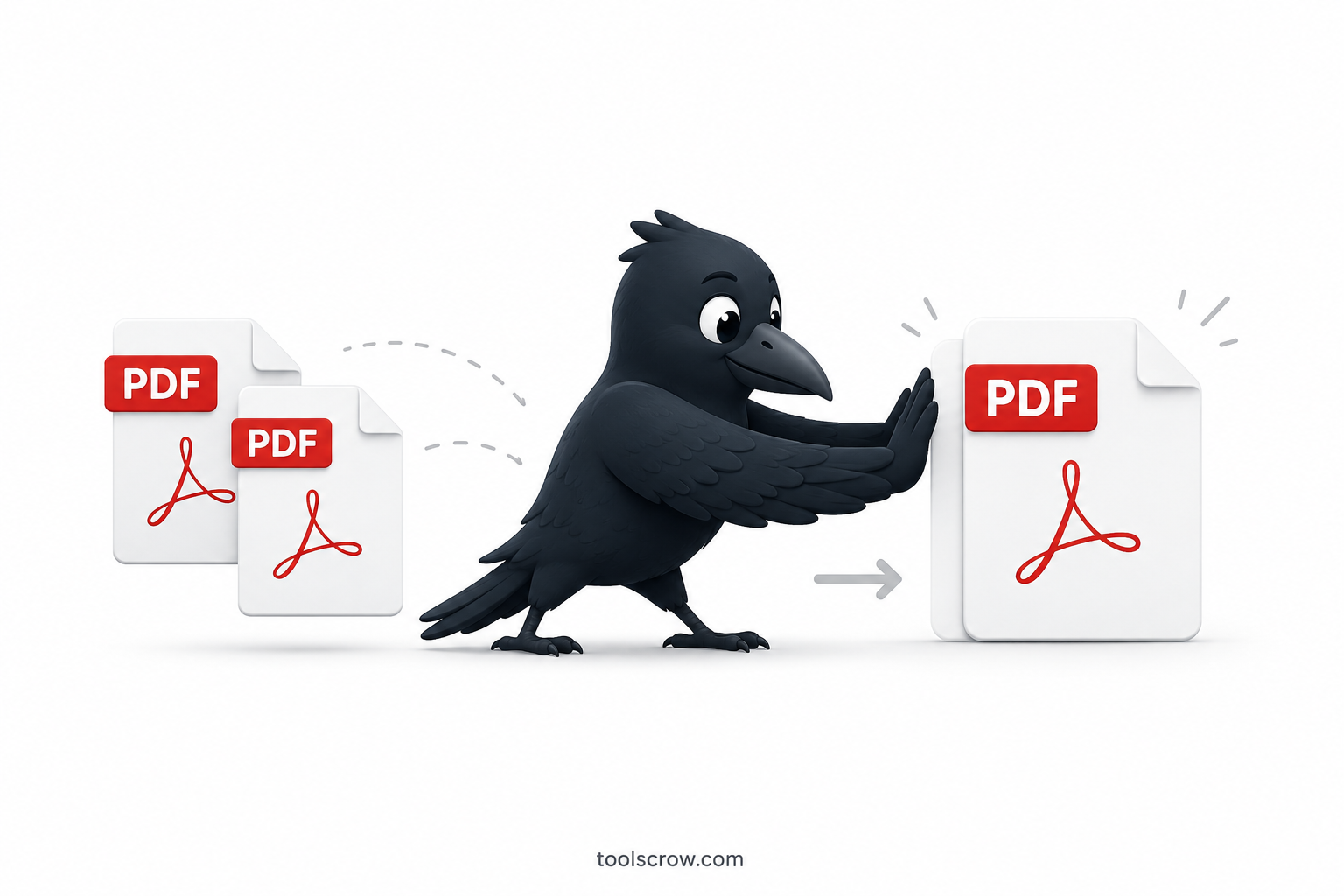
📅 Last Updated: June 2026 — All methods tested and verified on Windows 11, macOS Sonoma, and mobile browsers.
Stop Paying Adobe $30 a Month Just to Merge PDFs
Picture the situation: you have three separate PDF files sitting on your desktop — a scanned invoice, a signed contract, and a supporting exhibit — and you need to send them as a single document. Your first instinct might be to open Adobe Acrobat. Then you see the price tag: $19.99 to $29.99 per month for Acrobat Pro. That's up to $360 a year to combine a few files.
Here's the thing nobody at Adobe wants you to know: merging PDFs is not complicated. It does not require subscription software. It does not require any software at all. In 2026, there are at least three completely free ways to join PDF files — one of which works entirely inside your web browser without sending your documents to any server. Your files never leave your computer.
This guide covers all three methods in plain, step-by-step language:
- Method 1: PDFMerge Pro — the fastest, most private option (browser-based, no install)
- Method 2: Free desktop software (PDFsam and LibreOffice) — best when you're offline
- Method 3: Built-in operating system tricks for Mac and Windows — no extra tools needed
By the end of this guide you'll know exactly which method fits your situation, what to watch out for before you merge, and a handful of professional tips that will save you from the most common mistakes people make when combining PDF files.
Let's start by looking at what Adobe actually charges you for — and why it genuinely isn't worth it for this particular task.
Why You Shouldn't Pay Adobe Just to Merge PDFs
Adobe Acrobat is a powerful piece of software. If you're redacting legal documents, creating interactive forms, or running optical character recognition on thousands of scanned pages every week, an Acrobat subscription may genuinely be worth the money. But if the task at hand is simply combining two or five or ten PDF files into one — that is a different conversation entirely.
Adobe's subscription tiers in 2026 look like this:
- Acrobat Standard (PDF merging included): approximately $15.99/month billed annually
- Acrobat Pro (full features): approximately $19.99–$29.99/month depending on your plan
- Annual commitment: You're often locked into 12 months. Cancel early and you pay a penalty.
That means the minimum realistic cost to merge PDFs with Adobe is somewhere around $192 per year, assuming the entry-level plan. For most individuals and small business owners who merge PDFs occasionally, this is a significant recurring expense for a task that takes the right tool about fifteen seconds to complete for free.
There's also a privacy consideration. Adobe Acrobat's online tools — the ones that work without installing software — upload your files to Adobe's cloud servers before processing. For payslips, medical records, legal contracts, or any document containing personal information, that is not an acceptable trade-off for many users.
Here is a quick side-by-side comparison of what you're actually choosing between:
| Feature | Adobe Acrobat Pro | PDFMerge Pro (toolscrow.com) |
|---|---|---|
| Monthly cost | $15.99–$29.99 | Free |
| Software installation required | Yes (desktop) or cloud login | No — works in any browser |
| Files uploaded to a server | Yes (Adobe cloud) | No — processed locally in browser |
| Page reordering before merge | Yes | Yes |
| Watermarks added | No | No |
| Works on mobile | Acrobat app only | Yes — any mobile browser |
| Account / signup required | Yes | No |
| Files leave your device | Yes | Never |
The comparison speaks for itself. For PDF merging specifically, the free alternative isn't a compromise — in several meaningful ways, it's actually the better choice. Now let's walk through each method.
Method 1: Use PDFMerge Pro — Fastest and Most Private
Best for: Anyone who wants a fast, clean merge without installing anything and without sending files to a third-party server. This is the method we recommend for sensitive documents including tax files, contracts, medical records, and personal correspondence.
Why This Method Wins on Privacy
Most online PDF tools — even the ones that call themselves "secure" — work by uploading your file to a remote server, processing it there, and then sending the merged result back to your browser. Your document travels across the internet and sits on someone else's computer, even if only briefly.
PDFMerge Pro at toolscrow.com/merge-pdf-online/ works differently. All processing happens entirely within your own browser using JavaScript running locally on your device. Your PDFs are read by your browser, stitched together in memory, and handed back to you as a download — entirely without leaving your machine. No upload. No server. No cloud storage. No account created. Nothing logged.
This is not a marketing claim that "we delete files after an hour." The files are never transmitted in the first place. For anyone handling documents they'd rather keep genuinely private, that distinction is not a minor detail — it is the entire point.
Step-by-Step: How to Merge PDFs with PDFMerge Pro
Step 1: Open the Tool in Your Browser
Navigate to toolscrow.com/merge-pdf-online/ in any modern browser — Chrome, Firefox, Safari, or Edge all work. No login screen will appear. No popup asking for your email address. The tool is there and ready to use.

Step 2: Upload Your PDF Files
Click the "Add Files" button, or simply drag your PDF files from your desktop or folder directly into the upload area. You can add up to 20 PDF files at once, each up to 10MB. For the vast majority of everyday documents — invoices, forms, reports, presentations exported as PDFs — this covers you without any workarounds.
Don't worry about the order yet. Upload everything first, then arrange it in the next step. If you make a mistake and upload a wrong file, simply remove it from the list and add the correct one.

Step 3: Arrange the Files in the Order You Want
This is where the tool earns its keep over a basic drag-and-drop system. Once your files are listed, you can drag each one up or down to set the sequence. The first file in the list becomes the first set of pages in the final merged PDF. The last file in the list becomes the last section.
Take a moment here. A merged PDF with pages out of sequence is a common and preventable frustration. If you're combining a cover page, a body document, and appendices, confirm the order reads: cover → body → appendix before moving on.

Step 4: Click "Merge PDFs"
Once the order looks right, click the "Merge PDFs" button. Because everything runs in your browser, the processing is near-instant for files of normal size. You'll see a brief progress indicator, and then the merged file will be ready.
There is no loading spinner while your file "uploads." There is no waiting for a server. The PDF is being assembled on your own device in real time.
Step 5: Download Your Merged PDF
Click the Download button to save your finished file. It will appear in your browser's default downloads folder with a name you can change immediately after saving. Open it in any PDF viewer to confirm the pages appear in the correct sequence and that all content is intact.

Pro Tips for Getting the Best Results with PDFMerge Pro
Merging more than 20 files? Work in batches. Merge the first 20 files into a single PDF, then merge that result with the next batch. A few extra steps, but the outcome is identical to merging everything at once.
Files with different page sizes? PDFMerge Pro preserves each page's original dimensions. If you want a consistent look (for example, all A4 or all Letter), resize the individual PDFs before merging using a PDF resizing tool — then combine.
Scanned documents looking blurry? The merge itself does not change image quality. If your scans look low-quality in the merged file, they were already low-quality going in. Scan at a minimum of 300 DPI for clean results.
Something looks wrong after merging? The original files are untouched — they remain exactly as they were. Simply go back to the tool, adjust the file order or remove a problem file, and run the merge again.
Method 2: Free Desktop Software — PDFsam and LibreOffice
Best for: Users who need to merge PDFs regularly without internet access, or who frequently work with very large files (hundreds of pages, multiple scanned image-heavy documents) where a browser-based tool may be slower than a dedicated desktop application.
Option A: PDFsam Basic — The Gold Standard of Free Desktop PDF Tools
PDFsam stands for PDF Split and Merge. PDFsam Basic is the free, open-source version of the application, and it is genuinely excellent for what it does. It has been maintained continuously since 2006, it runs on Windows, macOS, and Linux, and it requires no account, no activation key, and no ongoing subscription.
The interface is no-frills — that is both a limitation and a virtue. There are no distracting features competing for your attention. You open the app, choose the Merge module, add your files, set the order, and run the merge. That's it.
How to merge PDFs with PDFsam Basic:
- Go to pdfsam.org and download PDFsam Basic (free). The download is clearly labelled — avoid the enhanced paid version if you only need the merge function.
- Install and open the application. On the main screen, select "Merge" from the module list on the left side.
- Click "Add" to browse for your PDF files, or drag them directly into the file list area. You can add as many files as your system memory allows.
- Drag the rows in the file list to set the order. If you only need certain pages from a file rather than all of them, PDFsam Basic lets you specify a page range — a useful bonus not available in most browser-based tools.
- Choose your output location, give the merged file a name, and click "Run". The merged PDF appears in the folder you specified.
PDFsam Basic handles large file sets very comfortably. If you're a legal professional merging case files, an accountant compiling a full audit package, or a student assembling a research portfolio spanning dozens of individual documents, PDFsam will handle the workload without complaint.
One limitation to be aware of: PDFsam Basic does not include OCR, compression, or watermark removal. It merges PDF files — that's its focus. For anything beyond that, you'll want to complement it with additional tools.
Option B: LibreOffice Draw — For Users Already in the Office Suite
If you have LibreOffice installed (the free open-source alternative to Microsoft Office), you already have a capable PDF manipulation tool available without downloading anything additional. LibreOffice Draw can open PDF files as editable objects and export the result as a new PDF.
How to merge PDFs using LibreOffice Draw:
- Open LibreOffice Draw from your applications menu.
- Go to File → Open and select your first PDF. LibreOffice will render each page of the PDF as an editable slide.
- To insert pages from a second PDF, go to Insert → Sheet from File (the exact wording may vary slightly by version) and select your second PDF. Choose which pages to insert and where they should appear.
- Repeat for any additional PDFs you need to include.
- When all content is in place, go to File → Export as PDF to save the combined document.
The LibreOffice method is slightly more hands-on than PDFsam or PDFMerge Pro, and it works best when you're merging documents with relatively simple layouts. Very complex PDFs with interactive form fields, digital signatures, or embedded multimedia may not translate perfectly through LibreOffice's rendering engine. For standard text documents, reports, and basic forms, it works reliably well.
When to choose desktop software over the browser tool:
- You're working offline or on a metered internet connection
- You're merging files that are each larger than 10MB
- You need to specify page ranges (not full files) from each source PDF
- You're processing dozens of PDF merges as part of a batch workflow
- You want the merged file to remain entirely on your local system at every stage
Method 3: Built-In OS Tricks — Mac Preview and Windows Workarounds
Best for: Mac users who need a quick occasional merge without downloading anything at all. Windows users will find this method limited, and are better served by Method 1.
Merging PDFs on a Mac Using Preview (Free, Already Installed)
Apple's Preview application — which comes pre-installed on every Mac — has a genuinely useful built-in PDF merge capability that most people don't know exists. If you have a Mac running macOS Catalina or later (and most people do at this point), this works immediately with no additional software required.
Step-by-step for Mac users:
- Open your first PDF in Preview by double-clicking it.
- If the thumbnail sidebar is not visible, go to View → Thumbnails. You'll now see each page of the PDF displayed as a small image on the left side of the window.
- Open your second PDF in a separate Preview window (right-click the file and choose "Open With → Preview").
- Enable Thumbnails in the second window as well.
- From the second PDF's thumbnail panel, select the pages you want to add — either click individual thumbnails or press Command+A to select all pages.
- Drag those thumbnails into the first PDF's thumbnail panel, positioning them where you want them to appear. The pages will slot in at exactly the position you drop them.
- Repeat for any additional PDF files.
- Once all pages are in the correct order, go to File → Export as PDF and save the combined document with a new name. Do not use File → Save, as that will overwrite your original first PDF — always use Export.
Important caveat: Preview merges by rendering the PDF content, which occasionally causes subtle changes to fonts, image compression, or form field data. For everyday documents this is imperceptible. For legal documents with digital signatures, use Method 1 or Method 2 instead, as Preview may invalidate embedded signature metadata.
Merging PDFs on Windows — The Honest Assessment
Here is the straightforward truth about Windows: unlike macOS, Windows 10 and Windows 11 do not include any built-in functionality for merging PDF files. Microsoft's operating system can open PDFs in Edge and print them via "Microsoft Print to PDF," but there is no native tool for joining multiple PDFs into one document.
There is a workaround that some guides suggest — printing each PDF to "Microsoft Print to PDF" and attempting to combine them — but this method is clunky, error-prone, and often results in quality loss on complex layouts. We do not recommend it as a reliable solution.
For Windows users, the recommendation is clear: use PDFMerge Pro (Method 1). It works in any browser including Edge (which comes pre-installed on every Windows machine), requires no download, takes about sixty seconds for a typical merge, and leaves absolutely no trace on any server. It is everything Windows is missing natively, available for free in the browser you already have open.
Which Method Should You Use? Quick Reference Guide
Not every situation calls for the same tool. Here is a quick reference to help you match your circumstances to the right method:
| Your Situation | Best Method | Why |
|---|---|---|
| Need it done in under a minute | PDFMerge Pro (Method 1) | No install, instant processing, immediate download |
| Merging sensitive or confidential files | PDFMerge Pro (Method 1) | Files never leave your device — true local processing |
| No internet connection available | PDFsam (Method 2) | Fully offline desktop application |
| Mac user, quick occasional merge | Preview app (Method 3) | Already installed, no extra software needed |
| Windows user with no software installed | PDFMerge Pro (Method 1) | Works in Edge immediately, no download required |
| Merging 100+ pages regularly | PDFsam (Method 2) | Desktop handles large batches more efficiently |
| Need specific page ranges from each PDF | PDFsam (Method 2) | Page range selection is a built-in feature |
| Using a phone or tablet | PDFMerge Pro (Method 1) | Fully responsive — works in any mobile browser |
| Legal or medical documents requiring signature integrity | PDFMerge Pro or PDFsam | Avoid Preview (Mac) as it may alter signature metadata |
Pro Tips for a Perfect PDF Merge Every Time
The act of merging is simple. Getting a merged PDF that looks exactly right and doesn't cause problems downstream requires a few habits that most guides skip over. Here are the ones that matter most.
Tip 1: Check Page Orientation Before You Start
One of the most common complaints after merging PDFs is that some pages appear rotated — a landscape page sitting sideways inside an otherwise portrait document. This almost always means the source file had an incorrect rotation embedded in its metadata before the merge happened.
Open each PDF individually in a viewer before you merge, and check that all pages display with the orientation you expect. If a page looks sideways, rotate it in a PDF viewer and save before merging. Fixing orientation after merging is much more tedious than fixing it page-by-page in the source files.
Tip 2: Name Your Files to Control Alphabetical Ordering
If you're uploading multiple files and the tool sorts them alphabetically on import, the order of your filenames determines the order of your pages. Take advantage of this before you even open the merge tool. Rename your files with a numeric prefix: 01_cover.pdf, 02_executive_summary.pdf, 03_appendix_a.pdf. When the tool loads them, they'll appear in the correct sequence automatically, saving you the drag-and-drop step entirely.
Tip 3: Compress Large Files Before Merging, Not After
If you're dealing with scanned documents — especially multi-page scans from a physical scanner — the individual files can be surprisingly large even for relatively few pages. A ten-page scanned report might be 15–20MB if scanned at high resolution.
Compress each file individually before merging. You can use the free compression tool at toolscrow.com for image-heavy PDFs. Compressing before merging rather than after gives you more granular control — you can target the files that are disproportionately large without affecting the rest.
Tip 4: Keep Original Source Files in a Separate Folder
This sounds obvious but frequently gets skipped. Before you merge, create a folder called something like originals and copy your source PDFs into it. This way, if the merged result needs to be corrected — a file was in the wrong order, a page was included twice, a page is missing — you have clean originals to work from immediately, without hunting through recent files or checking the Recycle Bin.
Tip 5: Never Compress a Document That Contains Original Signatures
If any of the PDFs you're merging contain legally significant signatures — DocuSign signatures, scanned ink signatures, notarized documents — avoid compressing the merged output. PDF compression algorithms can degrade the image quality of signature images, potentially making them look altered or invalid. Keep signed documents at their original quality. If file size is a concern, consider whether the unsigned portions can be compressed separately and the signature pages kept at full resolution.
Tip 6: Always Open the Merged PDF Before Sending It
This takes thirty seconds and prevents a surprisingly common embarrassment: sending a PDF that has pages in the wrong order, pages missing, or blank pages inserted between sections. Open the merged file in any PDF viewer, scroll through the entire document at least quickly, and confirm the page count matches what you expected. If something is off, you have time to fix it before it reaches the recipient.
Tip 7: Use Bookmarks if the Merged Document Is Long
For merged documents longer than 15–20 pages, consider adding PDF bookmarks (also called a clickable table of contents) to the final file. Tools like PDFsam Enhanced (the paid version) and several other desktop PDF editors can add bookmarks. This step isn't necessary for a four-page merge, but for a 60-page proposal assembled from eight separate sections, bookmarks make the document far more professional and navigable.
Frequently Asked Questions About Merging PDFs
Is merging PDFs online safe for sensitive documents?
It depends entirely on which tool you use — and the distinction matters a great deal. Most online PDF tools, including some well-known services, work by uploading your file to a remote server where the processing happens. Your document leaves your device. Even if the company claims to delete files within an hour, you have no way to verify that claim.
PDFMerge Pro at toolscrow.com is built differently. It processes your PDF entirely within your browser using local JavaScript — no upload occurs, no server receives your file, and no copy is stored anywhere outside your own device. For tax documents, legal contracts, medical records, HR files, and any other document containing personal or sensitive information, this architecture is meaningfully safer than server-based alternatives.
Can I merge PDFs on my phone?
Yes. PDFMerge Pro is fully responsive and works on any modern mobile browser — Chrome on Android, Safari on iPhone, Firefox on either platform. The drag-to-reorder functionality works with touch input. You tap to upload files from your phone's storage or document scanner app, arrange the order, tap Merge, and download directly to your device. No app installation is required.
What if my PDFs have different page sizes — Letter versus A4?
PDFMerge Pro preserves each page's original dimensions exactly as they are. So if you merge a US Letter document with a European A4 document, the resulting PDF will contain some pages at Letter size and some at A4 size — which is perfectly valid. Most PDF viewers handle mixed-size documents cleanly.
If you want a uniform page size throughout — for a professional proposal or a document that will be printed at a specific size — convert all source PDFs to the same dimensions before merging. A PDF resizer tool can handle this in seconds.
Can I merge password-protected PDFs?
Password-protected PDFs cannot be merged directly. The protection needs to be removed first, because the merge tool (or any software) cannot read the content of an encrypted file without authorization.
You can remove PDF password protection using the free PDF unlock tool at toolscrow.com before running the merge. As with PDFMerge Pro, unlocking a file you legitimately own is entirely appropriate — just ensure you have the right to remove the protection on any document you're working with.
Will the merged PDF be searchable — can I copy text from it?
The merged PDF will be searchable if and only if the source PDF files were searchable to begin with. When you merge PDFs, the text layer (if present) is preserved exactly as it was in each source file. If your original PDFs are genuine text documents — generated from Word, exported from a web page, or produced by any software that embeds actual text — the merged result will be fully searchable and selectable.
If your source files are scanned images converted to PDF without OCR (Optical Character Recognition), the "text" in them is just an image of text — not actual characters that a computer can read or search. In that case, you'd need to run OCR on the files before merging, or on the final merged document. PDFMerge Pro focuses on the merge itself; OCR is a separate step handled by specialized tools.
Will PDFMerge Pro add a watermark to my file?
No. PDFMerge Pro adds no watermarks, no promotional footers, no branding of any kind to your merged document. The output PDF is clean and unmodified except for the combination of your source pages. This is not a free-tier limitation that gets removed if you pay — the tool is genuinely free with no watermark at any level of use.
What's the maximum number of files or pages I can merge?
PDFMerge Pro supports up to 20 files at once, with each individual file up to 10MB. For most everyday merging tasks — combining a handful of documents into a single submission or joining a report with its appendices — these limits are more than adequate. If you need to merge more than 20 files, work in batches: merge the first 20, then merge that result with the next batch. Repeat as needed until all files are combined.
Does merging reduce the quality of images or text in my PDF?
No. PDF merging does not re-render, re-compress, or alter the content of your source files. The pages are combined, but each page's actual content — text, images, vector graphics, embedded fonts — is preserved at exactly the quality it had in the original file. If the merged PDF looks lower quality than the originals, that's a sign the originals themselves were lower quality than expected, not a consequence of the merging process.
How do I merge a PDF and a Word document together?
You cannot directly merge a PDF and a Word document using a PDF merge tool — the two file types are fundamentally different. The solution is to convert your Word document to PDF first, then merge the resulting PDF with your other PDF files. You can convert Word to PDF for free from within Microsoft Word itself (File → Save As → PDF) or using LibreOffice. Once both files are in PDF format, merging them with any of the three methods in this guide is straightforward.
Can I undo a merge after downloading the file?
The merge tool itself doesn't hold a copy of your work — once you've downloaded the merged PDF, there is nothing to "undo" in the tool. However, your original source PDF files are always untouched — the merge creates a new file and never modifies the originals. If you're not happy with the result, simply go back to the tool and run the merge again with corrected settings. Keep your original files available until you've confirmed the merged result is exactly what you need.
You Don't Need Adobe Acrobat to Merge PDFs — Here's Your Recap
Let's bring it all together. Merging PDF files is a common task, but it has never required expensive subscription software. In 2026, three completely free options exist that cover virtually every use case:
- PDFMerge Pro at toolscrow.com/merge-pdf-online/ is the right choice for most people most of the time. It requires no installation, no account, and no upload. Your files stay on your device from start to finish. It works on any operating system and any device, including phones and tablets. The merge is complete in seconds.
- PDFsam Basic is the right choice when you're offline, working with large file batches, or need to select specific page ranges from each source file.
- Mac's built-in Preview app is a convenient option for occasional merges on macOS, as long as you're not working with signed documents or PDFs with complex interactive elements.
The method that works best for you might depend on whether you're on a Mac or Windows machine, whether you have an internet connection, how often you merge documents, and how sensitive the content is. Use the comparison table above to make that call quickly when you need it.
What you absolutely do not need to do is pay Adobe $15 to $30 a month for this specific capability. The free tools in this guide produce a result that is, in most cases, indistinguishable from an Adobe-merged PDF — because the underlying file format is the same regardless of what software assembled it.
Ready to merge your PDFs right now?
Try PDFMerge Pro — free, private, no signup required →
Need to do more than merge? Visit the full ToolsCrow PDF suite for free tools to split, rotate, compress, unlock, and manage your PDF files — all with the same browser-based, no-upload approach.
Know someone still paying for Adobe just to merge PDFs? Share this guide with them and save them a subscription fee.
Comments (0)
No comments yet. Be the first to share your thoughts!
Leave a Comment
All comments are reviewed before publishing. Please keep it respectful and on-topic. Comments with links or promotional content will be rejected automatically.